Legend
The profile is updated automatically when a new version is found.
--- #### Documentation and more information available on [the vATIS website](https://vatis.app/docs/). --- #### [**https://wx.awos.se/**](https://wx.awos.se/) and [**VatIRIS**](https://vatiris.se/) shows real life AWOS/ATIS for many airports in Sweden. --- #### **ATIS formatting** We use vATIS to simulate as closely as possible both voice ATIS and D-ATIS (datalink ATIS in text format). Therefore it is important to use the correct text format to ensure that both the ATIS text looks reasonable, using plain language or common abbrevations (*contractions* in vATIS terminology), and that audio output is sensible.Always check that the ATIS output is reasonable, especially when using free text in the AIRPORT CONDITIONS or NOTAMS fields. vATIS may not recognise certain abbreviations. If this is the case use plain language instead. ATIS output can be checked by selecting "Get ATIS" for the relevant ATIS in the ES controller list. Audio output can be checked by using the sandbox feature in vATIS or by adding the relevant ATIS and listening to its frequency in AFV.
#### LVP: When LVP is in force it can be added to the *AIRPORT CONDITIONS* window with `LVP` as free text, or activated by clicking on the AIRPORT CONDITIONS text above the text field, and selecting LVP in the list. #### Adding free text in AIRPORT CONDITIONS and NOTAMS windows: **AIRPORT CONDITIONS** window: - The *AIRPORT CONDITIONS* window is used to add runway conditions (SCCs - see below) and other conditions such as Low Visibility Procedures. - SCCs (surface condition codes) can be added as free text to the *AIRPORT CONDITIONS* window. In the real life AWOS, the text is manually entered as free text, which means there are some variations to the formatting and abbrevations used. **NOTAMS** window: - NOTAMs can be added as free text to the *NOTAMS* window: - e.g. `TWY Y3 CLSD` or `GLIDE PATH RWY 17 OUT OF SERVICE` - The NOTAMs window is also used to add information such as: - Conditions on the movement area: `TWY AND APRON POOR` - `SINGLE RWY OPERATIONS`, `CDM IN USE` and similar information. **Text formatting:** - vATIS interprets certain phrases and abbrevations differently depending on context. - `Y3` will be read out as "why three" whereas `TWY Y3` will be read out as "taxiway Yankee three". - Runway designators will only be interpreted correctly if preceded by `RWY`, i.e. write `RWY 01L` instead of just `01L`. - For runway conditions copied from real life AWOS or SNOWTAM, you may need to edit certain phrases or formatting. Examples: - Generic format, as used by most ATIS where a single runway is in use: `SURFACE CONDITION CODE 3 3 3. DOWNGRADED. ISSUED AT 1944 RWY 100 PCT 3 MM WET SNOW. TWY AND APRON POOR` - The format used by ESSA AWOS (see below): `RWY 01L SCC 5 5 5. ISSUED AT 1800. RWY 100 PCT WET. CHEMICALLY TREATED.` Note that the contraction `SCC` is recognised by vATIS only at ESSA. For other ATIS stations, use plain text. - SNOWTAM format: `ESNN 02291436 16 5/5/5 100/100/100 NR/NR/NR WET/WET/WET`. - The "raw" SNOWTAM text in the example above would have to be formatted as free text to be properly interpreted by vATIS, like this: `SURFACE CONDITION CODE 5 5 5 RWY 100 PCT WET` - To indicate coverage of 25/50/75/100%, the formats `25PCT`/`50PCT`/`75PCT`/`100PCT` are accepted. Note that for example `50 PCT` will **not** work as vATIS interprets two numbers after the word RWY/runway as a runway number. - When a contamination depth is included, make sure there is a space before `MM` (i.e. make sure it says `1 MM`, not `1MM`). Note that for the most common reported contamination depth of 3 mm, the phrase `3MM` (without space before MM) has been added for convenience. For other depths, make sure to add a space before MM as described above. - Use punctuation as needed where a pause is desired in the spoken output. When adding AIRPORT CONDITIONS or NOTAMS free text, always end the phrase with a period (.). This ensures that the spoken ATIS makes a brief pause before reading the next item.When adding or pasting free text to the AIRPORT CONDITIONS or NOTAMS fields, take care to remove colon symbols ( : ) or double spaces ( ) where included, as the remaining text after will be ignored if the symbol/double space is not removed.
Note: Text added in the AIRPORT CONDITIONS and NOTAMS fields will remain in place for that preset until it is edited or deleted (including after closing and re-opening vATIS). Pre-defined airport conditions (such as LVP) will also remain in place until deselected. When setting up an ATIS, make sure that no old/irrelevant ATIS text is present.
#### ESSA ATIS set up and formatting: - AWOS for ESSA which shows real life runways in use as well as runway surface conditions is available at [**https://wx.awos.se/?siteId=ESSA**](https://wx.awos.se/?siteId=ESSA). - In vATIS, there are one or more *presets* for each runway combination. Some runway combinations have separate presets for IMC and VMC conditions (the phrase "additional spacing on final due to runways in use" is added to the IMC preset). **Take care to select the relevant preset!** - Runway surface conditions can be added by pasting the info from AWOS. For the text to be displayed and read out correctly by vATIS, it needs to be in the correct format: - The "raw" text from AWOS might look like: `01R: SCC 5 5 5. ISSUED AT 18:57. RWY 100 PCT DRY SNOW 2MM. TWY P APN P.` - This needs to be edited to the correct format for vATIS. Include `RWY` before the runway designator, remove any colons and make sure there are spaces and punctuation where needed. Some abbreviatons may need to be changed into plain language. The above example when edited to suit vATIS should look like this: `RWY 01R SCC 5 5 5. ISSUED AT 1857. RWY 100PCT DRY SNOW 2 MM.` and be added in the *AIRPORT CONDITIONS* window. Taxiway and apron conditions should be edited as needed and added in the *NOTAMS* window: `TAXIWAYS POOR. APRONS POOR.` - For DEP ATIS, include surface conditions for the departure runway only, as well as taxiway and apron conditions. - For ARR ATIS, include surface conditions for the arrival runway only, as well as taxiway and apron conditions. - AWOS lists the runway conditions based on the lowest runway designator, e.g. the conditions for RWY 01L/19R, 01R/19L and 08/26 will always be listed for RWY 01L, 01R and 08. In the ATIS, this needs to be adjusted to reflect the runway direction in use so you may need to manually change it to RWY 19R, 19L and 26. - When independent parallel approaches are in use using the EoR concept, the following phrase should be added to *AIRPORT CONDITIONS* in the ARR ATIS, depending on runway in use. This is also selectable as a pre-defined phrase via the AIRPORT CONDITIONS window. - ARR 01R/DEP 01L: `INDEPENDENT PARALLEL APCH IN OPERATION. SECONDARY APCH RNP Y RWY 01L` - ARR 19L/DEP 19R `INDEPENDENT PARALLEL APCH IN OPERATION. SECONDARY APCH RNP Y OR RWY 19R` - When CDM is in use, the phrase `CDM IN USE.` should be added to *NOTAMS* in the DEP ATIS. The phrase is selectable as a pre-defined phrase in the NOTAMS window.In real life, the ATIS designator letter for DEP ATIS and ARR ATIS are usually different. This might be inconvenient on VATSIM as there is no practical way to display both ATIS letters in ES. Therefore it may be preferable to use the same letter for both DEP and ARR ATIS.
# vacs ## VATSIM ATC Communication System (vacs) is an open-source, cross-platform Ground-To-Ground Voice Communication System for VATSIM. In some situations Discord may still be the desirable coordination tool as it most closely resembles face-to-face coordination, as it is done where controllers IRL sit next to each other. Handover coordinations are preferably done in Discord. --- #### [**Download vacs**](https://github.com/MorpheusXAUT/vacs/releases/latest)vacs v2 automatically loads the appropriate profile for your position.
No local profiles are needed, the dataset (including profiles) is kept "in the cloud".
Pressing the button corresponding to the source station makes the button light up in light orange (when the source is temporary, i.e. to be used for for the next call only). Pressing the button twice makes the call source fixed, i.e. the same source will be used for all outgoing calls (the button lights up in dark orange).
It is highly recommended to configure a fixed call source representing the station you most frequently call from. This ensures that outgoing calls use the correct caller by default and avoids the need to manually select a call source for every call.
If a call source is not selected, the incoming call will show up with the VATSIM login callsign, i.e. ESOS 1 CTR instead of OS 1.
- When initiating a call, select the station/sector you want to reach; the call will automatically be routed to the correct controller. - The controller picking up should respond with the name of the position shown in bright green. This is the station the initiating caller selected and is expecting to talk to.Example:
ESSA_E_APP and ESOS_1_CTR are online. ESSA_E_APP covers the whole TMA, i.e. positions ARR-E, ARR-W, APP-S and DEP positions. ESOS_1_CTR covers ESOS sectors 12346789.
How do you make a call concerning a flight to ESSA around ELTOK?
1. The traffic would be in ESOS sector 8.
2. The traffic will enter the TMA in sector W, i.e. covered by ARR-W.
This means that if ACC wants to call APP concerning this traffic, the call source should be selected as ESOS 8 (OS 8) and ARR-W should be the selected destination station. This way both controllers know even before starting the call that the coordination concerns sectors ARR-W and ESOS sector 8 and should identify themselves accordingly, i.e. as "Arr West" and "[Sector] 8" (not "Arr East" or "Stockholm sector 1" as could be implied from the login callsigns ESSA_E_APP/ESOS_1_CTR).
Group calls are not available, but is planned to be added in a future version.
### Phone Directory / Direct Calls If you want to call a controller not shown to you on any tab, they can be found in the phone directory: `☎️`->`Dir.` Calls can also be initiated using the Dial Pad, entering a controllers CID. ### Reporting bugs and getting support #### [**vacs Discord Server**](https://discord.gg/yu2nyCKU3R) #### [**vacs GitHub Issues**](https://github.com/MorpheusXAUT/vacs/issues) # AFV (Audio for VATSIM) Since 2018 VATSIM is using a new voice codec, reducing latency and increasing voice quality. Euroscope has not yet been updated to natively integrate and support the audio client, therefore requiring one of the following standalone audio clients to be able to communicate via radio: - [TrackAudio client](https://github.com/pierr3/TrackAudio/releases) (scroll down to assets and download the latest .exe file) - ([Audio for VATSIM standalone client](https://audio.vatsim.net/downloads/standalone)) - No longer officially supported as it is abandonware. ### Crosscoupling When manning positions covering large areas with the use of several tranviecers (e.g. ESOS_3_CTR) controllers are urged to cross-couple (XC, XCA in TrackAudio) their frequency, even if using a single frequency, this helps pilots hear each other even when outside of their local radar range. ### Relieving positions When relieving positions, make sure to manually add and select the correct position callsign in the audio client, as this is the only way to ensure the correct trancievers are being loaded. (See picture below) [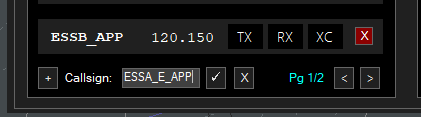](https://wiki.vatsim-scandinavia.org/uploads/images/gallery/2023-12/image-1703695625017.png) # VatIRIS ## Overview **[VatIRIS](https://vatiris.se/)** is an interpretation of its real-world counterpart: **[IRIS](https://www.awos.se/sv-se/products/iris.aspx)** - **I**ntegrated **R**eal-time **I**nformation **S**ystem, adapted and extended for use by VATSIM controllers in Sweden. IRIS is designed to provide real-time information to various aviation facilities. It integrates and displays critical information such as air traffic data, weather conditions, and navigational aids into one flexible, role-based presentation. ### Purpose of VatIRIS VatIRIS can be used to: - **Provide situational awareness** for air traffic controllers by combining previously separate data into one interface. - **Improve safety and operational efficiency** for airports by allowing seamless communication between controllers and other operational systems. ### User Interface The different modules in VatIRIS are contained in a GUI similar to Windows or MacOS with resizable windows for each module.Window snapping is enabled by default but can be disabled under **SYSTEM** -> **SETTINGS** if desired.
#### Modules Below are some examples of the different types of information that the different modules can show: 1. **Dynamic Information** - Real time weather data (METAR, TAF, Weather sensor values, Weather map). - ECFMP Flow measures. - Airspace Occupancy data. - PLS data. 2. **Static Information** - AIP (Aeronautical Information Publications). - Pushback procedure maps. - Manuals and regulations (LOP, GOP etc. from Wiki) - Tactical directs (DCT) ### Data timestamps Most modules show a timestamp in the top right corner of each window. The timestamp is not shown at all if not relevant (e.g. for data from Wiki and AIP). Sometimes the timestamp only shows (in red) when the data is outdated (METREPORT and METSENSOR).**Logging in using VATSIM Connect is required to access most features**, saved presets etc are also stored connected to your account, this manual assumes you are logged in to IRIS.
### Saving/"Installing" VatIRIS an app Using IRIS as a standalone "app" (PWA - progressive web application) instead of within a browser is recommended. Below you can find guides on how to for the most common web browsers. - **[Chrome](https://support.google.com/chrome_webstore/answer/3060053?hl=en)** - **[Edge](https://learn.microsoft.com/en-us/microsoft-edge/progressive-web-apps/ux)** - **[Firefox](https://developer.mozilla.org/en-US/docs/Web/Progressive_web_apps/Guides/Installing#installing_and_uninstalling_pwas)** ## The Menu Row All modules/windows can be opened using the menu row, A short description of the first level of buttons are shown below, modules that can be opened using a button are described in their entirety under ***Module Descriptions***. #### System Menu To the left in the menu bar you'll find the following buttons, affecting the general behaviour of IRIS system-wide. - **`Reload arrows`** Reload Button - Reloads the data in all open windows. - **`SYSTEM`** - **`SETTINGS`** - Open personal options view. - **`PRESET`** - Create/manage window presets, default presets are also available here. - **`RESET`** - Reset settings. - **`ABOUT`** - Opens the about view, this is also where the privacy policy can be found. - **`LOGIN`/`LOGOUT`** - VATSIM Connect: log in/out. - `Search icon` To use the global search function, see below. #### Main Toolbar The buttons to the right of **`SYSTEM`** are connected to their specific modules, each button opens their own window or a submenu, see ***Module Descriptions*** for a full description of each module. ## Global Search The global search function can be used to quickly find the module you are looking for. The global search can be accessed by pressing the search icon in the menu row, alternatively with the button combination `Shift`+`Space` or `Shift`+`Enter` ## Module Descriptions ### **`MET` - Meteorological information** #### **`AIRPORT`** Showing a combined view of SUN, METREPORT, TAF and METSENSOR. --- #### **`METREPORT`** Showing decoded weather data parsed from one of the selected data sources depending on view mode. **View modes:** Only available sources for the respective airport is shown. The data source is automatically switched to the preferred source when one becomes available (**A**>**W**>**M**). **Updated data (blue flash)**: When new data is available for the selected data source: 1. The window for that airport flashes in blue. 2. All text turns blue after the window has flashed.Left click anywhere in the window to reset the "blue flash" to indicate that you have seen the update.
This is enabled by default but can be disabled under **SYSTEM** -> **SETTINGS** if desired.
This is disabled by default but can be enabled under **SYSTEM** -> **SETTINGS** if desired.
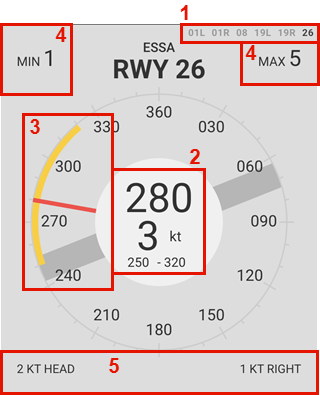
**Everything in the middle of the circle shall be read out to the pilot**, what is shown is automatically filtered.
Aerodromes not listed can be manually added using the text field.
--- #### **`SMHI`** Shows SMHI "weather radar" from [https://portaler-lfvradar.smhi.se/sverige](https://portaler-lfvradar.smhi.se/sverige) The map displays precipitation intensity, along with lightning strikes detected by lightning sensors. New images are available every 5 minutes.Unavailable UFN - Use **[AROWeb](https://www.aro.lfv.se/Links/Link/ShowFileList?type=AIS&path=%5Cpibsweden%5C&torlinkName=NOTAM%20Sweden)** or **NOTAM** window inside TopSky
Shows information about facility/service/procedure availability and hazards, such as taxiway/runway closures etc. The NOTAMs can be filtered by aerofrome. ### `ECHARTS` - LFV eCharts Shows (a custom version of) [LFV eCharts,](http://daim.lfv.se/echarts/) where you can view airspace/waypoint information etc. ### `FLIGHT` - Flight List #### `ARR DEP` Shows a list of flights to/from the selected aerodromes. Pressing **`SYNC`** button will sync the same aerodromes that are chosen in the left column of EuroScope Runway Selection Dialogue. ##### **FLS Flight suspensions** If a flight is suspended in the vIFF system, the STD will be shown in bold red, with the tooltip `FLS - Flight Suspended, update EOBT`. Left clicking will open the IFF Actions window with the callsign of the affected flight pre-filled to send a DLA (Delay) message. ##### **CTOTs** ##### CTOTs from the vIFF system are shown when present. - **R** shown next to CTOT - REA message sent. - **S** shown next to CTOT - SIR message sent.[**CTOT**](https://cdm.vatsimspain.es/docs.html#ctot) - Calculated Take Off Time - Regulating when a flight is allowed to take off to avoid delays. Often referred to as a slot time, take off is allowed within the CTOT window (**-5** to **+10** minutes of CTOT).
Active ECFMP flow measures are taken into account during CTOT calculations.
Hovering a CTOT will also show the EOBT and the issuing reason for the CTOT. - Flow reason ending with **`-H`** or **`-O`** implies an airspace capacity restriction ([**H**ourly entries/**O**ccupancy](https://github.com/rpuig2001/CDM/wiki/vIFF-%E2%80%90-(ETFMS)-Calculate-restrictions#airspace-calculations)). - **`ES-M23W-H`** - ES - Sweden - M23W - Malmö sectors 2,3,W - H - Hourly entries (too many aircraft entering the airspace at once) - Flow reason `XXXX` (ICAO of an airport) implies the arrival capacity of that airport. - Other flow reasons may be Left clicking a CTOT will open the **`IFF Actions`** window (see below) ### `ATFCM` - Air Traffic Flow and Capacity Management #### `ECFMP` Shows flow measures from [ECFMP](https://wiki.vatsim-scandinavia.org/books/flow-management/page/ecfmp) - European Collaboration & Flow Management Project.Enter " ES" in filters so see all measures mentioning any Swedish airport.
When hovering the mouse over a measure type a description is shown.
All IFF actions can also be triggered from within EuroScope if desired (except SIR).
--- ### **`DOCUMENTS` - Wiki/AIP and other operational information.** #### **`MANUAL`** Shows this manual from within IRIS. #### **`BULLETINS`** Shows Sweden FIR ATC Operational Bulletins Wiki page. #### **`CHECKLISTS`** Shows checklist for controllers, (to be used as reference, not necessarily "read and do") the following are available: - **Open position** - For when opening position. - When not taking over any airspace from already open positions. - **Close position** - For when closing position. - When no relieving controller is taking over position. - **Handover/takeover** - For when other controller/position is relieving (taking over) your airspace/position. - **Runway change** - For planning and coordinating a runway change. --- #### **`QUICKREF`** Shows Quick References/Appendices as available from [Quick References/Appen... | Wiki](https://wiki.vatsim-scandinavia.org/books/lop/page/quick-referencesappendices) The runway configuration in use is automatically selected but can also be manually chosen. --- #### **`GOP/LOP/LoA`** Shows Wiki pages as available from [ATC Sweden | Wiki](https://wiki.vatsim-scandinavia.org/shelves/atc-sweden) --- #### **`AIP`** Shows AIP pages as available from IAIP – AD 2 Aerodromes --- #### **`OTHER`** Shows other operational information. - **ESSA PUSH** - Pushback procedure charts - **ESGG PUSH** - Reference to which pushback direction is available from which stand, and information regarding which stands are blocked when pushing back for the respective stand (shown as tooltip when hovering stand number)Note that pilots may not follow the IRL pushback procedures, depending on usage of tools such as GSX, also depending on updated profiles etc etc...
--- #### `CODES (ICAO)` Shows a searchable list of - Aircraft types, showing ICAO type code, wake turbulence category, wingspan, MTOW etc. - Callsigns, showing ICAO flight plan designator, operator and country. - Aerodromes, showing ICAO code, name and country. --- #### **`REGIONAL AD`** Shows the "Regional Aerodromes Overview" created by Thomas Ljung, from [VATSIM Scandinavia Forum](https://forum.vatsim-scandinavia.org/d/30-regional-aerodromes-sweden) --- #### **`TEXT ALIAS`** Shows a searchable quick reference to the text alias included in the Swedish GNG package. - **Auto** - Toggle visibility of "Auto" aliases. - **FSS** - Toggles visibility of "FSS" aliases. --- #### **`NOTEPAD`** Shows a notepad to write notes, such as non-standard agreements with adjacent positions etc. ### **`TRAFFIC`** Shows sector occupancy for the selected sector combination. The X-axis shows time, the Y-axis shows number of aircraft in the selected airspace volume. - - Indicates airborne aircraft. - - Indicates aircraft on ground and pre-filed flight plans. ### **`ATS`** Shows ATC bookings for the coming two days. ### **`SECTORS`** Shows Otto Tuhkunen's dynamic [ACC sectorisation map](https://esaa-sectors.lusep.fi/). ### **`DCT`** Shows tactical directs (quick reference to LoA, shown at TopSky-map). --- ### **`PLS`** (*only shown when PLS integration selected.*)There is a **SIMPLE** logic mode available, this is completely independent of the actual PLS system and will only show a timer of your time online (using the CID which you are logged in with in IRIS).
Note: The MAESTRO plugin is WIP and may contain bugs, if you think you have found one, let the developer know via the VATSCA Forums.
#### 2.1 Implementation (and limitations) on VATSIM: The MAESTRO plugin emulates the AMAN tool with the same name, developed by Egis-Avia (now Thales), in use at EFHK, EKCH, ESSA among others. Its functionality is limited compared to the real systems, however it can be useful in helping virtual controllers monitor and manage inbound flows and delays to one or more airports. The calculations are based on the predictions provided by EuroScope and its programmed data, so to get useable results, it is important to keep the aircrafts’ data updated. The most common problems are: - Wrong landing runway: - the aircraft won’t be included in the correct runway’s sequence at all. - Old direct-to clearance stuck: - the aircraft’s position in the sequence will be based on the predicted ETA which will be off by hours in the worst case as it assumes the aircraft turns back to that point. - Calculated sequence not being followed: - the whole sequence behind the affected aircraft is delayed until the sequence is manually corrected or the situation resolves itself as aircraft arrive and are removed from the sequence.Note:The plugin can only be used for one airport group at a time. (If you select ESSA, also traffic to ESSB will be shown)
#### 2.2 Interpreting and acting on generated data: **Example:** - SAS904 is inbound ESSA via ELTOK (ETA at ELTOK 17:35). - AMAN with help of EuroScope estimates, via the programmed STAR, it will take him 11 minutes flying from ELTOK to touchdown (on the selected runway).Note: For actual operational procedures with AMAN in use: see 3.6 #### 2.3 Timeline and Glossary - **STA:** Scheduled time of arrival - *flow planned arrival time by AMAN*. - **ETA:** Estimated time of arrival - *estimated using the FLEG route within Euroscope*. - **FF:** Feeder fix - *the waypoint where the STAR begins*. - **Current delay:** How much delay is needed to reach RWY at STA - *Current ETA RWY-STA RWY*. - **Total delay:** Initial ETA RWY-STA RWY - (i.e. for holding traffic, the total delay will increase)

Some information is excluded or simplified for ease of understanding and use, for more detailed information on the inner workings of the plugin, see the included manual in the .zip package.
#### 3.1 Plugin installation ##### MAESTRO The Swedish GNG package contains the latest beta version of the MAESTRO plugin by Juha Holopainen. ##### TopSky The Swedish GNG package contains a version of TopSky that automatically receives MAESTRO data for ESSA/ESSB and EKCH when updated data is available. #### 3.2 Operation modes ##### 3.2.1 Standalone mode The plugin calculates its own data (can be useful for testing the plugin for the first time, not sharing any sequence data)Note: TopSky automatically receives MAESTRO data from the server to show in aircraft labels and traffic management lists without the need to connect in MAESTRO.
You only need to connect via MAESTRO if you want to view the data on the MAESTRO timeline.
Note: All three AMAN operation modes work regardless if you are connected as an active controller or OBS.
The relevant operation modes for live operation on VATSIM are:
• MASTER (Web+Local)
• SLAVE (Web+Local)
The persistent use of (Web+Local) should allow the planned sequence to be kept if MASTER is changed (see 3.8).
When using several instances of EuroScope, the secondary instances are to be connected as:
SLAVE (Local)
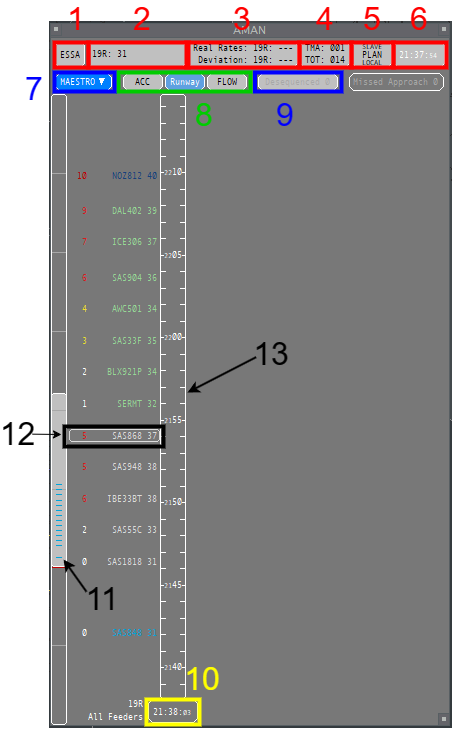
| View Mode | Timelines | A/C Position on Timeline |
|---|---|---|
| Runway | One for each active arrival runway | RWY STA |
| FLOW | One for each pre-defined feeder fix group One for flights not routing via any of the defined feeders |
|
| ACC (Feeder) | FF STA |
Recommended view mode:
• ACC: ACC mode
• APP: Runway mode
Note: The ACC view is new since v1.1b3, it shows FF STA on the timeline instead of RWY STA.
--- ##### **3.3.3 The Flight Information Window:** The Flight Information Window can be opened from the callsign menu (see **3.3.1 -> 12**), it displays flight related data. as follows: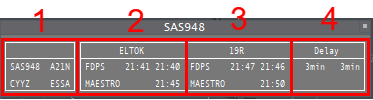
Note: TopSky automatically receives MAESTRO data from the server to show in aircraft labels.
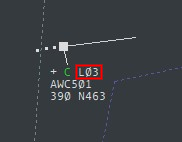
Note: TopSky automatically receives MAESTRO data from the server to show in the TMLs.
See [TopSky Profile - Traffic Management List 1 & 2](https://wiki.vatsim-scandinavia.org/books/general/page/app-acc-profile#bkmrk-traffic-management-l) to see the data fields showing AMAN/MAESTRO data. --- #### 3.4 Flight states (and their colors) Flight labels are color-coded according to their states which are based on the time from the airport and the feeder fix, except for the delay items whose coloring depends on the amount of delay, - ** UNSTABLE **(More than 12 minutes from the FF - *The sequence is recalculated on every position update*) - ** STABLE** (Within 12 minutes from the FF - *No plugin-initiated changes to the sequence*) - ** SUPERSTABLE** (Within 8 minutes from the FF - No plugin-initiated changes to the sequence, except for missed approaches re-inserted into the sequence) - ** FROZEN** (Within 5 minutes from landing - *No plugin-initiated changes to the sequence, except for the detected actual order on final)* - ** LANDED** (Flights considered as landed)Note: An aircraft disconnecting will always initiate a resequencing by the plugin.
Note: A flight still in UNSTABLE state can not be manually manipulated until it is turns STABLE.
--- #### 3.5 Interacting with flight labels and the timeline ##### Terminology: - Slot - During a slot no arriving aircraft will be calculated to land. - A slot can either bound to a specific flight (by clicking on a flight label), or specified as a time period (by clicking on the time line when in runway view mode, see 3.3.8) - Slots can be useful for manually planning departure gaps, short runway closures, or runway changes.If managing a runway change using AMAN, it is recommended to set the planned arrival runway manually for each aircraft (to prevent problems when changing the runway set as active for arrivals in EuroScope)
Note: Recomputing or moving a flight may become necessary when it is no longer in the unstable state (so its position in the sequence is fixed) and can no longer meet its calculated time profile, starting to delay all the flights behind it in the sequence.
Note: Disconnected flights will stay in the sequence for 10 minutes unless manually removed
(If a flight that is still online is removed from the sequence, it will be automatically added again).
When manually adjusting the sequence, a confirmation window will always be opened, asking to confirm or cancel the operation.
A flight still in unstable state cannot be moved.
Note:
Moving/adding a flight in only changes position in the sequence. The exact time in the timeline where the flight is placed is calculated by the EuroScope FLEG
Note: Any controller not responsible for managing AMAN may receive data as SLAVE.
ESMM may receive data about the planned sequencing into Arlanda, they do however not act on it, unless requested to by adjacent ESOS sectors (probably as it is too early with a relatively unstable sequence, unless severe delays are indicated/expected). Mainly the ESOS-sectors adjacent to Stockholm TMA monitor and judge/act on the AMAN data.The position acting as MASTER shall keep manual changes to the sequence to a minimum
**Suggested procedures when AMAN is in use (ONLY after prior coordination):**When only parts of the sequence is indicating a delay, ESOS ACC does not have to act on that information.
If all inbounds show several minutes to lose, consider holding or delaying inbound traffic as appropriate
(Use common sense, TTL and TMA/TOT numbers may help in judging this)
At times of higher workloads in the TMA, it is preferable that ACC hands over traffic excactly according to FF STA (no more "current delay" remaining).
--- #### 3.7 Getting started So now you've read through the entire wiki page and the pdf documentation? Great! What's next? Open the Setup window (see 3.3.1), enter the airport identifier in the ICAO window, select the desired operation mode.\ After selecting operation mode, it should look like below:To receive the web password for acting as MASTER, send an Email to max.kuhla@vatsim-scandinavia.org
or contact me via Discord (199890517914288128 or maxlk96)
Note: You do not need to have the AMAN window open to keep receiving updates to the sequence.
(when working ACC, all the information you need is in the TopSky track label, if all is working as it should for the MASTER)
Runway rates:
The runway rate preset in the system is defined by enviromental factors (high speed exits, runway used for departure simultaneously).
The actual available rate might be limited by human factors, such as:
• Controller capacity and experience (how consistent spacing can be produced)
• Pilot reliability (how quickly do they react, and how compliant are they in following instructions )
If the outputted numbers make no sense:
Try checking the aircraft in front of (below) the delays. Is there a time gap in front of him?
Also check all relevant FLEGs to see if they are correct, as they are used for the sequencing calculations.
If the final keeps getting longer: Maybe the arrival rate has to be lowered (See 3.3.2).
Alternatively, you can manually put in a slot behind one of the arrivals, in an attempt to give DIR a chance to catch up, and shorten the final.
When planning a runway change: Use time based slots to facilitate a smooth runway change, preventing that arrivals are planned to land on both runways at the same time (unless that is allowable).
When relieving the MASTER:
1. The relieving controller connects as SLAVE, (to fetch the planned sequence).
2. The relieved MASTER disconnects by selecting Standalone or SLAVE.
3. The relieving controller connects as MASTER.