# VatIRIS

## Overview

**[VatIRIS](https://vatiris.se/)** is an interpretation of its real-world counterpart:  
**[IRIS](https://www.awos.se/sv-se/products/iris.aspx)** - **I**ntegrated **R**eal-time **I**nformation **S**ystem,  
adapted and extended for use by VATSIM controllers in Sweden.

IRIS is designed to provide real-time information to various aviation facilities. It integrates and displays critical information such as air traffic data, weather conditions, and navigational aids into one flexible, role-based presentation.

### Purpose of VatIRIS

VatIRIS can be used to:

- **Provide situational awareness** for air traffic controllers by combining previously separate data into one interface.
- **Improve safety and operational efficiency** for airports by allowing seamless communication between controllers and other operational systems.

### User Interface

The different modules in VatIRIS are contained in a GUI similar to Windows or MacOS with resizable windows for each module.

<p class="callout info">Window snapping is enabled by default but can be disabled under **SYSTEM** -&gt; **SETTINGS** if desired.</p>

#### Modules

Below are some examples of the different types of information that the different modules can show:

1. **Dynamic Information**
    
    
    - Real time weather data (METAR, TAF, Weather sensor values, Weather map).
    - ECFMP Flow measures.
    - Airspace Occupancy data.
    - PLS data.
2. **Static Information**
    
    
    - AIP (Aeronautical Information Publications).
    - Pushback procedure maps.
    - Manuals and regulations (LOP, GOP etc. from Wiki)
    - Tactical directs (DCT)

### Data timestamps

Most modules show a timestamp in the top right corner of each window.

The timestamp is not shown at all if not relevant (e.g. for data from Wiki and AIP).

Sometimes the timestamp only shows (in red) when the data is outdated (METREPORT and METSENSOR).

<p class="callout warning">**Logging in using VATSIM Connect is required to access most features**, saved presets etc are also stored connected to your account, this manual assumes you are logged in to IRIS.</p>

### Saving/"Installing" VatIRIS an app

Using IRIS as a standalone "app" (PWA - progressive web application) instead of within a browser is recommended. Below you can find guides on how to for the most common web browsers.

- **[Chrome](https://support.google.com/chrome_webstore/answer/3060053?hl=en)**
- **[Edge](https://learn.microsoft.com/en-us/microsoft-edge/progressive-web-apps/ux)**
- **[Firefox](https://developer.mozilla.org/en-US/docs/Web/Progressive_web_apps/Guides/Installing#installing_and_uninstalling_pwas)**

## The Menu Row

All modules/windows can be opened using the menu row,

A short description of the first level of buttons are shown below, modules that can be opened using a button are described in their entirety under ***Module Descriptions***.

#### System Menu

To the left in the menu bar you'll find the following buttons, affecting the general behaviour of IRIS system-wide.

- **`Reload arrows`** Reload Button - Reloads the data in all open windows.
- **`SYSTEM`**
    - **`SETTINGS`** - Open personal options view.
    - **`PRESET`** - Create/manage window presets, default presets are also available here.
    - **`RESET`** - Reset settings.
    - **`ABOUT`** - Opens the about view, this is also where the privacy policy can be found.
    - **`LOGIN`/`LOGOUT`** - VATSIM Connect: log in/out.
- `<strong>Search icon</strong>` To use the global search function, see below.

#### Main Toolbar

The buttons to the right of **`SYSTEM`** are connected to their specific modules, each button opens their own window or a submenu, see ***Module Descriptions*** for a full description of each module.

## Global Search

The global search function can be used to quickly find the module you are looking for.

The global search can be accessed by pressing the search icon in the menu row, alternatively with the button combination `Shift`+`Space` or `Shift`+`Enter`

## Module Descriptions

### **`MET` - Meteorological information**

#### **`AIRPORT`**

Showing a combined view of SUN, METREPORT, TAF and METSENSOR.

---

#### **`METREPORT`**

Showing decoded weather data parsed from one of the selected data sources depending on view mode.

**View modes:**

Only available sources for the respective airport is shown. The data source is automatically switched to the preferred source when one becomes available (**A**&gt;**W**&gt;**M**).

**Updated data (blue flash)**:

When new data is available for the selected data source:

1. The window for that airport flashes in blue.
2. All text turns blue after the window has flashed.

<p class="callout success">Left click anywhere in the window to reset the "blue flash" to indicate that you have seen the update.</p>

<p class="callout info">This is enabled by default but can be disabled under **SYSTEM** -&gt; **SETTINGS** if desired.</p>

<details id="bkmrk-legend-esgg---airpor"><summary>Legend</summary>

![image.png](https://wiki.vatsim-scandinavia.org/uploads/images/gallery/2024-11/scaled-1680-/LDPimage.png)

- ESGG - Airport designator (Göteborg Landvetter).
- **YAN** - ATIS letter (YAN=Yankee).
- **241125** - Date YYMMDD (2024-11-25).
- **<span style="color: rgb(149, 165, 166);">M W</span> A** - View modes (show above). 
    - **M** for **M**ETAR.
    - **W** for **W**X.AWOS.
    - **A** for VATSIM **A**TIS.
- RWY 21 - Runway in use. (*see below for more info on RWY indicators*)
- 251520Z - Date of the met report DDHHMM (25th 15:20z).
- WIND - Wind.
- VIS - Visibility.
- -RA - Precipitation, ("-RA" meaning light rain might also be shown as "FBL RA").
- CLD - Clouds.
- T09 DP08 - Temperature and dewpoint in Celsius, (minus shown as "MS"=TMS12=Temperature minus 12).
- QNH 0995 <span style="color: rgb(0, 0, 0);">⯈ HPA</span>
    - <span style="color: rgb(0, 0, 0);">QNH Trend</span><span style="color: rgb(0, 0, 0);"> Arrow - Shown to the right of the QNH value.</span>
        
        <span style="color: rgb(0, 0, 0);">The trend arrow indicates </span><span style="color: rgb(0, 0, 0);">if the QNH has changed since the last update or not. **Sometimes this arrow appears after the first time data is changed/updated.**</span>
        
        
        - <span style="color: rgb(0, 0, 0);">QNH increased: ⯅</span>
        - <span style="color: rgb(0, 0, 0);">QNH same: ⯈</span>
        - <span style="color: rgb(0, 0, 0);">QNH decreased: ⯆</span>
- <span style="color: rgb(0, 0, 0);">TRL 70 - Transition level (calculated from QNH or loaded from ATIS/WX.AWOS, depending on view mode).</span>
- <span style="color: rgb(0, 0, 0);">SURFACE CONDITION CODE(...) - Used entered NOTAM / Airport conditions, shown only in WX.AWOS and ATIS view modes.</span>

</details>**Runway suggestion indicator in <span style="text-decoration: underline;">M</span>**<span style="text-decoration: underline;">ETAR view mode</span> - Suggested RWY with the best headwind component (or airport-specific preferred runways in light winds) is shown.

**Runway mismatch indicator in <span style="text-decoration: underline;">A</span>**<span style="text-decoration: underline;">TIS view mode</span> - Compares the RWY in use between VATSIM ATIS and WX.AWOS data and highlights the runway in use as follows:

- <span style="background-color: rgb(221, 221, 221);"> RWY 21 </span> - No mismatch (ATIS runway matches WX.AWOS)
- <span style="background-color: rgb(221, 221, 221);"> RWY </span><span style="color: rgb(0, 0, 0);"><span style="background-color: rgb(221, 221, 221);">**<span style="color: rgb(239, 108, 0);">21</span>** </span> - Mismatched runway (ATIS runway differs from WX.AWOS)</span>

<span style="color: rgb(0, 0, 0);">*At Stockholm Arlanda (ESSA), both arrival and departure runways are monitored. A warning is shown if one or both mismatches.*</span>

<span style="color: rgb(0, 0, 0);">**Greyed out information in <span style="text-decoration: underline;">W</span>**<span style="text-decoration: underline;">X.AWOS view mode</span> - the ATIS letter and RWY designator are greyed out from AWOS view mode when a VATSIM ATIS is available:</span>

- <span style="background-color: rgb(221, 221, 221);"> <span style="color: rgb(117, 117, 117);">YAN</span> </span> and <span style="background-color: rgb(221, 221, 221);"> RWY <span style="color: rgb(117, 117, 117);">21</span> </span> - <span style="color: rgb(0, 0, 0);">VATSIM ATIS available, no mismatch (ATIS runway matches WX.AWOS)</span>
- <span style="background-color: rgb(221, 221, 221);"><span style="background-color: rgb(221, 221, 221);"> <span style="color: rgb(117, 117, 117);">YAN</span> </span></span> and <span style="background-color: rgb(221, 221, 221);"> RWY </span><span style="color: rgb(0, 0, 0);"><span style="background-color: rgb(221, 221, 221);">**<span style="color: rgb(239, 108, 0);">21</span>** </span> - VATSIM ATIS available, mismatched runway (ATIS runway differs from WX.AWOS)</span>
- <span style="color: rgb(0, 0, 0);"><span style="background-color: rgb(221, 221, 221);"><span style="background-color: rgb(221, 221, 221);"> <span style="color: rgb(0, 0, 0);">YAN</span> </span></span> and <span style="background-color: rgb(221, 221, 221);"> RWY </span><span style="background-color: rgb(221, 221, 221);"><span style="color: rgb(0, 0, 0);">21</span> </span> - VATSIM ATIS not available.</span>

---

#### **`METSENSOR`**

Showing weather data in real time (updated every minute, or more frequently).

**Updated data (blue flash)**:

When new data is available the data field that was updated flashes in blue.

<p class="callout info">This is disabled by default but can be enabled under **SYSTEM** -&gt; **SETTINGS** if desired.</p>

<details id="bkmrk-legend-the-data-is-d"><summary>Legend</summary>

The data is displayed in three separate columns, depending on which sensor and where it is located (03 M 21), below an example for ESGG.

<span style="color: rgb(51, 51, 255);">![image.png](https://wiki.vatsim-scandinavia.org/uploads/images/gallery/2024-11/scaled-1680-/9vlimage.png)</span>

- <span style="color: rgb(51, 51, 255);">MEAN02<span style="color: rgb(51, 51, 255);"> </span></span>- Mean wind, this is the wind given to the pilot at takeoff and landing clearance.
- <span style="color: rgb(51, 51, 255);">VRB </span>- Wind variable between 
    - *only given to pilots when present in METREPORT.*
- <span style="color: rgb(51, 51, 255);">MIN/MAX </span>- Minimum/maximum wind 
    - *only given to pilots when present in METREPORT.*
- <span style="color: rgb(51, 51, 255);">COMP </span>- Wind component. 
    - *+08/L03 shows 8 knots tailwind component and 3 knows crosswind component from the left.*
- <span style="color: rgb(51, 51, 255);">RVR </span>- Runway visual range 
    - *given to pilots on request or during LVP.*
- <span style="color: rgb(51, 51, 255);">VIS </span>- Visibility.
- <span style="color: rgb(51, 51, 255);">PRW </span>- Precipitation.
- <span style="color: rgb(51, 51, 255);">CLD</span> - Clouds.
- <span style="color: rgb(51, 51, 255);">QNH</span> - QNH 
    - *rounded down when given to pilot/shown in met report.*
- <span style="color: rgb(51, 51, 255);">TRL </span>- Transition level.
- <span style="color: rgb(51, 51, 255);">QFETHR</span> - QFE for the respective threshold.
- <span style="color: rgb(51, 51, 255);">T SURF/BODY </span>- Temperature at surface/body of respective runway
- <span style="color: rgb(51, 51, 255);">QFE </span>- QFE for airport elevation.
- <span style="color: rgb(51, 51, 255);">T </span>- Temperature in Celsius 
    - *minus shown as "MS"=TMS12=Temperature minus 12.*
- <span style="color: rgb(51, 51, 255);">DP </span>- Dewpoint in Celsius.
- <span style="color: rgb(51, 51, 255);">HUM </span>- Relative humidity, indicated in percent 
    - *100% if T and DP are the same.*

</details>---

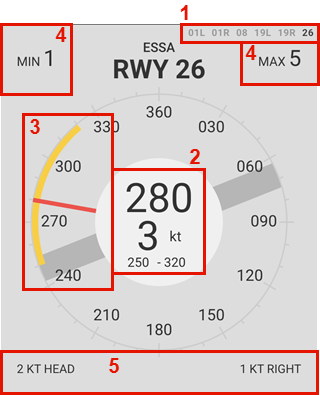
#### **`WINDROSE`**

Showing a wind rose, indicating wind direction, speed, cross/head/tail-wind component etc.

AWOS data is used for airports where it is available, METAR data will be used where no AWOS data is available, there is no way to manually select which data source to use.

<p class="callout success">**Everything in the middle of the circle shall be read out to the pilot**, what is shown is automatically filtered.</p>

<details id="bkmrk-legend-the-module-wi"><summary>Legend</summary>

<div drawio-diagram="3118"><img src="https://wiki.vatsim-scandinavia.org/uploads/images/drawio/2025-05/drawing-1157125-1746389615.png" alt=""/></div>

The module will default to display the runway with the highest headwind component.

1. Runway selector, choses which wind anemometer (wind sensor) to use if several are available, this also affects the wind components shown in 5.
2. Mean wind direction and speed (2-minute average, MEAN02 in metsensor). 
    - ***Values shown in the circle shall be read to the pilots!***
        - ≤60 degrees direction span (250-320 degrees in the example above) are shown.
        - ≤180 degrees shown as VRB.
        - ≤10 knot difference between mean wind speed and MIN/MAX speeds are shown.
3. The compass rose 
    - The red line indicated the mean wind, coming from 280 degrees in the example above (2-minute average, MEAN02 in metsensor).
    - The yellow arc indicates the variable wind (10-minute average), variable between 250 and 320 degrees in the example above.
    - The dark grey thick line indicates the selected runway and its direction, 08/26 in this case
4. MIN/MAX (GUST if METAR data) wind shows the minimum and maximum winds. 
    - ***The MIN/MAX/GUST wind is shown in bold if it shall be read to the pilots*** (≤10 knots difference between 2-minute and 10-minute min/max wind speed).
5. The head/tail-, and crosswind component indicators, <span style="text-decoration: underline;">this is affected by the runway selected in the top right corner</span>. The example shows 2 knots headwind component and 1 knot crosswind component from the right <span style="text-decoration: underline;">for runway 26</span>.

</details>---

#### **`METAR/TAF`**

Shows raw METAR/TAFs.

**Buttons:**

- **METAR** - Toggles visibility of METARs
- **TAF** - Toggles visibility of TAFs
- **AERODROMES** - Selects which aerodromes are shown

<p class="callout success">Aerodromes not listed can be manually added using the text field.</p>

---

#### **`SMHI`**

Shows SMHI "weather radar" from [https://portaler-lfvradar.smhi.se/sverige](https://portaler-lfvradar.smhi.se/sverige)

The map displays precipitation intensity, along with lightning strikes detected by lightning sensors.

New images are available every 5 minutes.

<details id="bkmrk-legend"><summary>Legend</summary>

![image.png](https://wiki.vatsim-scandinavia.org/uploads/images/gallery/2024-11/scaled-1680-/iBAimage.png)

</details>---

#### **`SWC NORDEN`**

Nordic significant weather chart.

**Legend available [here](https://www.northavimet.com/nswc).**

#### **`VFR`**

VFR analysis chart - This chart provides a quick and clear overview of weather conditions relevant to Visual Flight Rules (VFR).

---

#### **`SUN`**

Shows sunset/sunrise and day/night times.

- **"Separation VFR"** is shown during nighttime when VFR needs to be separated.

### `<strong>NOTAM</strong>` - Notice To Airmen  


<p class="callout danger">Unavailable UFN - Use **[AROWeb](https://www.aro.lfv.se/Links/Link/ShowFileList?type=AIS&path=%5Cpibsweden%5C&torlinkName=NOTAM%20Sweden)** or **NOTAM** window inside TopSky</p>

Shows information about facility/service/procedure availability and hazards, such as taxiway/runway closures etc.

The NOTAMs can be filtered by aerofrome.

### `<strong>ECHARTS</strong>` - LFV eCharts

Shows (a custom version of) [LFV eCharts,](http://daim.lfv.se/echarts/) where you can view airspace/waypoint information etc.

### `<strong>FLIGHT</strong>` - Flight List

#### `<strong>ARR DEP</strong>`

Shows a list of flights to/from the selected aerodromes.

Pressing **`SYNC`** button will sync the same aerodromes that are chosen in the left column of EuroScope Runway Selection Dialogue.

##### **FLS Flight suspensions**

If a flight is suspended in the vIFF system, the STD will be shown in bold red, with the tooltip `FLS - Flight Suspended, update EOBT`. Left clicking will open the IFF Actions window with the callsign of the affected flight pre-filled to send a DLA (Delay) message.

##### **CTOTs**

##### CTOTs from the vIFF system are shown when present.

- **R** shown next to CTOT - REA message sent.
- **S** shown next to CTOT - SIR message sent.

<p class="callout info">[**CTOT**](https://cdm.vatsimspain.es/docs.html#ctot) - Calculated Take Off Time - Regulating when a flight is allowed to take off to avoid delays.  
Often referred to as a slot time, take off is allowed within the CTOT window (**-5** to **+10** minutes of CTOT).</p>

<p class="callout success">Active ECFMP flow measures are taken into account during CTOT calculations.</p>

Hovering a CTOT will also show the EOBT and the issuing reason for the CTOT.

- Flow reason ending with **`-H`** or **`-O`** implies an airspace capacity restriction ([**H**ourly entries/**O**ccupancy](https://github.com/rpuig2001/CDM/wiki/vIFF-%E2%80%90-(ETFMS)-Calculate-restrictions#airspace-calculations)). 
    - **`ES-M23W-H`**
        - ES - Sweden
        - M23W - Malmö sectors 2,3,W
        - H - Hourly entries (too many aircraft entering the airspace at once)
- Flow reason `<strong>XXXX</strong>` (ICAO of an airport) implies the arrival capacity of that airport.
- Other flow reasons may be

Left clicking a CTOT will open the **`IFF Actions`** window (see below)

### `<strong>ATFCM</strong>` - Air Traffic Flow and Capacity Management

#### `<strong>ECFMP</strong>`

Shows flow measures from [ECFMP](https://wiki.vatsim-scandinavia.org/books/flow-management/page/ecfmp) - European Collaboration &amp; Flow Management Project.

<details id="bkmrk-legend-expired%2Fwithd"><summary>Legend</summary>

![image.png](https://wiki.vatsim-scandinavia.org/uploads/images/gallery/2024-11/scaled-1680-/TUGimage.png)

The measures are displayed in three different colours depending on the state of the flow measure:

1. <span style="background-color: rgb(76, 175, 80); color: rgb(0, 0, 0);"> Active </span><span style="color: rgb(0, 0, 0);"> - *This flow measure is presently in effect.*</span>
2. <span style="color: rgb(0, 0, 0);"><span style="background-color: rgb(244, 67, 54);"> Expired/Withdrawn </span></span><span style="color: rgb(0, 0, 0);"> - *This flow measure is no longer in effect.*</span>
    - <span style="color: rgb(0, 0, 0);">Expired=The end time has passed.</span>
    - <span style="color: rgb(0, 0, 0);">Withdrawn=The flow measure was cancelled before the end time has passed. (End time column shows withdrawal time)</span>
3. <span style="background-color: rgb(255, 152, 0); color: rgb(0, 0, 0);"> Notified </span><span style="color: rgb(0, 0, 0);"> - *This flow measure will become active within the next 24 hours.*</span>

- **Expired/Withdrawn** - Toggles visibility of expired/withdrawn measures.
- **Notified** - Toggles visibility of notified measures.
- **Reason** - Toggles visibility of "Reason" column.
- **New** - Opens ECFMP website to add new measure (requires login and flow manager roles).

"ID" and "Filters" columns can be filtered using the text fields

<p class="callout success">Enter " ES" in filters so see all measures mentioning any Swedish airport.</p>

<p class="callout info">When hovering the mouse over a measure type a description is shown.</p>

</details>#### **`IFF Actions`**

Is used to send data to the vIFF system.

- **REA** "Ready" message. 
    - When ready for pushback/startup before EOBT
- **SIR** "Slot Improvement Request" message. 
    - Triggered by `<strong>Ctrl</strong>`+`<strong>SEND REA</strong>` - ***Only for exceptional flights require high priority!***
- **DLA** "Delay" message (with new EOBT).  
    
    - EOBT can also be changed in Euroscope to remedy a flight suspension.

<p class="callout info">All IFF actions can also be triggered from within EuroScope if desired (except SIR).</p>

---

### **`DOCUMENTS` - Wiki/AIP and other operational information.**

#### **`MANUAL`**

Shows this manual from within IRIS.

#### **`BULLETINS`**

Shows Sweden FIR ATC Operational Bulletins Wiki page.

#### **`CHECKLISTS`**

Shows checklist for controllers, (to be used as reference, not necessarily "read and do") the following are available:

- **Open position** - For when opening position. 
    - When not taking over any airspace from already open positions.
- **Close position** - For when closing position. 
    - When no relieving controller is taking over position.
- **Handover/takeover** - For when other controller/position is relieving (taking over) your airspace/position.
- **Runway change** - For planning and coordinating a runway change.

---

#### **`QUICKREF`**

Shows Quick References/Appendices as available from [Quick References/Appen... | Wiki](https://wiki.vatsim-scandinavia.org/books/lop/page/quick-referencesappendices)

The runway configuration in use is automatically selected but can also be manually chosen.

---

#### **`GOP/LOP/LoA`**

Shows Wiki pages as available from [ATC Sweden | Wiki](https://wiki.vatsim-scandinavia.org/shelves/atc-sweden)

---

#### **`AIP`**

Shows AIP pages as available from IAIP – AD 2 Aerodromes

---

#### **`OTHER`**

Shows other operational information.

- **ESSA PUSH** - Pushback procedure charts
- **ESGG PUSH** - Reference to which pushback direction is available from which stand, and information regarding which stands are blocked when pushing back for the respective stand (shown as tooltip when hovering stand number)

<p class="callout info">Note that pilots may not follow the IRL pushback procedures, depending on usage of tools such as GSX, also depending on updated profiles etc etc...</p>

---

#### `<strong>CODES (ICAO)</strong>`

Shows a searchable list of

- Aircraft types, showing ICAO type code, wake turbulence category, wingspan, MTOW etc.
- Callsigns, showing ICAO flight plan designator, operator and country.
- Aerodromes, showing ICAO code, name and country.

---

#### **`REGIONAL AD`**

Shows the "Regional Aerodromes Overview" created by Thomas Ljung, from [VATSIM Scandinavia Forum](https://forum.vatsim-scandinavia.org/d/30-regional-aerodromes-sweden)

---

#### **`TEXT ALIAS`**

Shows a searchable quick reference to the text alias included in the Swedish GNG package.

- **Auto** - Toggle visibility of "Auto" aliases.
- **FSS** - Toggles visibility of "FSS" aliases.

---

#### **`NOTEPAD`**

Shows a notepad to write notes, such as non-standard agreements with adjacent positions etc.

### **`TRAFFIC`**

Shows sector occupancy for the selected sector combination.

The X-axis shows time, the Y-axis shows number of aircraft in the selected airspace volume.

- <span style="background-color: rgb(34, 34, 221);"> </span> - Indicates airborne aircraft.
- <span style="background-color: rgb(17, 102, 238);"> </span> - Indicates aircraft on ground and pre-filed flight plans.

### **`ATS`**

Shows ATC bookings for the coming two days.

### **`SECTORS`**

Shows Otto Tuhkunen's dynamic [ACC sectorisation map](https://esaa-sectors.lusep.fi/).

### **`DCT`**

Shows tactical directs (quick reference to LoA, shown at TopSky-map).

---

### **`PLS`** (*only shown when PLS integration selected.*)

<p class="callout info">There is a **SIMPLE** logic mode available, this is completely independent of the actual PLS system and will only show a timer of your time online (using the CID which you are logged in with in IRIS).</p>

<details id="bkmrk-configuring%2Factivati"><summary>Configuring/activating PLS</summary>

1. Activate **PLS Integration** under **SYSTEM** -&gt; **SETTINGS**
    - This displays the PLS timer and PLS icon in the menu bar
2. Select your PLS logic mode. 
    - **SIMPLE** - Independent of the acual PLS system, showing the online session length automatically using your CID from VATSIM Connect.
    - **CID** - To be used when controlling from home, the PLS timer will show no matter the status.
    - **POSITION** - Only to be used when controlling at location during real live events etc.
3. Enter CID/POSITION if needed (normally not needed if using VATSIM Connect).

</details><details id="bkmrk-using-pls-%2B-legend-t"><summary>Using PLS + Legend</summary>

- **To "go on position":** press the PLS icon and enter the position/callsign you are connecting with/as.
- **To "go on break":** press the PLS timer and confirm you want to go on break.

**Legend (timer suffixes,** *only shown in CID logic mode***):**

- *None* - On position
- **P** - On break
- **Ö** - On break (Övrigt/other)

</details>---

####   


## **Postface**

### Changelog

There is no specific changelog available, however all changes can be viewed on [**Github - Commits**](https://github.com/minsulander/vatiris/commits/main/).

Significant changes are normally also announced in the [**VatIRIS forum thread**](https://forum.vatsim-scandinavia.org/d/122-vatiris).

### Contributing

Contributions of any kind are most welcome.

- If you find a bug or have a feature request/suggestion, please check that it doesn't already exist, if not, add an **[issue on Github](https://github.com/minsulander/vatiris/issues)**.
- Github Pull requests are welcome.

### Credits

To get in contact with the developers of VatIRIS (contact via Github might be preferred):

- **Martin Insulander - 814118**
    - Discord @`mumrikki`
- **Max Kuhla - 1157125**
    - Discord @`maxlk96`
- **Among others.**