# EuroScope ATC Client
Installation guides, modification and troubleshooting
# Introduction
VATSCA releases its sector files in collaboration with AeroNav through the dedicated AeroNav sector file website. This means that sector files for Denmark must be manually installed and applied in EuroScope in order to function correctly. They cannot be downloaded automatically.
This guide will walk you through the initial installation of EuroScope, followed by your first sector file installation, and finally how to update your sector files when new versions are released.
The Copenhagen FIR currently uses the following version of EuroScope: [https://euroscope.hu/install/EuroScopeSetup.3.2.3.2.msi ↗](https://euroscope.hu/install/EuroScopeSetup.3.2.3.2.msi)
# New Page
# Installation
## Table of Contents
1. [Prerequisites](#Prerequisites)
2. [Installation of EuroScope](#Installation-of-EuroScope)
3. [Installation of Sector Data](#Installation-of-Sector-Data)
## Prerequisites
Before installing EuroScope, make sure to download and install the latest Microsoft C++ Redistributable packages. These can be downloaded from [here ↗](https://aka.ms/vs/17/release/vc_redist.x86.exe)
Installation of Euroscope
The installation of EuroScope is straightforward. Simply follow the installer instructions. The only step requiring input is selecting the folder where you want the files installed.
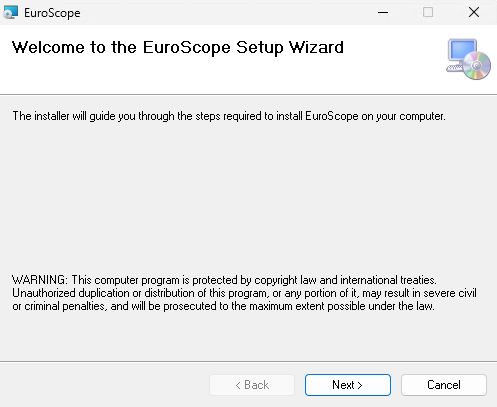
Click "Next" to reach the location selection screen:
[](https://wiki.vatsim-scandinavia.org/uploads/images/gallery/2026-03/installing-euroscope-next.png)
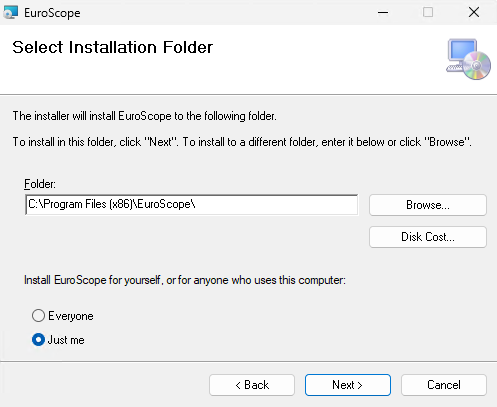
Select the folder where you would like EuroScope to be installed. The recommended location is the C: drive.
[](https://wiki.vatsim-scandinavia.org/uploads/images/gallery/2026-03/installing-euroscope-cdrive.png)
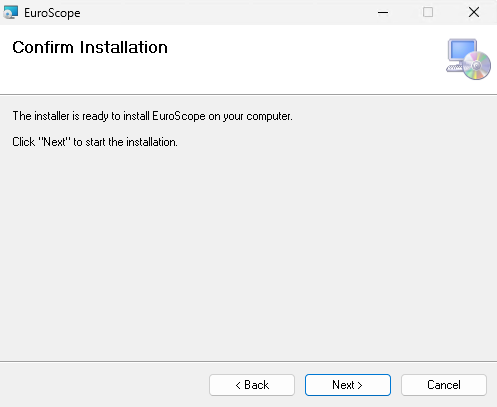
Then click "Next" again to proceed to the final confirmation screen.
[](https://wiki.vatsim-scandinavia.org/uploads/images/gallery/2026-03/installing-euroscope-done.png)
And that's it, the installation is complete! Click "Close" to exit the installer.
Your first instinct might be to launch EuroScope, but don't do that just yet.
First, install your sector files as described below.
## Installation of Sector Data
Begin by opening File Explorer. You can do this easily by pressing *Windows + E*.
Next, locate your AppData folder. The easiest way is to click the address bar, type "%appdata%", and press Enter; this will take you directly to the folder.
[](https://wiki.vatsim-scandinavia.org/uploads/images/gallery/2026-03/3Xiupdating-sectofiles-appdata.png)
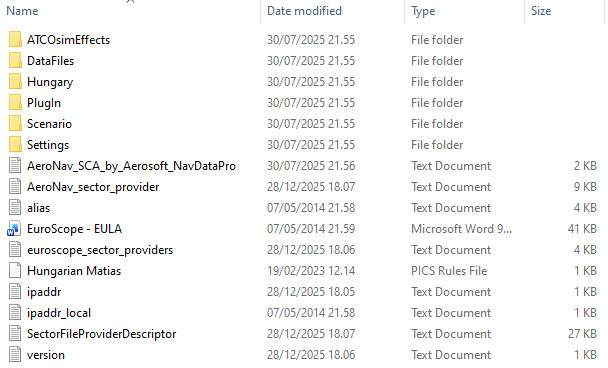
Locate your EuroScope folder. It should look roughly like this.
[](https://wiki.vatsim-scandinavia.org/uploads/images/gallery/2026-03/installing-sectofiles-euroscope.png)
Next, go to [files.aero-nav.com/SCA ↗](https://files.aero-nav.com/SCA). Log in using your VATSIM/Navigraph account, then download the ZIP file named "EKDK Full-Package".
Once downloaded, open the ZIP file. Inside, you should see a set of files and folders, including the EKDK folder.
[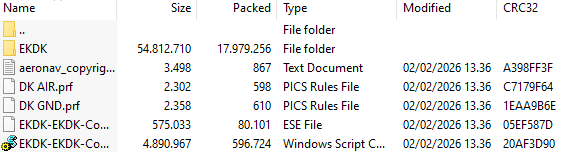](https://wiki.vatsim-scandinavia.org/uploads/images/gallery/2026-03/installing-sectofiles-zip.png)
Copy all contents of the ZIP file into your EuroScope installation directory. After doing so, your EuroScope folder should resemble the structure shown below. Additionally, install the modified EuroScope font included in the EKDK Sector Data
[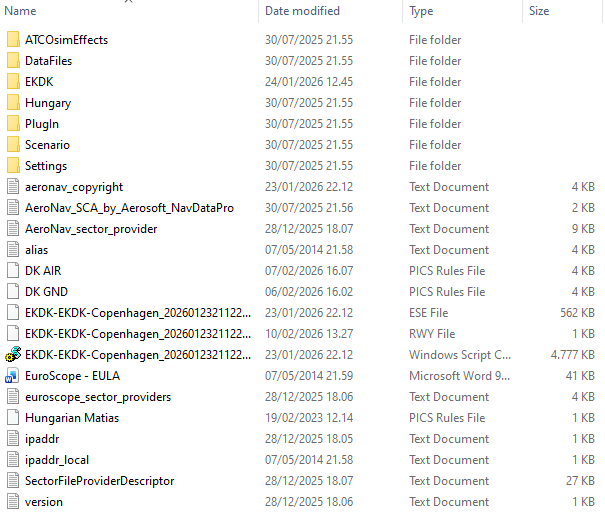](https://wiki.vatsim-scandinavia.org/uploads/images/gallery/2026-03/installing-sectofiles-post-installation.png)
You can now open EuroScope for the first time. Once it has loaded, you'll be greeted by the following window. If you're just starting out as an observer for your S2 training, select the "DK NITOS" file and click "Open".
[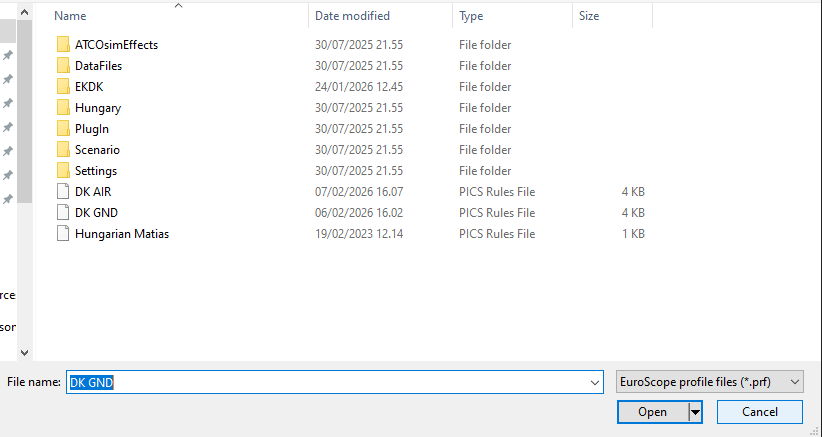](https://wiki.vatsim-scandinavia.org/uploads/images/gallery/2026-03/installing-sectofiles-first-time.png)
# Updating sectorfiles
## Updating of Sectorfiles
Sector files are updated:
- Approximately every 28 days, when a new AIRAC cycle is released;
- Whenever a major change is published in our internal files.
When a new sector file update is released, go to [https://files.aero-nav.com/SCA ↗](https://files.aero-nav.com/SCA).
Download the "EKDK EKDK\_FIR-Update-Only" package instead of the full package.
Begin by opening File Explorer. You can do this easily by pressing *Windows + E*.
Next, locate your AppData folder. The easiest way is to click the address bar, type "%appdata%", and press Enter; this will take you directly to the folder.
[](https://wiki.vatsim-scandinavia.org/uploads/images/gallery/2026-03/updating-sectofiles-appdata.png)
Locate your EuroScope folder.
As with the initial installation, open the ZIP file and copy all contents into your EuroScope installation directory. You will be prompted to overwrite existing files; make sure to select "Yes".
At your own discretion, it can be a good idea to delete the following three files before installing new sector files. This helps ensure that EuroScope does not accidentally load outdated or additional ESE or RWY files when launching.
This can happen because some file names are not always identical and therefore may not be overwritten during the update process. This step is not always necessary, but it can be beneficial in certain cases.
[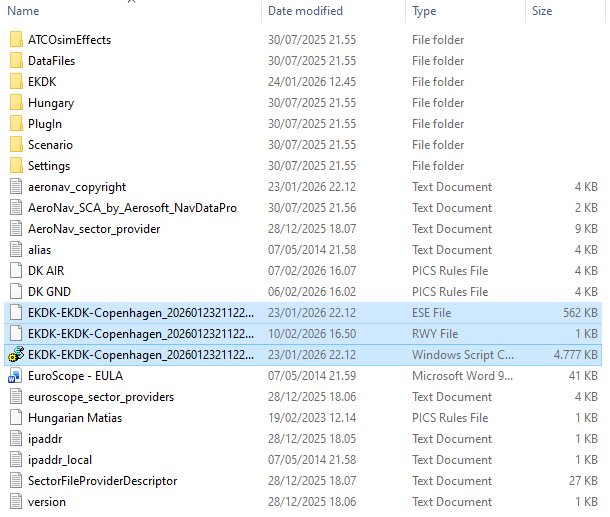](https://wiki.vatsim-scandinavia.org/uploads/images/gallery/2026-03/updating-sectofiles-complete.png)