Chapter 6 - EST Screen Operation
Containing Description, Operational Procedures and Submenus of the EST Screen...
1. General Overview
Used by: ALL CONTROLLERS
General Design
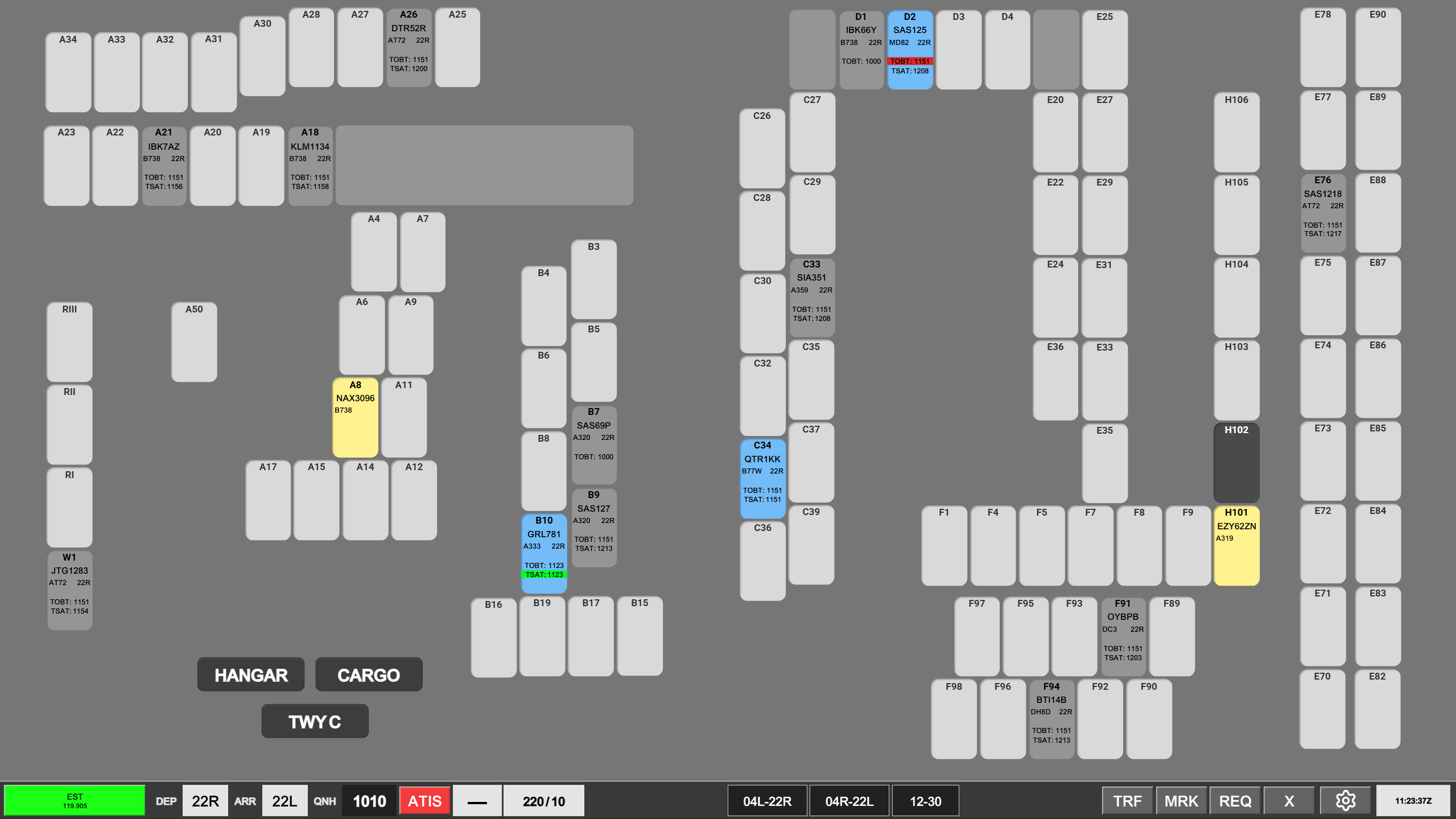
The Electronic Stand Tool, also known as "EST" is a view that can be used by all controllers at any time.
It is used to monitor and manage aircraft that are located on stand in Copenhagen.
The purpose of this screen is to take multiple stages of the flight, normally visible on multiple scopes, and arrange it in relation to the stands of Copenhagen Airport.
EST is able to be used for:
- Assigning ATC Clearance
- Managing CDM
- Assigning Pushback and Startup approvals
- Assigning De-Icing
- Provide information on inbounds and stand equipment.
Actions taken on the EST screen are directly coordinated onto the strips themselves.
- EKCH_DEL, EKCH_B_GND are able to operate exclusively on EST
- All other position are able to operate EST on a secondary view only
2. Stand overview
An overview of all the stands in Copenhagen are presented, with the aircraft occupying the stand marked as such.
It is possible to monitor Apron North, Apron South and SAS Hangars as well.
In general flights on the EST screen have 5 different colors attributed to their stage of flight.
- Planned Departures or Planned Arrivals: Dark Gray, CDM information
- Cleared Departures: Light blue, CDM information
- Ready Departures: Dark blue, CDM information in various colors
- Released Departures: Dark blue, No CDM Information
- Active Pushbacks: Orange, Release point indicated
- Arrivals on stand: Light yellow.
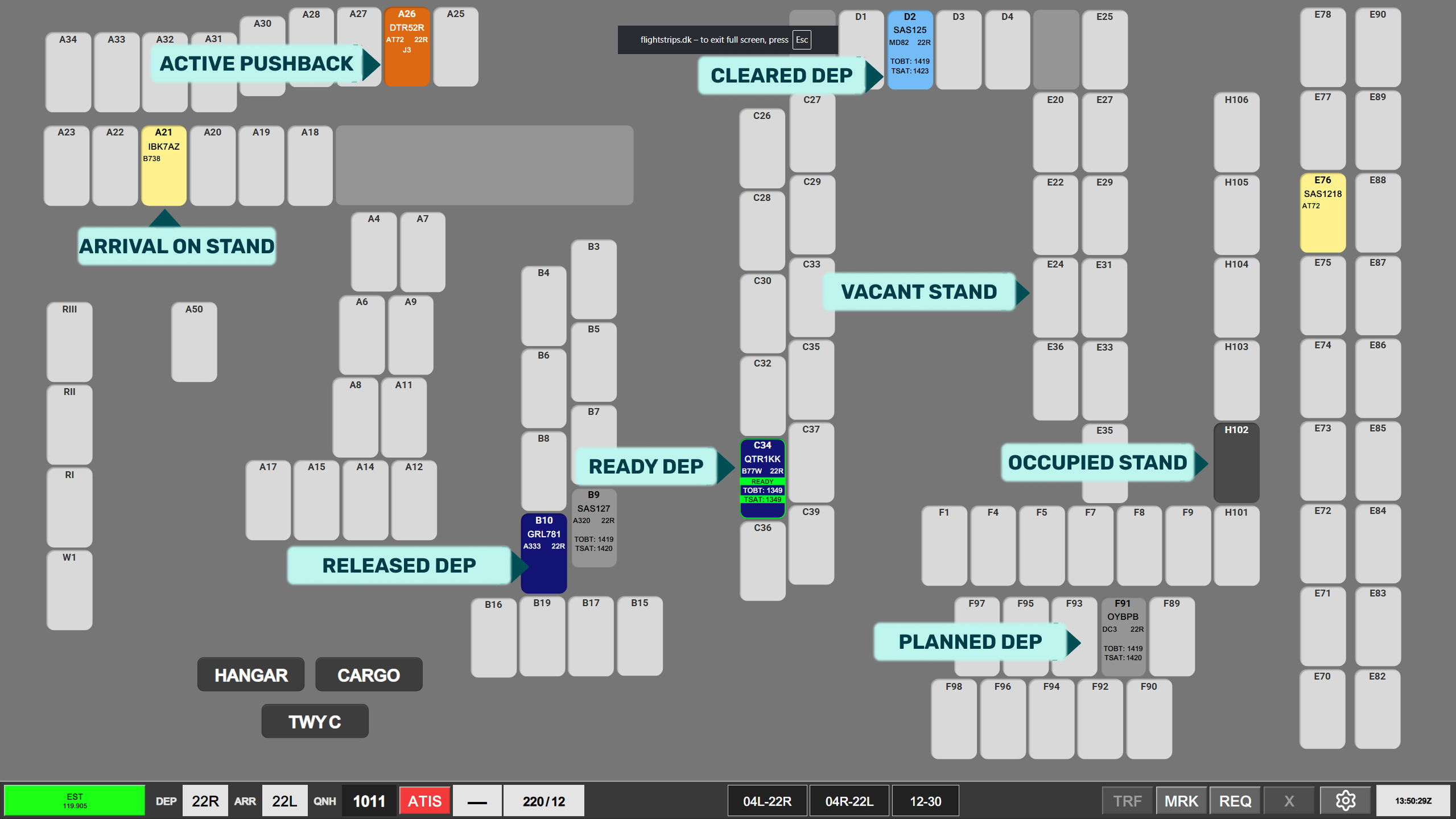
Additional colors on stands that is not attributed to flights
- Vacant Stand: Light Gray, empty
- Occupied Stand: Light Black, empty
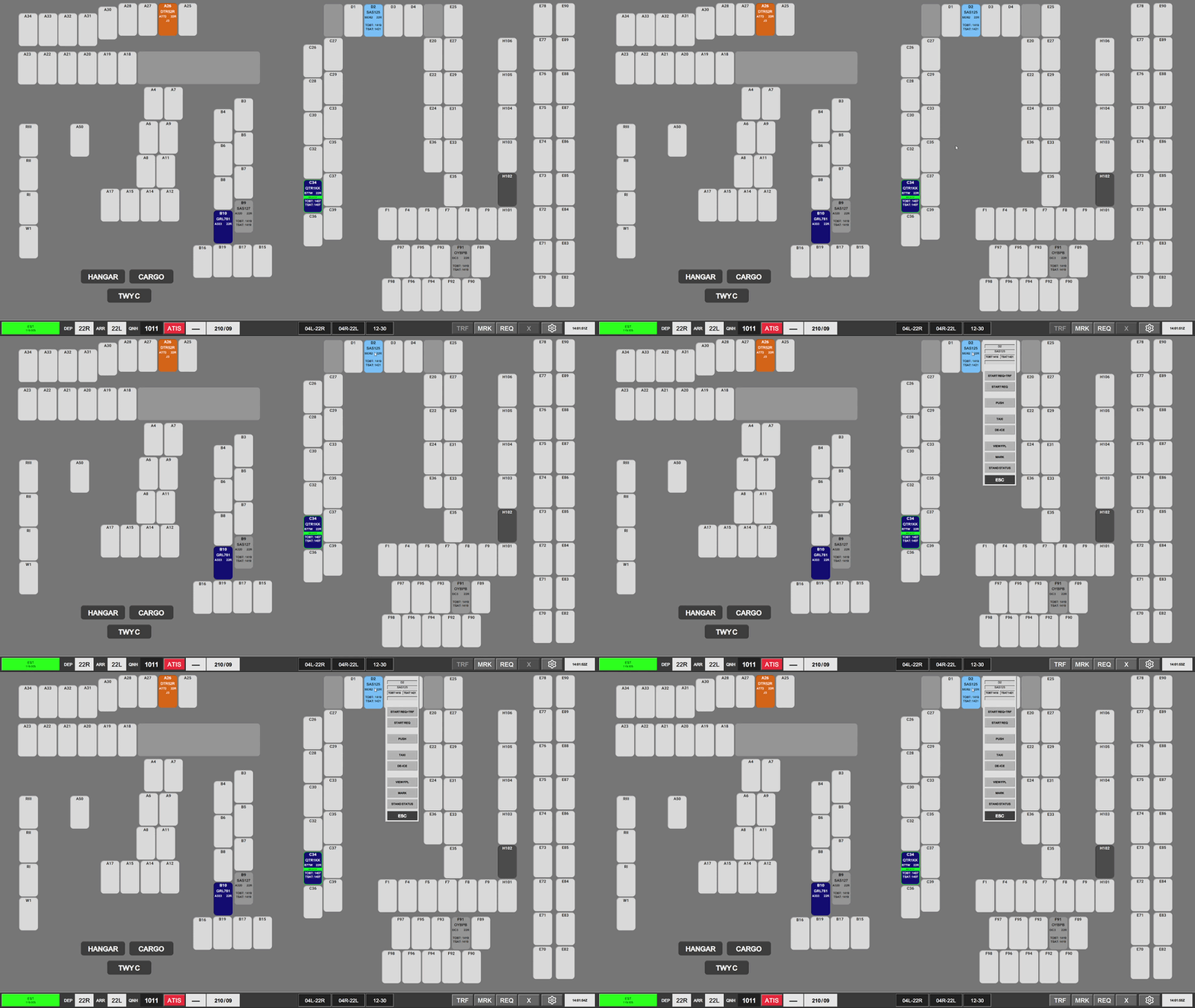
Clicking on any stand will open the menu attributed to that stand. Normally this will be done on a stand containing a flight. The stand menu contains selectable actions as appropriate to the stage of flight, and is:
3. Assigning ATC clearance
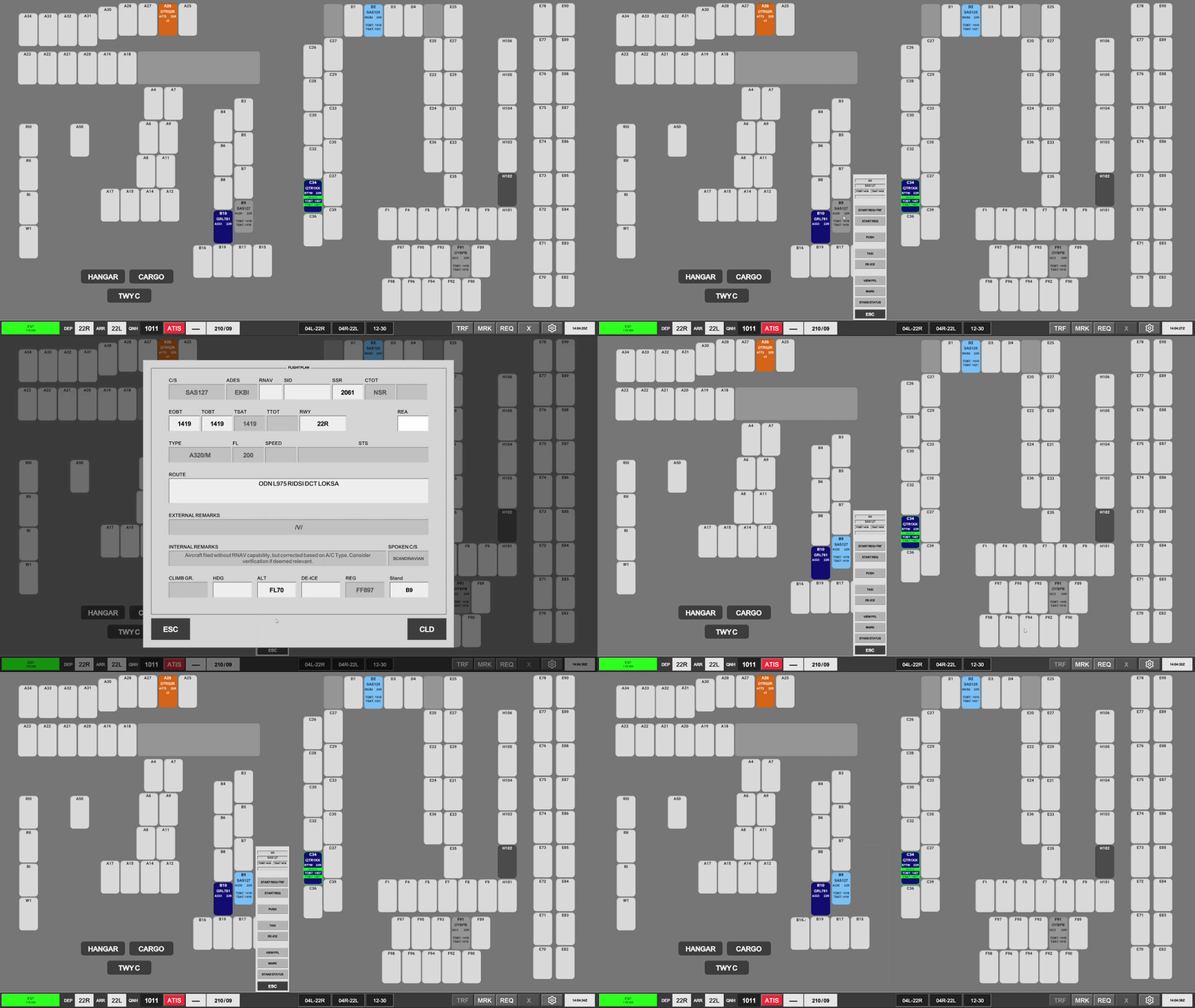
Assigning an ATC clearance can be done by selecting the VIEW FPL in the stand menu. This opens the ATC Clearance dialogue which can be used to assign a clearance. Clicking CLD will change the phase of flight, and assign a light blue color to the stand.
4. Managing CDM
EST Screen is quite easily the most effective way of managing CDM, with an aircraft having received a clearance CDM information is displayed in order of
- TOBT
- No color code as long as TSAT is valid
- TSAT
- No color when TSAT window is inactive
- Turns green when TSAT window is active
- Turns Yellow last minute before TSAT expires
- CTOT (if applicable).
- Yellow when assigned
- Blue when an improvement has been found in response to a RDY MSG
CDM Coloring is identical to CDM Coloring in SEQ PLN Scope. Refer to Chapter 5 for more info.
Opening the stand menu is showing the same timings and color codes.
When an aircraft calls for startup, clicking on the stand menu prompt selection of two types of action
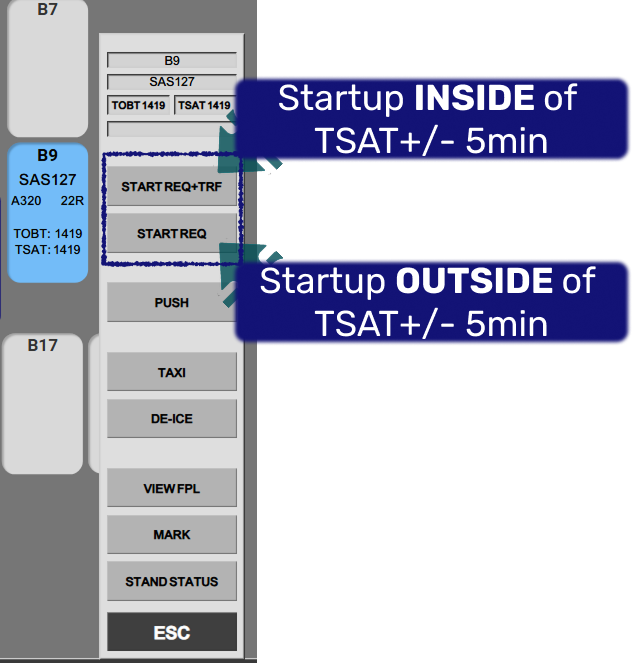
START REQ+TRF performs following actions:
- Marks the aircraft dark blue indicating Startup has been requested
- Removes CDM information indicating startup has been approved
- Transfers strip to APRON DEP for pushback
START REQ + TRF is not available to click if aircraft is outside of TSAT window
START REQ performs following actions:
- Marks the aircraft Dark Blue indicating Startup has been requested.
- Sets TOBT to current time, to search for earlier TSAT
- Sends RDY message to vIFF to try and find earlier CTOT if applicable
- Locks the strip for further delays
- Marks the stand as READY in green and adds a green outline (for controller awareness)
START REQ + TRF becomes available if START REQ resulted in an earlier TSAT inside the window.
5. Assigning Pushback
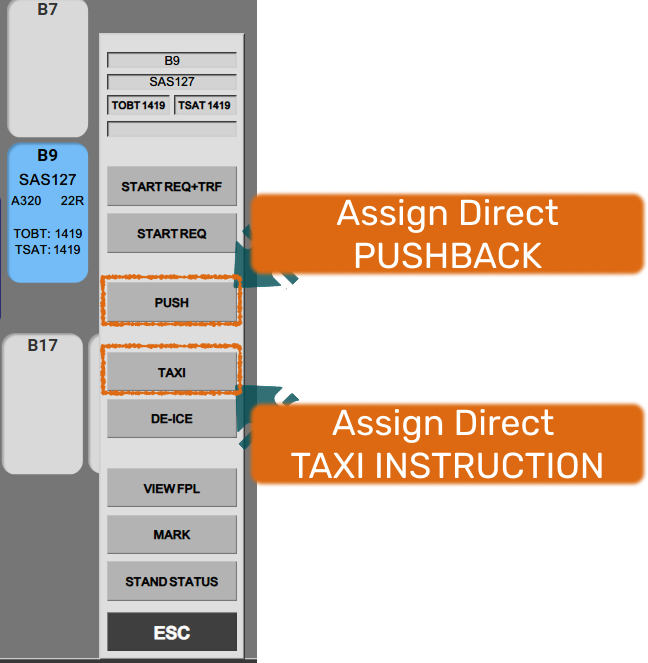
If using EST screen as APRON DEP or AA+AD, clicking PUSH or TAXI will perform same CDM action, but move aircraft directly to PUSHBACK bay or TWY DEP bay.
These options are only available for APRON DEP or AA+AD, and within TSAT window.
6. Miscellaneous
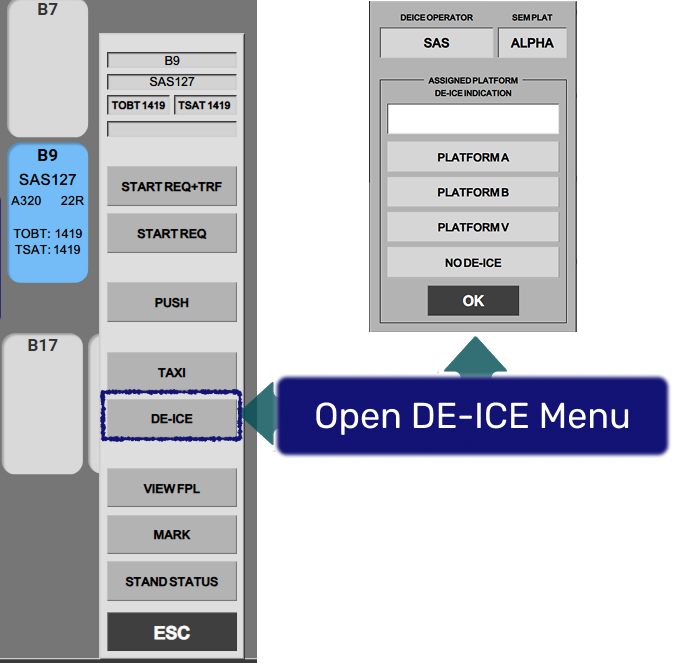
Assigning DE-ICE information
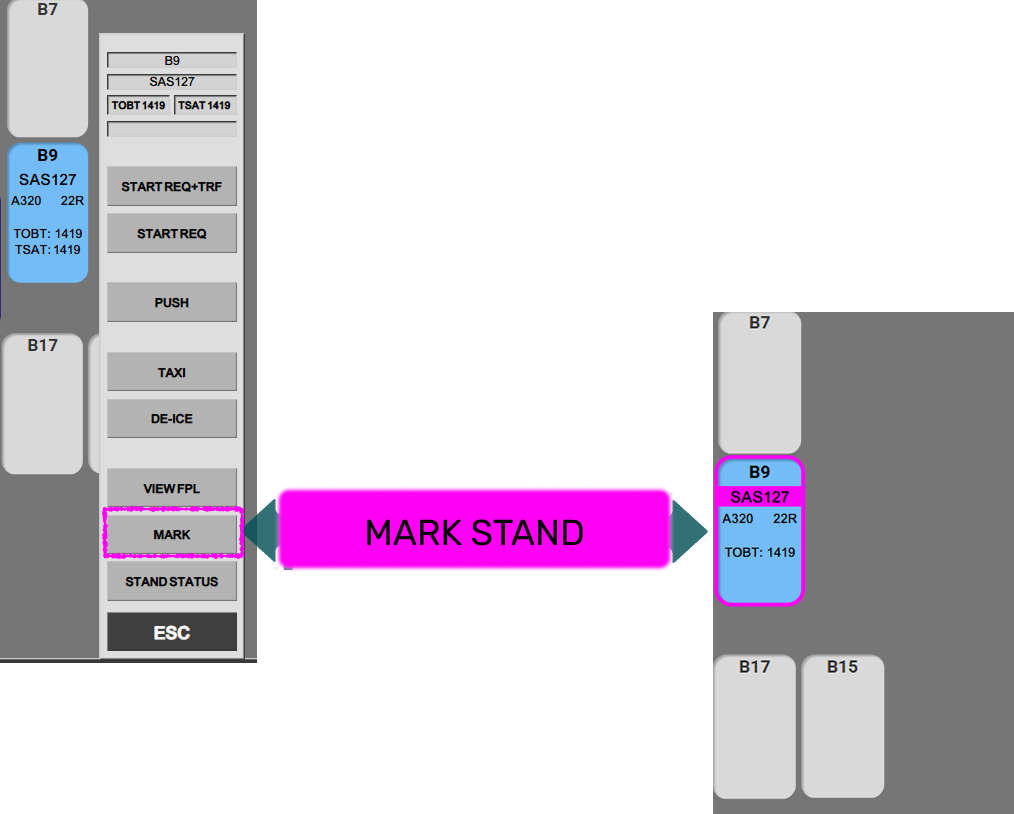
Mark Stand
Can be used to mark the stand in case something needs to be remembered.
Stand Status
Stand Status is an administrative feature used to manage and receive information about the utilization of the stand.
Clicking on Stand Status opens the Stand Status menus containing three lines of information and 5 actions.
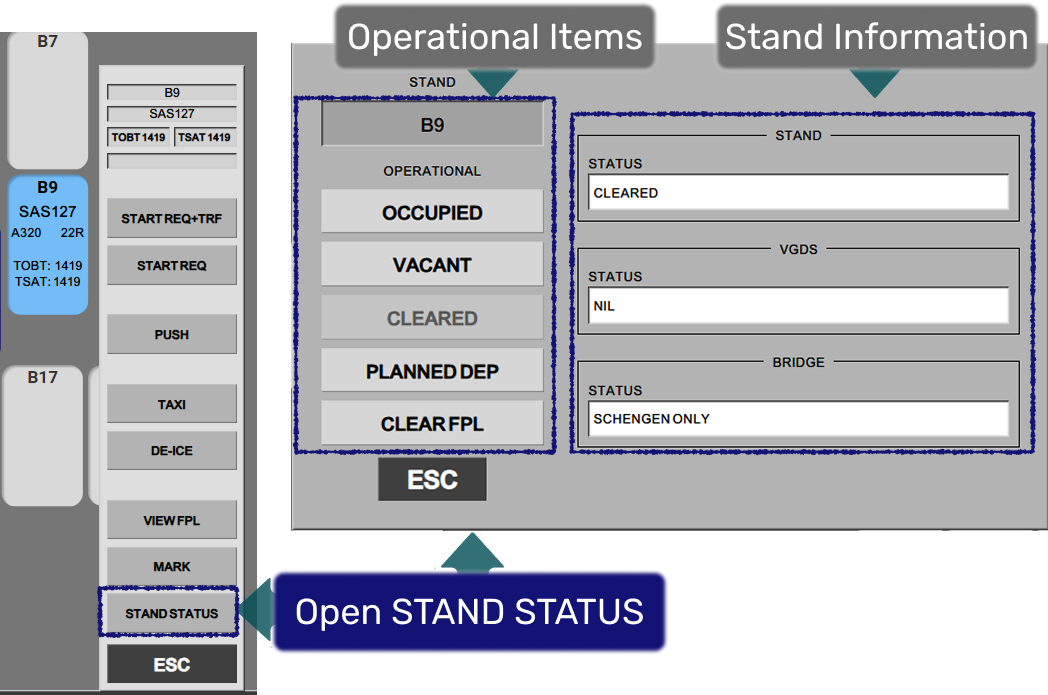
Stand Information
- Stand Status: Information on who is occupying the stand and which inbound may be assigned to it.
- VGDS Status: Currently reserved for future use with GSX
- Bridge Status: Shows SCHENGEN Information.
Operational Items
- OCCUPIED: Restricts the stand from any arrivals, and marks it as occupied
- VACANT: Removes any inbound assignment, and marks the stand as vacant for anyone.
- CLEARED: Opens the ATC Clearance Dialogue if a PLANNED DEPARTURE is occupying the stand.
- PLANNED DEP: Returns the aircraft on that stand back to its Planned Departure stage, essentially resetting it.
- NOTE: If this action is performed on an empty stand it opens the PLANNED menu to select a departure from the stand.
- CLEAR FPL: Compeltely removes the FPL from the stand.