The standard method of installing the sector file has changed from using Euroscope's download system to **downloading from the Aeronav GNG website.**
### **Download the Reykjavik FIR (BIRD) Sector File from GNG** - Go to [https://files.aero-nav.com/BIRD](https://files.aero-nav.com/BIRD) - Log in using your **Navigraph Account**A free Navigraph account is enough — no subscription required.
[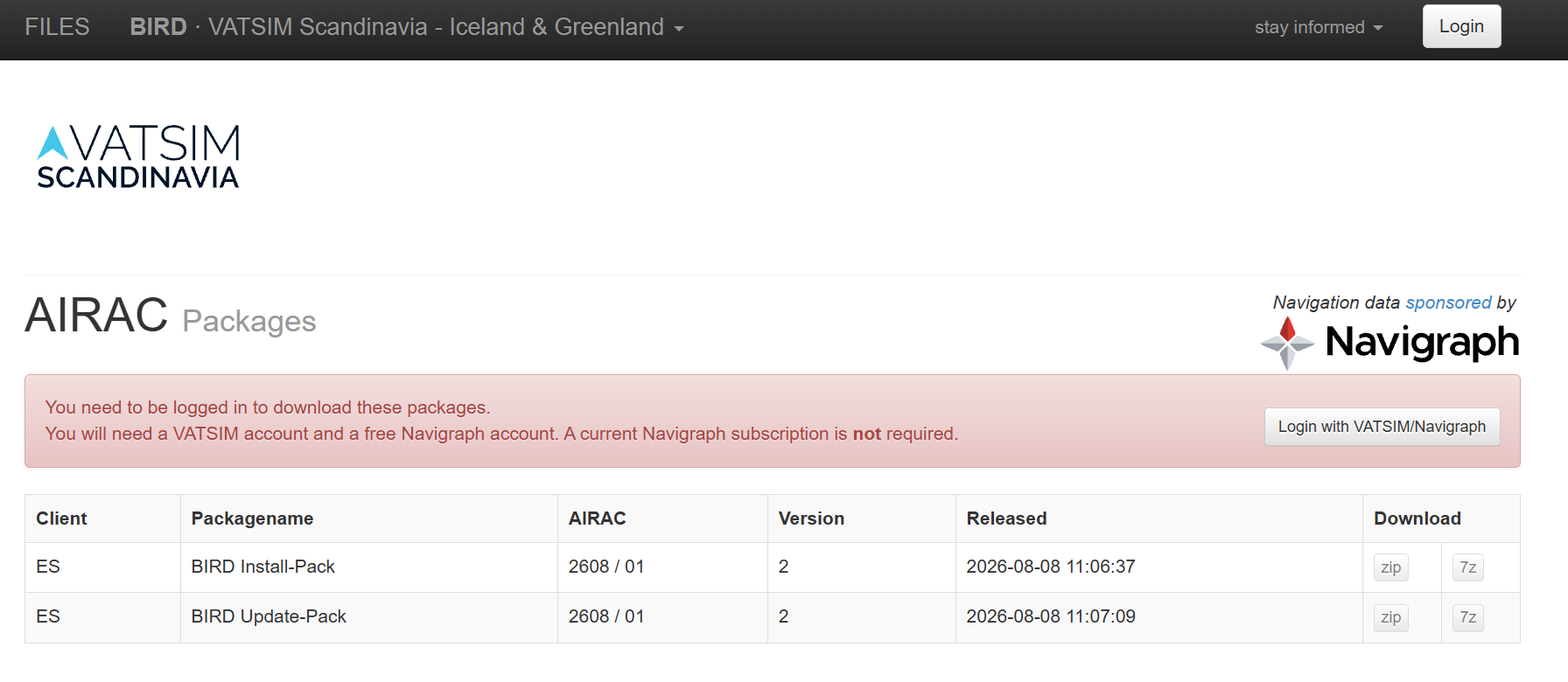](https://wiki.vatsim-scandinavia.org/uploads/images/gallery/2026-08/screenshot-2026-08-13-123333.png) - Download both packages, choosing either ZIP or 7Z: - **BIRD Install-Pack** - **BIRD Update-Pack** ### **Install the Sector File Manually** 1. Choose (or create) a folder on your PC where you want to keep the BIRD sector file — pick somewhere you'll remember, since this is the folder you'll point EuroScope to when loading your profile (e.g. `Documents\EuroScope\BIRD`) 2. Unzip the **BIRD Install-Pack** into that folder first — this is your base installation 3. Unzip the **BIRD Update-Pack** into the *same* folder, replacing/overwriting any files it conflicts with — this applies the latest AIRAC data on top of the base install [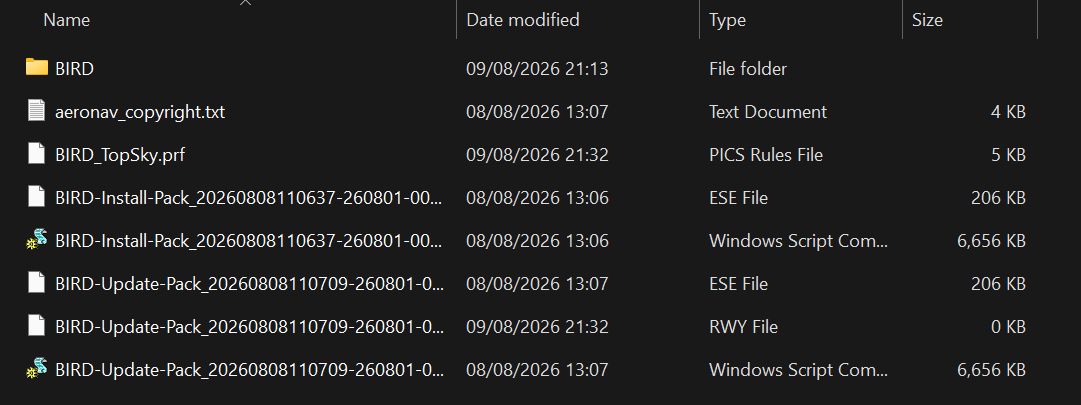](https://wiki.vatsim-scandinavia.org/uploads/images/gallery/2026-08/screenshot-2026-08-13-123732.png) ### Load the BIRD Profile in EuroScope 1. Launch EuroScope 2. Use **File → Open Profile** (or the equivalent prompt on first launch) and browse to the folder from Step 5 3. Select the BIRD profile file (`.prf`) in that folder [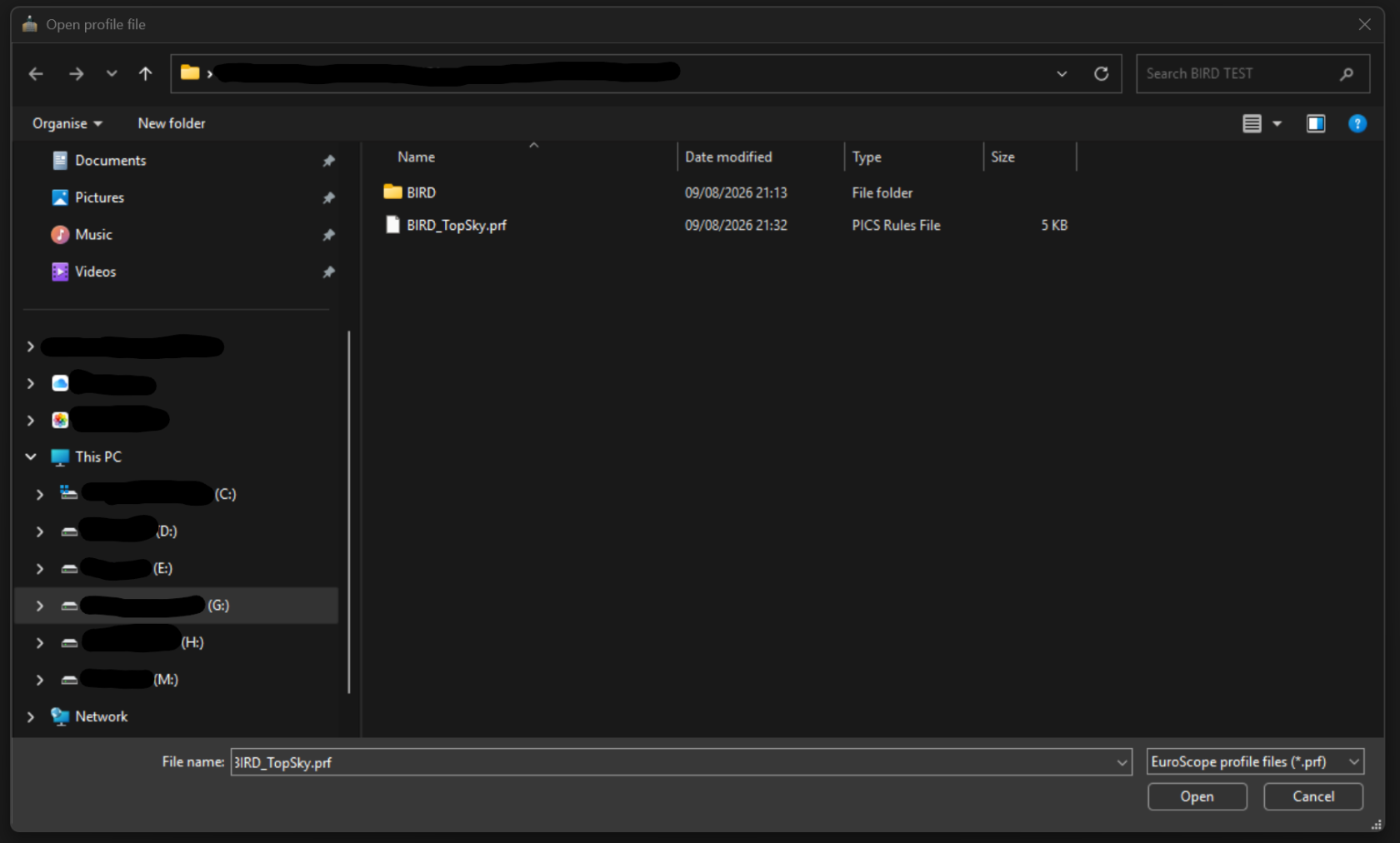](https://wiki.vatsim-scandinavia.org/uploads/images/gallery/2026-08/screenshot-2026-08-13-124048.png)Confirm you see a blue/green/grey radar display of Reykjavik CTA airspace — this means installation was successful