
VACS
VATSIM ATC Communication System
is an open-source, cross-platform Ground-To-Ground Voice Communication System for VATSIM.
In some situations Discord may still be the desirable coordination tool as it most closely resembles face-to-face coordination, as it is done where controllers IRL sit next to each other.
Handover coordinations are preferably done in Discord.
Download VACS
VACS SwedenV2 Profile
automatically Last updated 2026-01-28To install, storeloads the appropriate profile atfor ayour suitableposition.
No locationlocal (C:\orare C:\Users\YOURNAME\Documents.Loadneeded, the profiledataset (including profiles) is kept "in the cloud".
See VACS byUser clickingManual Selectfor stationsmore config.information
Verbal Coordination Etiquette
Respondinitiatingwithayourcall,positionselectnamethewhensuitable call source for that specific call (see VACS User Manual above!)
When initiating a call, select the station/sector you want to reach, the call will automatically be routed to the correct controller.After picking up,
sorespondthatwith thepersonnamecallingofyouthe position shown in bright green. - This is the station the initiating caller selected and is expecting to talk to.
This way the caller knows you have picked up, and that he has reached the rightcontroller:station:
e.g."Stockholm sector 9" or
"Landvetter ground"- The unit name (Stockholm/Malmö/Göteborg etc.) may be omitted when coordination is done within the same
unitunit.
- The unit name (Stockholm/Malmö/Göteborg etc.) may be omitted when coordination is done within the same
Before
Before you respond with your position name, wait for a green indication in the top left corner, this indicates that the connection has been established!
- Identify the traffic you are talking about: e.g. "SAS123 south of Gotland" with response "I see him/Contact", as we are unable to physically point out traffic on the screen of the other
controllers screen.controller. - Be clear and concise, keep coordination brief and use standard ICAO/TSFS phraseology.
Profiles
Default - Shows all positions, can be used for testing or if you want to call someone not displayed on other positionsESAA- Use when manning ESAA or AD/APP position on the AoR border between ESMM and ESOSESMM- Use when manning ESMM or ESMT, ESTA, ESTL, ESMS and ESMKESOS- Use when manning ESOS or AD/APP position located wholly within ESOS AoRESOS_TMA- Use when manning AD/APP position within Stockholm TMAESGG_TMA- Use when manning AD/APP position within Göteborg TMA
Screen Layout
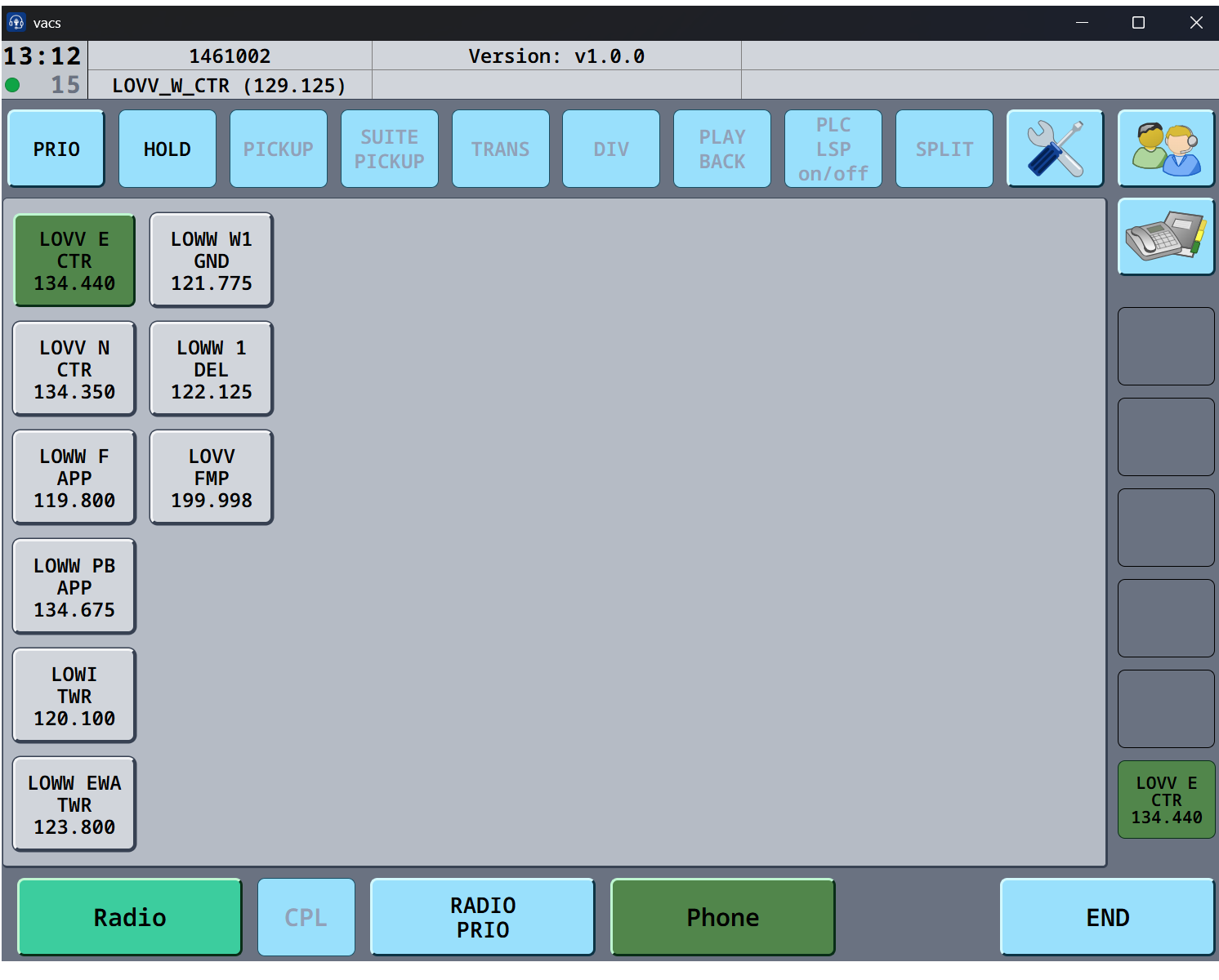
Only open positions that are connected in VACS are shown.
Depending on the profile you have chosen, only select positions are shown.
To call someone, press the respective grey buttonTo answer a call, press one of the buttons that are alternating between green and grey when the ringtone soundsThe ringtone can be heard even if the programme is minimised
To end a call, press END, or the the green active call slot on the bottom right, just above the END button
If you cannot find the position you want to call (are they using VACS?), it is possible to call them using their CID, press the phone book button in the top right, then "Dial Pad" and dial using the CID.
If you cannot answer right away it is better to pick up and ask the other party to wait, as the ringtone signal is only played once (just as IRL), increasing the risk to forget answering the call.
Settings
If desired, audio settings can be changed in the settings view. If not changed, your default input/output decives set in Windows will be used, as well as voice activation, being the default transmit mode.
If using push to talk or push to mute you need to run VACS as admin if you are running other software as admin:Run ALL or NO programs as admin.