
Chapter 1 - Installation, Introduction and Basic Features
Basic Features, Installation and Initialization guide to FlightStrips

TABLE OF CONTENT
Download & InstallationBasic Features

1 Download & Installation
FlightStrips is included with the Danish sector file package.
- There is no installation or download process as the program is web-based.
- There is no action in Plug-ins needed in Euroscope
Activation
When opening Euroscope the FlightStrips dialogue opens, prompting you to login if not already
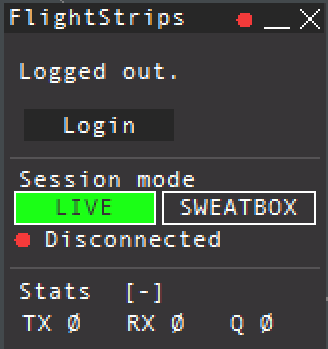
The login is saved for ~30 days, and will only need to be revalidated if not utilized within that time.

1.3 Opening FlightStrips
Once login is complete, you have several options of how to open flightstrips
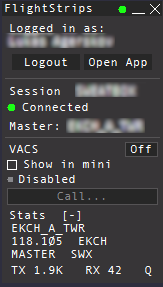
- select “OPEN APP” to open the Flightstrips window.
- Click on the FS app in your Euroscope folder
- Navigate to www.flightstrips.dk/app
If you have not yet logged into Euroscope, the FlightStrips connection will remain in standby
You MUST Prime a frequency first!! FlightStrips does not work without a PRIM FQ
NOTE: You can always click CRTL+R to refresh the app

2. Basic Features
With Flightstrip open, you can choose “Open in APP” for the optimal aspect ratio of the program

WE HIGHLY RECOMMEND TO ALWAYS RUN FLIGHTSTRIPS IN FULL SCREEN VIEW
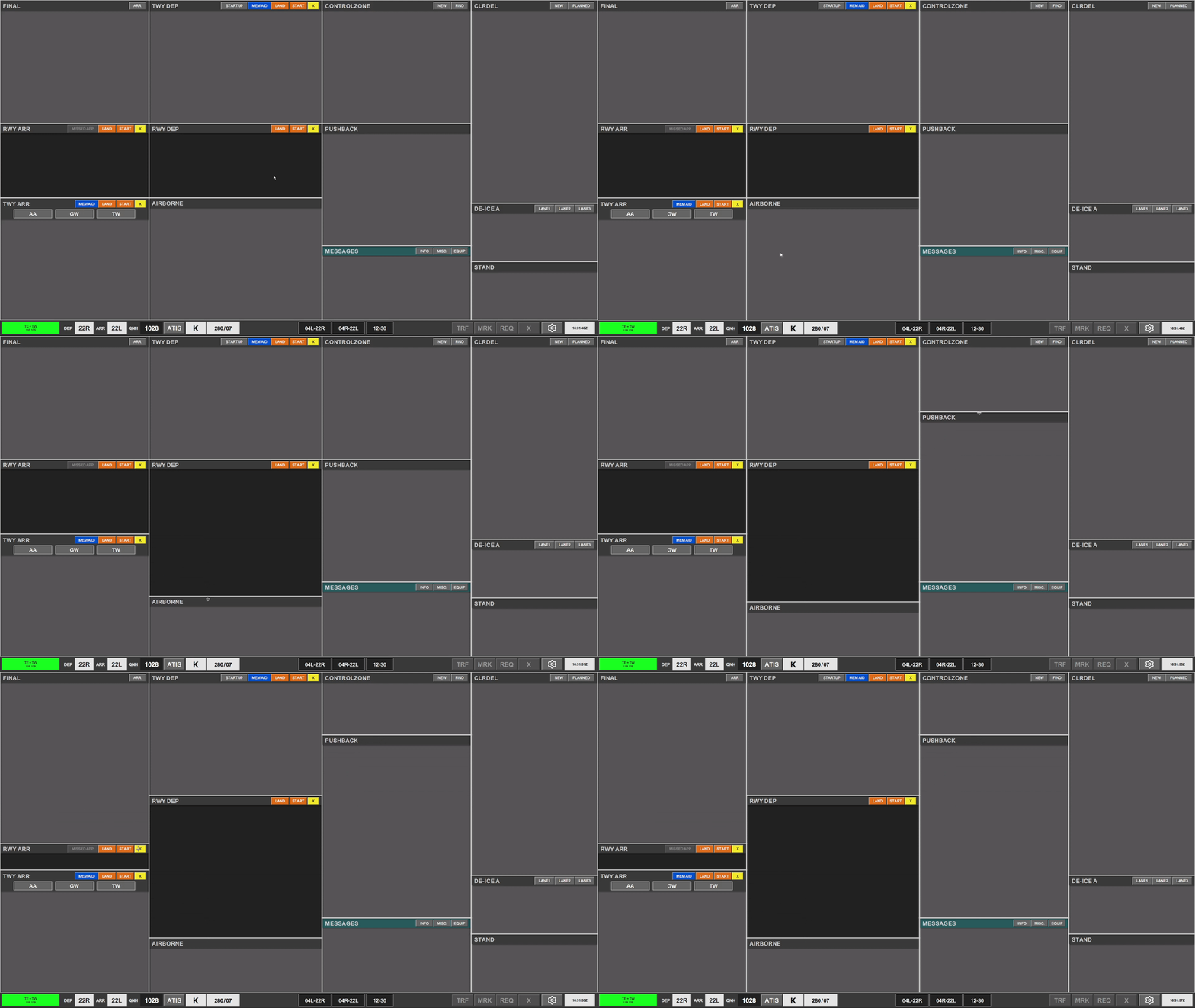
When you open the program you will be presented with a basic layout. This basic layout contains following basic features
- Active View information on the bottom left side of the screen, showing the Selected Scope
- 4 collumns spanning from top to bottom
- Variety of bays within those columns containing "Headers" and space for strips.
- A Task bar at the bottom
Selected Scope
When you open FlightStrips, the default scope is selected, based on the frequency you have primed.

Columns
All standard scopes have 4 columns.
Columns may have different features and needs, but will "in general"
- Have Arrivals on left columns
- Have Planned Departures (Uncleared) on the right side.
TW/TE/GW/GE will have slightly wider columns certain places to accomendate strips that contains more information.
Bays
Bays are making up the columns and contains a header and space for strips
Bays have Four different designs:
- Regulular Bay
- RWY bay
- Passive bay
- MESSAGES bay
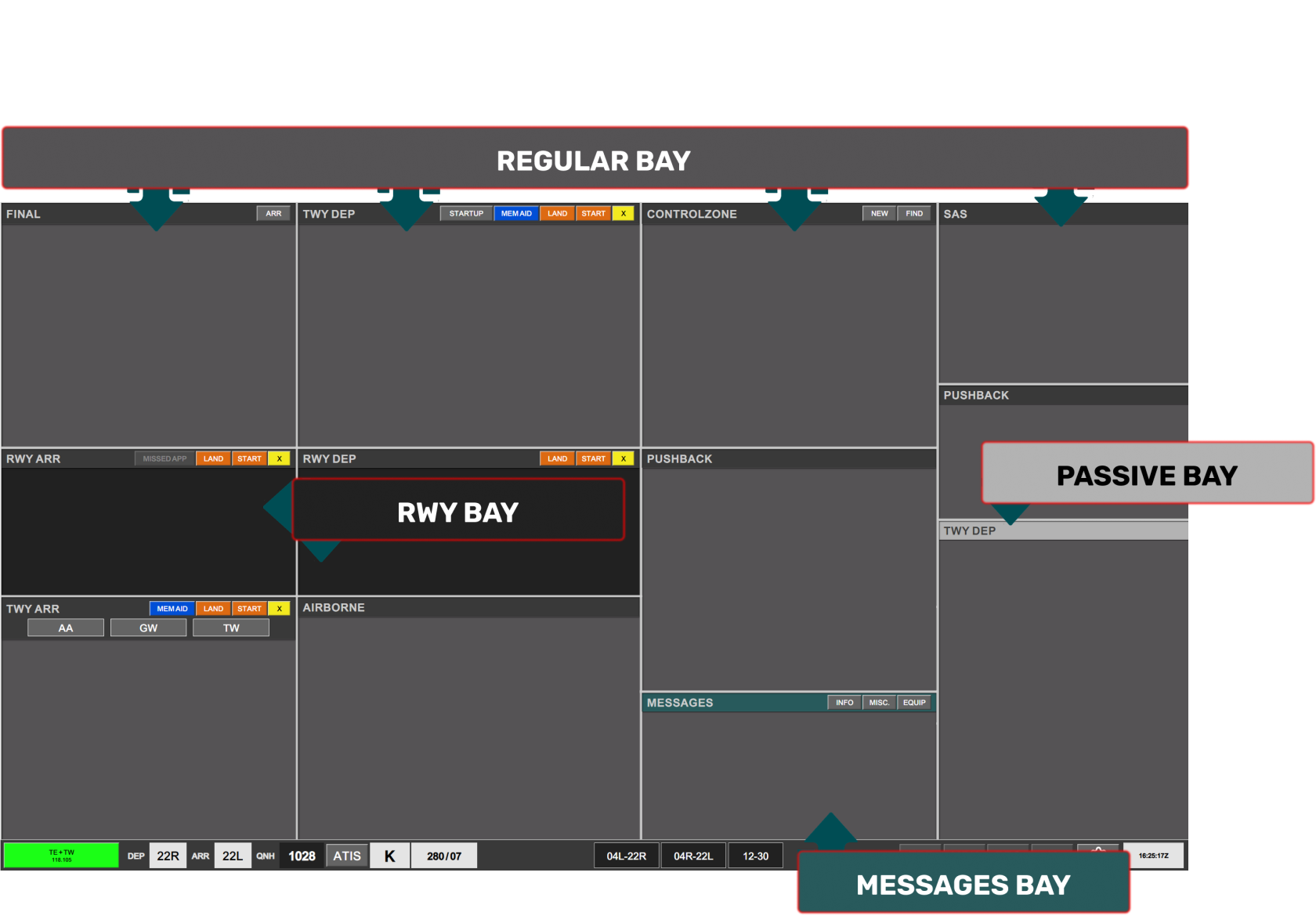
Each bay can be resized to be made larger or smaller depending on the amount of strips that are needed
1.3 Task Bar
Common to all scopes are the Task bar, which enables various features. It contains from left to right:

SCOPE VIEW

There are a selection of:
- 7 Different Main Scopes
- EST Screen: A special stand view for all controllers
- CLR DEL: A Clearance Delivery Scope for providing ATC Clearance
- SEQ PLN: A Sequence Planner / Clearance Delivery Scope, for providing both.
- AA+AD: A combination of Apron Departure and Apron Arrival
- GW+GE: A combination of Ground West and Ground East
- TW+TE: A combination of Tower West and Tower East
- TWR+GND: A bandbox scope, for when you are sitting along on EKCH_TWR.
- 4 secondary scopes for splitted positions
- A split of Apron into APRON DEP and APRON ARR
- A split of TWR into TWR WEST and TWR EAST (Not yet implemented)
- 2 Misc. Scopes
- Opening EST screen in a separate window (for 2 instances of FlightStrips)
- Opening AMAN-CPH (Arrival Manager)
- Upward Arrow
- To reveal the secondary and misc. scopes
- Fullscreen view
- To put application in full screen
- RESET
- Resets your scope to the default view

WEATHER INFORMAITON ICONS
Displays the Weather and Runway in use information for the airport. Connects to VATIS and Euroscope Runway setup to sense correct selection
- DEP RWY / ARR RWY can be selected manually (Shows RED if different from other controllers setup)
- QNH Read from vATIS
- ATIS can be clicked to view full ATIS (Shows RED if ATIS is not set up for Airport)
- Current Information from vATIS
- Current Wind
RWY STATUS ICONS
Three icons displaying each of the three runway pairs. They are black by default.
- Can be selected as OPEN (Black, Default)
- Can be selected as LOW-VIS (Orange displayed)
- Can be selected as CLOSED (Red displayed)
STRIP ACTION ICONS
To the right of the runway status icons is the 4 strip action icon.
- TRF: After selecting a strip (click on callsign), clicking on TRF will open a menu to manually select any online controller to transfer a strip to.
- MRK: After selecting a strip (click on callsign), clicking on MRK will mark the strip by a purple outline for tactical purposes
- REQ: After clicking on REQ, click on any strip on your scope to request a transfer to you, to receive the strip.
- X: After selecting a strip (click on callsign), clicking on X will delete the strip.