
Euroscope in Denmark
System Overview
Three profiles exist for Denmark:
COOPANS
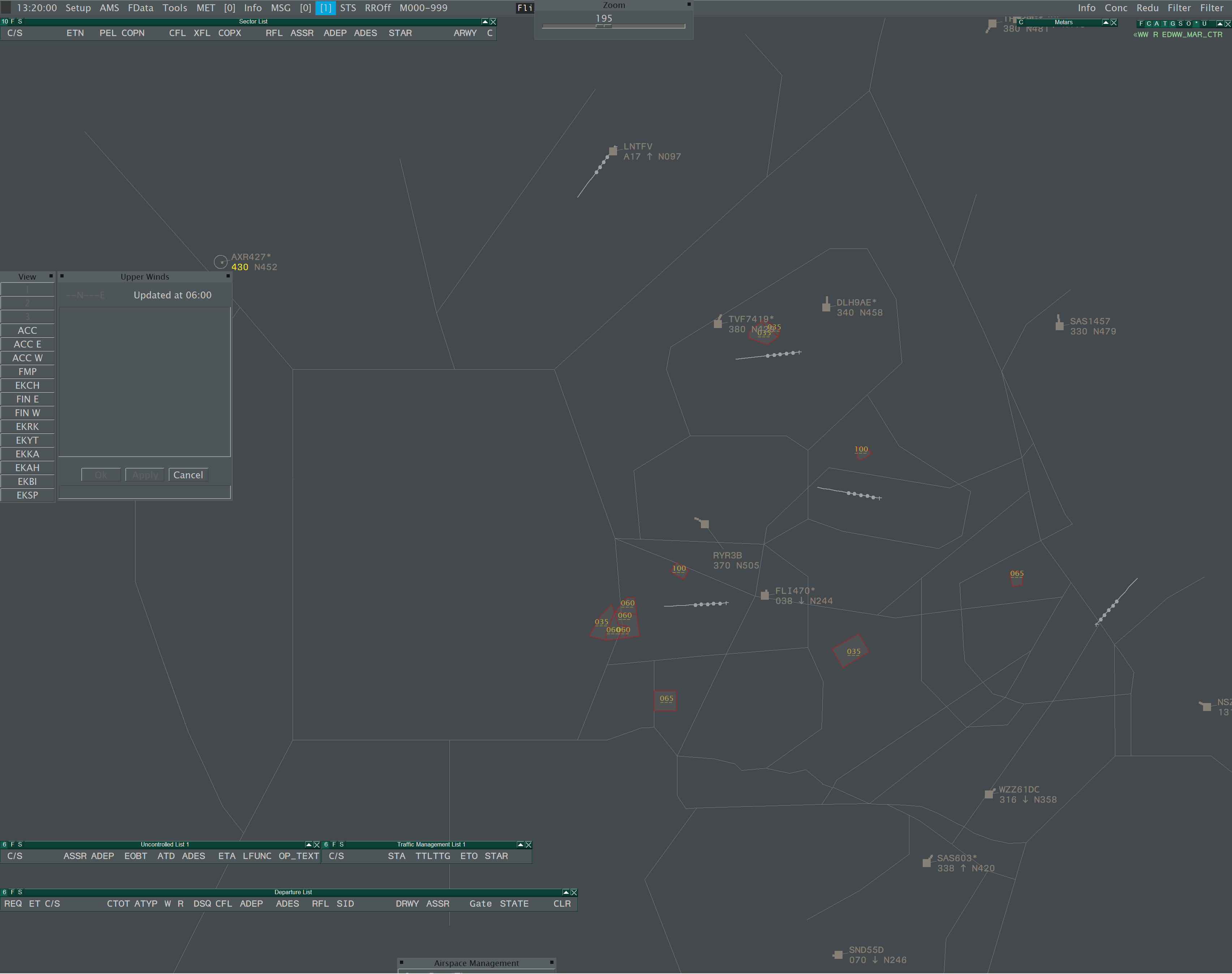
Used at EKCH APP, EKRK APP, EKBI APP and Copenhagen ACC.
Two Basic ASR configurations exist:
- 2_APP - Used by APP sectors, displays all LOW ACC and APP sectors and coastlines.
- 3_ACC - Used by ACC sectors, displays all HIGH+LOW ACC sectors and APP sectors. Coastlines are not drawn by default.
When controlling as Approach: upon connection to VATSIM, the radar display will automatically center and zoom on your area. Generally, no panning is required.
When controlling as ACC: upon connection to VATSIM, the radar display will center on the widest extent of your AOR. Use the VIEW menu on the left edge of the radar to focus on a certain area or TMA. It is recommended to switch to 2_APP momentarily when coastline display is required.
The amount of detail drawn within a TMA depends on whether the local APP is online, or topdown is in force, this is automatically configured.
NITOS / GND
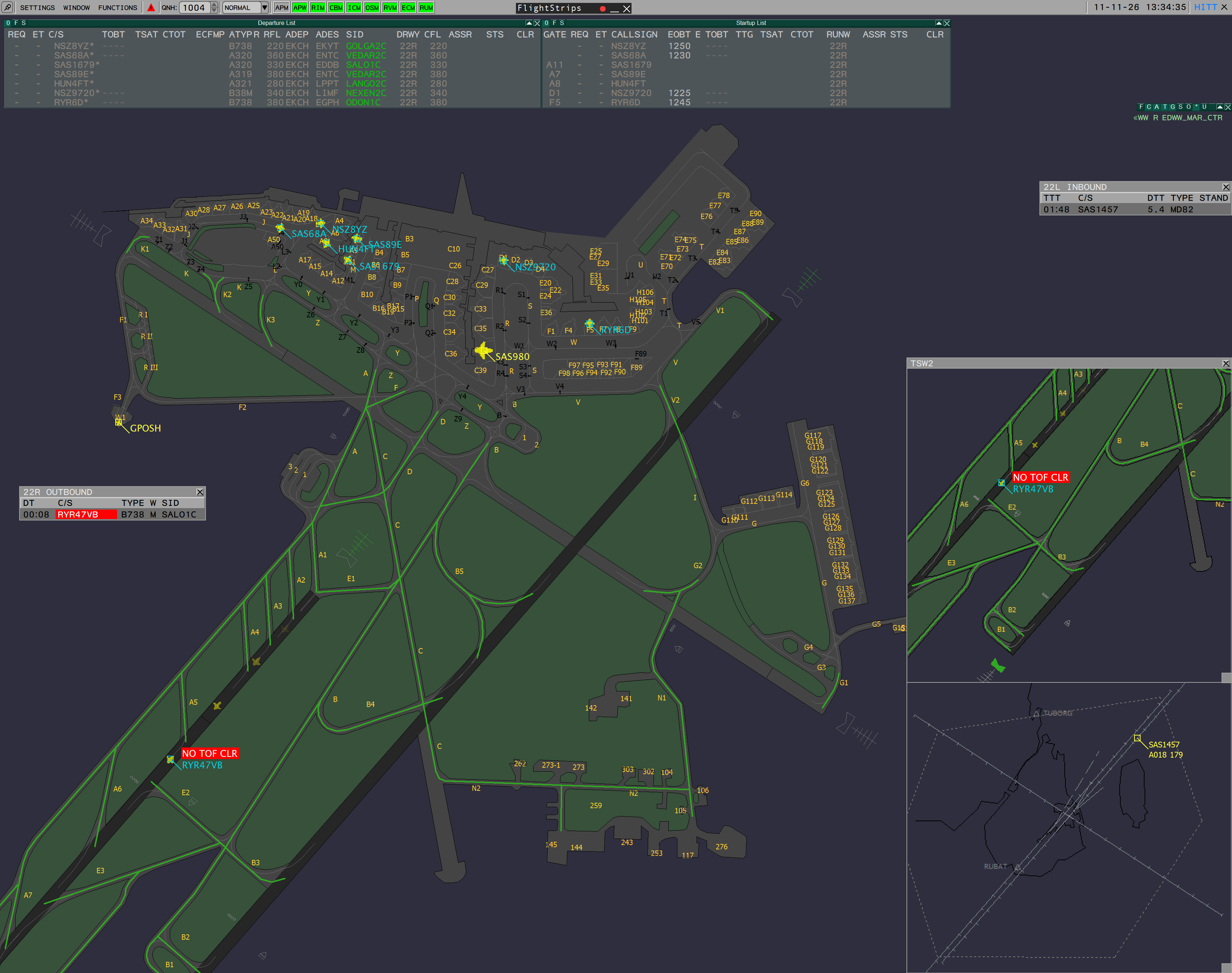
Used at EKCH TWR / APN, EKRK TWR and EKBI TWR.
The profile is identical to COOPANS except for the flight lists, which are customised for tower use.
RADIS
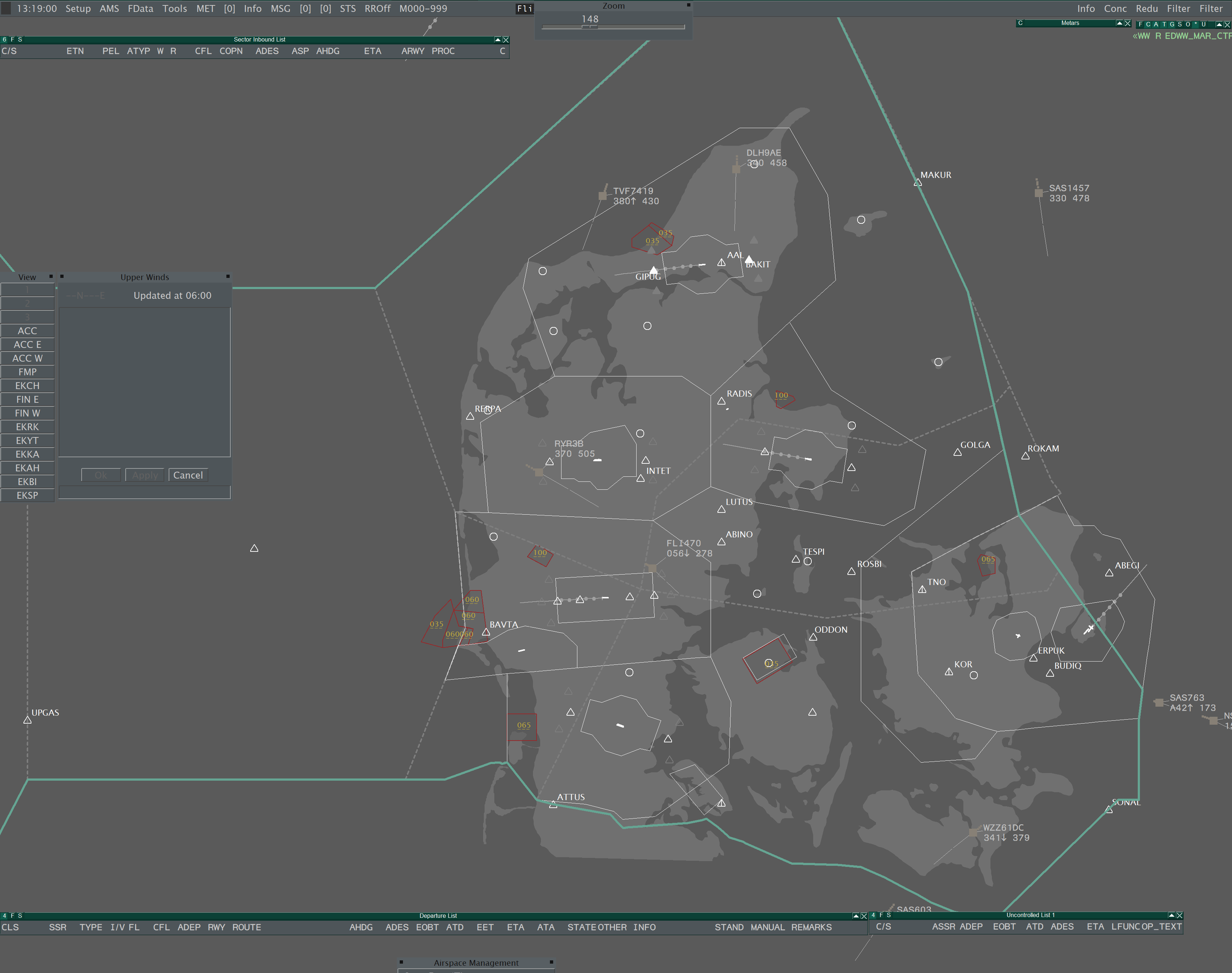
Used at EKSP, EKKA, EKYT, EKAH and in Greenland. Though the airfields are procedural, this profile should also be used in EKEB, EKVJ, EKOD, EKSB.
One ASR file pre-loads the RADIS configuration (1a_RADIS). Upon connection to VATSIM, the radar display will automatically center and zoom on your area.
RADIS is still in development, some features are not fully implemented. COOPANS may also be used to control APP in EKSP, EKKA, EKYT, EKAH.
ASR Shortcuts
ASR switching is used to display ground layouts, or switch between COOPANS APP/ACC (if coastline data is required as ACC, or to declutter in a zoomed out view as APP, for example)
There is a small difference in key bindings - a Euroscope limitation.
(F1+)
COOPANS / NITOS | RADIS |
|
|
Further ASR files may be opened using the Euroscope OPEN SCT > Open ... dialog
Major airports are only drawn in their own ASR. Only procedural airports (EKSB, EKEB, EKVJ, EKOD & EKRN) share an ASR file. It is therefore not possible to have a single national ground view for all airfields.
Keyboard Shortcuts
Commonly used functions and reference maps are accessible via customised shortcuts:
(ALT+)
Functions:
S: Invoke SEP toolQ: Invoke QDM vectorF1: Opens new Notepad windowF4: Toggles quick lookF5: Toggles all prediction lines on/offF6: Opens runway approach line windowF7: Opens FPL selection windowF8: Opens SSR code menu for the find track functionF9: Opens create APL windowF10: Toggles filtering of uncoupled labelsF11: Opens small QNH/TL windowF12: Opens track control window (leader line settings)
Maps:
V: Toggles Regional IAF mapT: Toggles APP sector mapB: Toggles ACC sector map: Below FL285H: Toggles ACC sector map: Above FL285
Topsky Integration
All Danish profiles use TopSky plugin functions which replaces standard Euroscope behaviour.
1. Radar Maps (COOPANS & RADIS)
Relevant maps may be activated or deactivated using the Radar Menu > Maps Menu (ALT + RIGHT CLICK)
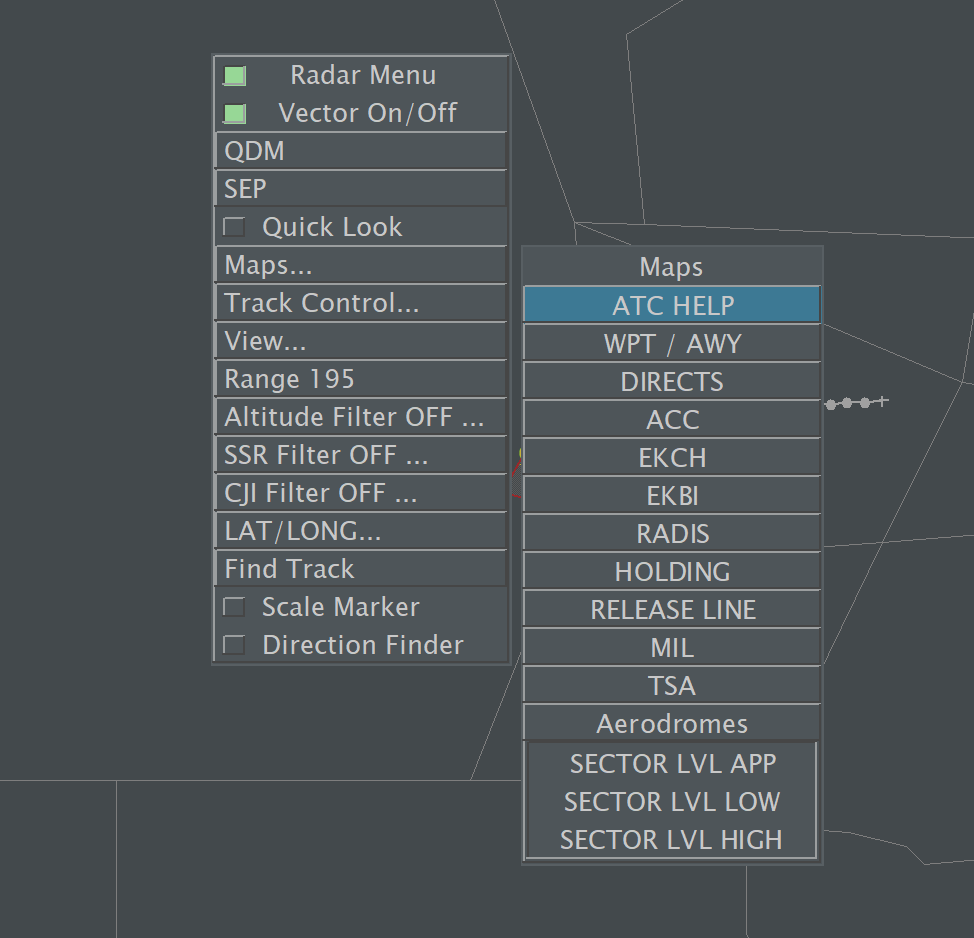
Maps are ordered by theme or applicable aerodrome. Most maps are conditional - they are activated when connecting to VATSIM as a specific unit/position.
-
LEFT CLICKto activate a map -
RIGHT CLICKto de-activate a map
Certain maps have a zoom visibility threshold and may be hidden if zoomed too far out/in
2. View Presets (COOPANS & RADIS)
A number of pre-defined view settings are available from the View Menu which is displayed on the left side of the main situation display, or accessed via the Radar Menu. Presets are available for:
Full List of View Presets
- ACC (entire FIR)
- ACC-E (Area East)
- ACC-W (Area West)
- FMP (long range)
- EKCH (App / DEP)
- FIN E (FINAL 04)
- FIN W (FINAL 22)
- EKRK
- EKYT
- EKKA
- EKAH
- EKBI
- EKSP
The primary function is for Radar controllers to quickly jump to a specific area rather than scroll and zoom manually. These views replace the previous implementation of ASR files for regional approach units.
3. Track Leader Lines (COOPANS)
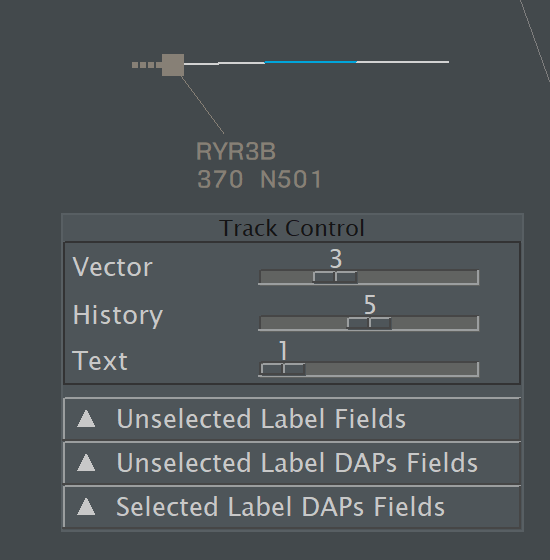
Track leader lines are drawn by topsky plugin, not Euroscope. They are set by default to:
- 2 minutes for ACC
- 1 minute for APP
- 0 minutes (off) for Observers / FMP
Their length may be customised in the Track Control Menu (ALT + F12)
RADIS leader lines are set using the Euroscope top menu function.
Connection & Sector Configuration
Connection to VATSIM is a multi-step process. Determine which unit (aerodrome) you will control, then:
- Launch Euroscope
- Load the appropriate profile (COOPANS / RADIS / ...)
- The default (or last used) ASR is loaded. Select a different ASR if required
- Connect Euroscope to VATSIM
- The frequency / selector window will open: do not activate any sector.
- The radar will automatically be configured for the chosen unit: zoom level and base map configuration
- Configure the active runway(s) as applicable
- Launch & connect auxiliary applications
- VACS - the sector will be automatically configured at the end of the process
- TrackAudio - XCA secondary frequencies as appropriate
- vATIS - Select the appropriate profile and configure ATIS
- Flight Strips - ensure you are logged in even if not using the flight progress web-app
- Select the Active / Secondary Sector Frequencies
- This step activates the sector: It becomes visible to other controllers / pilots and assumes airspace
- In COOPANS: your owned airspace is shaded a darker colour.
- Aircraft tracks are coloured appropriately according to sector rules
To switch active sector within the same unit (EKDK_?_CTR)EKDK_??_CTR or EKCH_??_APP) without reconnecting, repeat step 4.
If changing to a different unit (EKCH_A_TWR to EKRK_TWR or EKCH_A_TWR to EKCH_W_APP) it is necessary to reconnect: start at step 1 (different profile) or step 2 (same profile)
Example: Connecting as EKCH_A_TWR
This guide assumes connection as EKCH TWR (ARR) with Apron offline
1. Launch Euroscope: DK NITOS Profile. Press F1 + 1 to load 1_EKCH ASR
2. In the connection dialog, select EKCH_A_TWR then connect
- Set appropriate active runways: EKCH only
3. Launch Auxiliary Apps:
- VACS
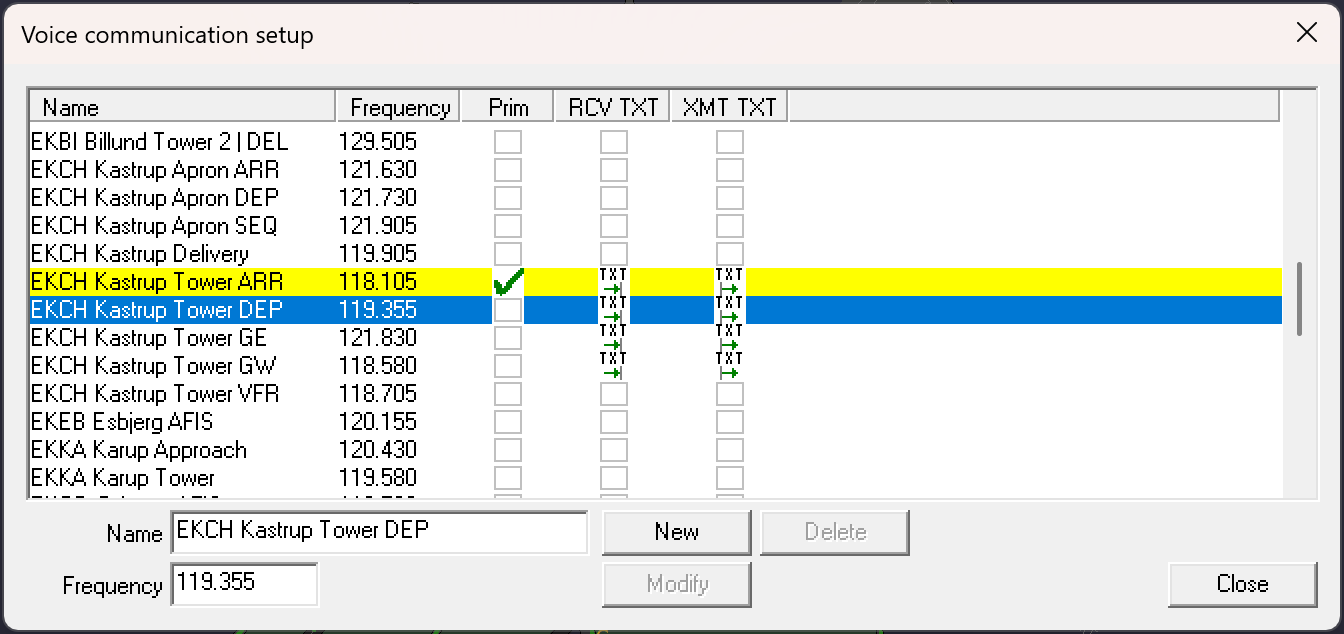
- TrackAudio: XCA 118.105 (ARR), 119.355 (DEP), 118.580 (GW), 121.830 (GE)
- vATIS: Select runway in use, check NOTAMs are correct then connect ATIS
- Flight Strips: check Euroscope plugin dialog shows connected then launch flightstrips.dk
4. Select Primary (118.105) and secondary frequencies (119.355, 118.580, 121.830)
Example: Connecting as EKDK_UC_CTR
This guide assumes connection as EKDK_UC_CTR with Copenhagen Approach Online
1. Launch Euroscope: DK COOPANS-MAIN Profile. Press F1 + 3 to load 3_ACC-COOPANS
2. In the connection dialog, select EKDK_UC_CTR then connect
- Retrieve upper winds then close wind dialog
- Set appropriate active runways: All danish airports recommended
3. Launch Auxiliary Apps:
- VACS
- TrackAudio: No XCA required
- vATIS: None required
- Flight Strips: check Euroscope plugin dialog shows connected.
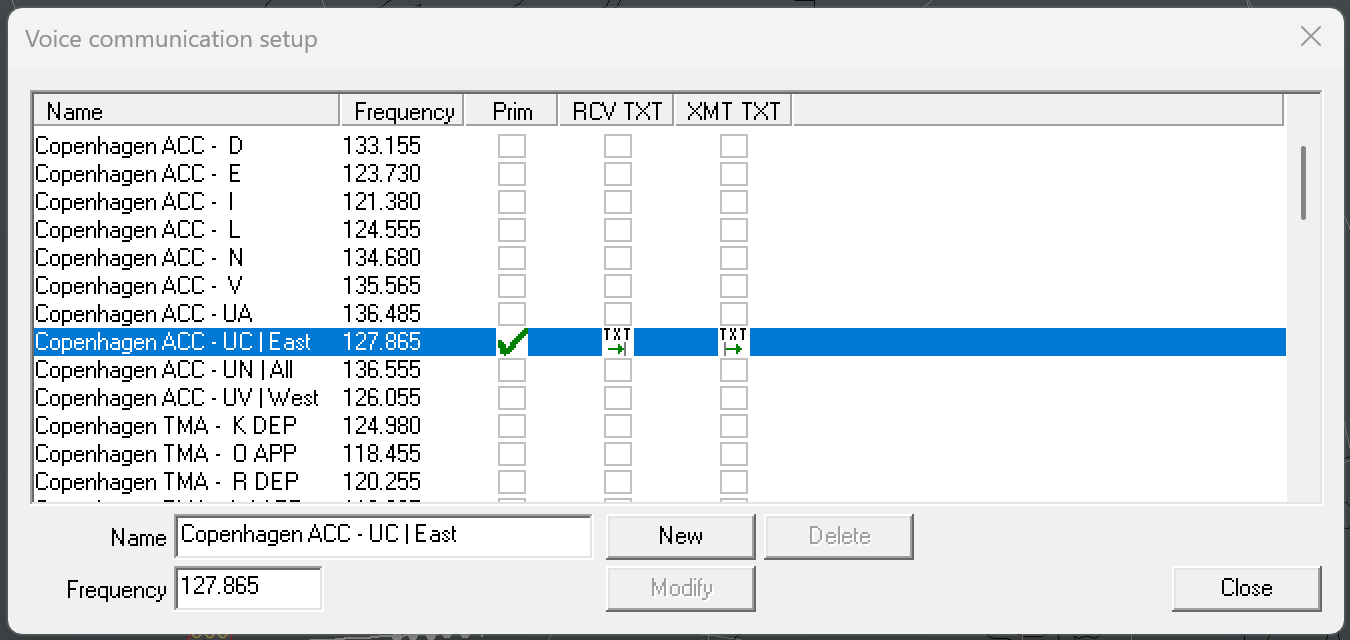
4. Select Primary (127.865) frequency
When controlling: if required to provide topdown cover at airfields or approach units, use the relevant ASR and/or view preset as appropriate.