
Installation
Table of Contents
Prerequisites
Before installing EuroScopeEuroScope, bemake sure to download and install the latest Microsoft C++ redistributableRedistributable packagepackages. from Microsoft.
TheyThese can be downloaded from here ↗
Also,Additionally, download and install athe modified version of the EuroscopeEuroScope font from here ↗
Installation (Text)of Euroscope
InstallationThe installation of EuroScope is straightforward. JustSimply follow the instructionsinstaller ofinstructions. the installer. Well, you shouldThe only specifystep requiring input is selecting the folder where you would like to putwant the files.files installed.
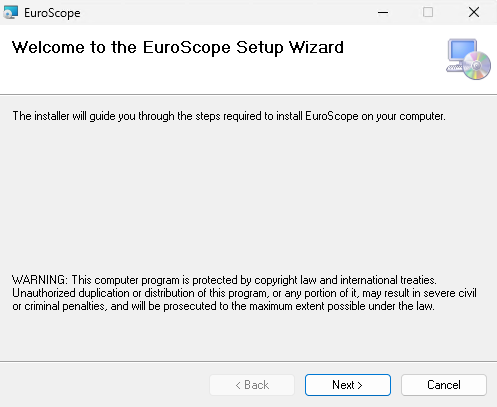
Press Next to get to the location selector screen:
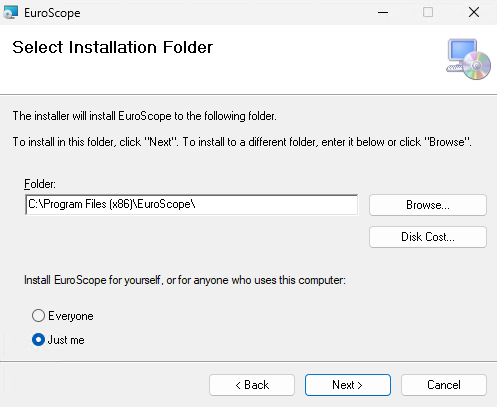
Select the appropriate folder where you would like to place EuroScope. Then press Next again to see the final confirmation screen:
SectorfilesInstallation of Sector Data
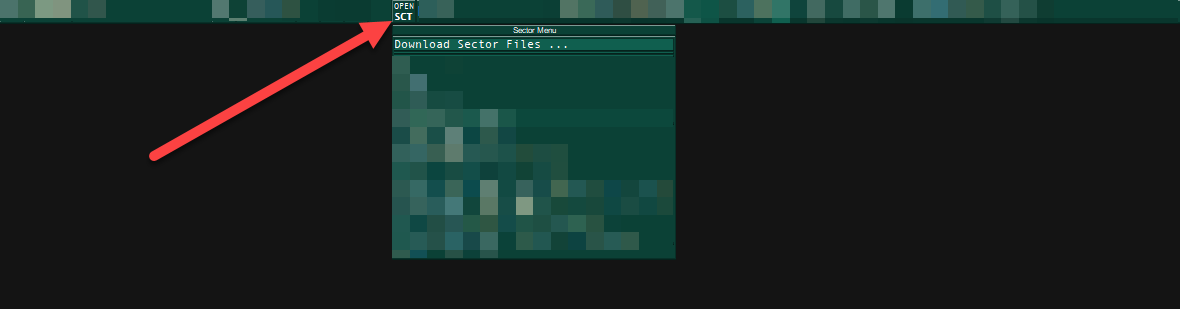
StartBegin Euroscopeby andopening cancelFile theExplorer. sectorYou selectorcan Indo Euroscopethis clickeasily «Openby SCT»pressing atWindows the+ top and select «Download Sector Files»E.
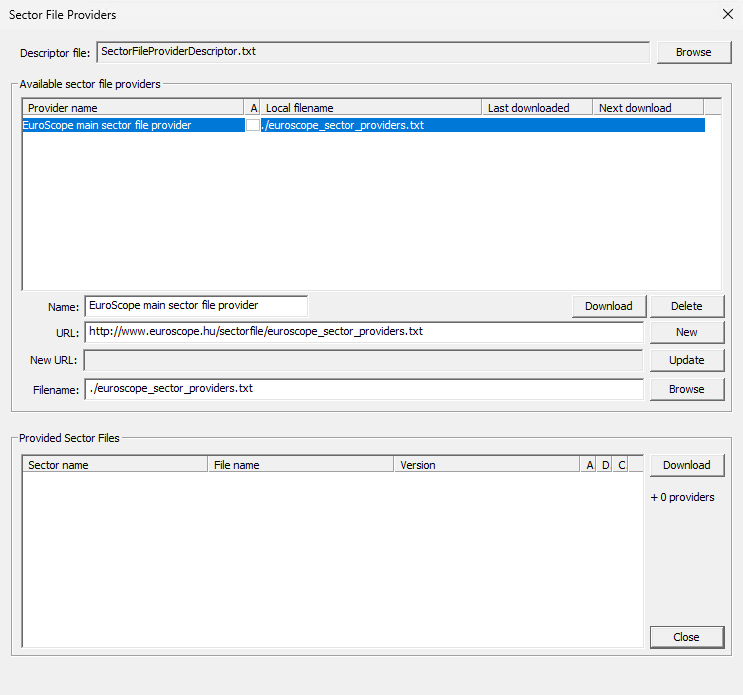
Onlocate theyour firstAppData installation,folder. youThe willeasiest onlyway have “EuroScope main sectorfile provider” Select it and click download, this gives us all the Sectorfile providers.
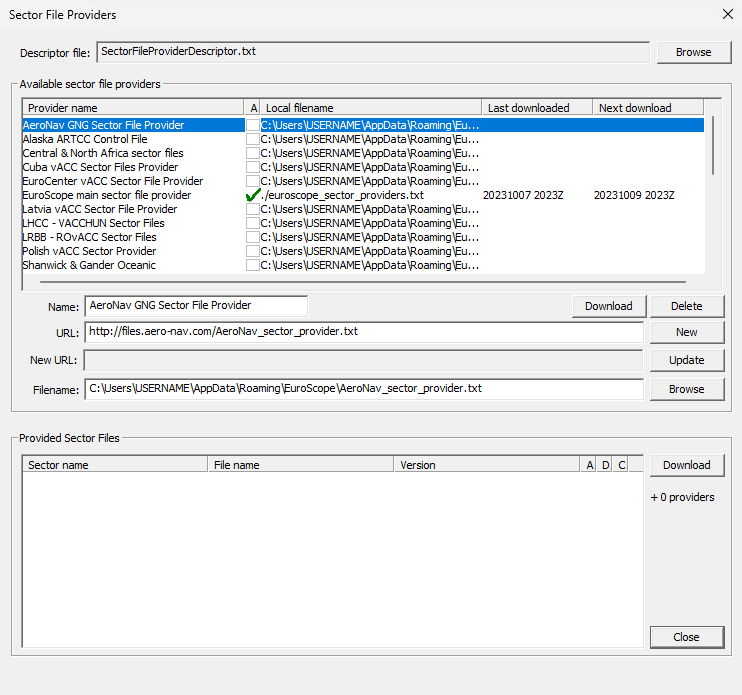
Once downloaded, you will have 50+ sectorfile locationsis to pick from, find “AeroNav GNG SCA VATSIM Scandinavia” select it, and click download, remember to check the auto-update box
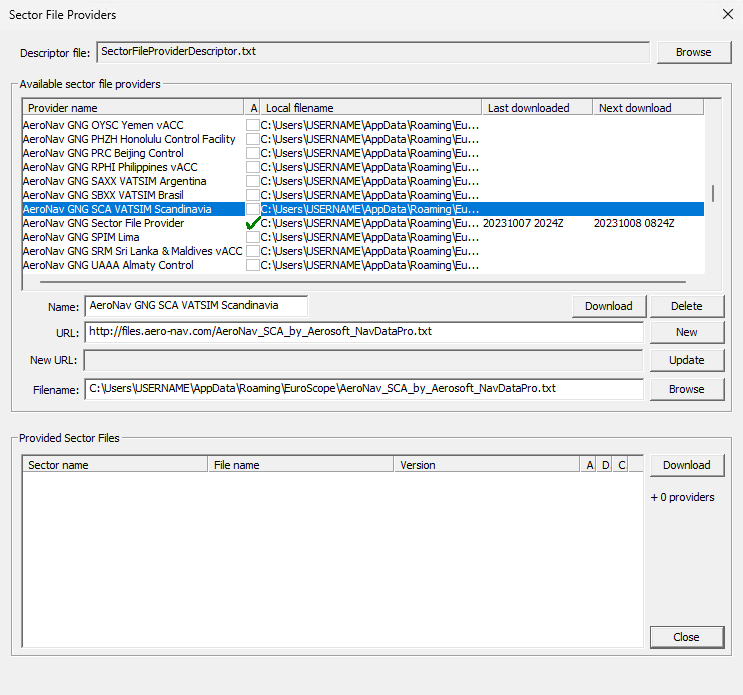
Now at the bottom of the window, you can find the “EKDK EKDK FIR-Full-Package” Download it, DO NOT click the automaticaddress herebar, astype “%appdata%”, and press Enter; this iswill onlytake foryou directly to the first-timefolder, installation.then locate your EuroScope folder. It will contain the basic EuroScope installed data.
Next, go to 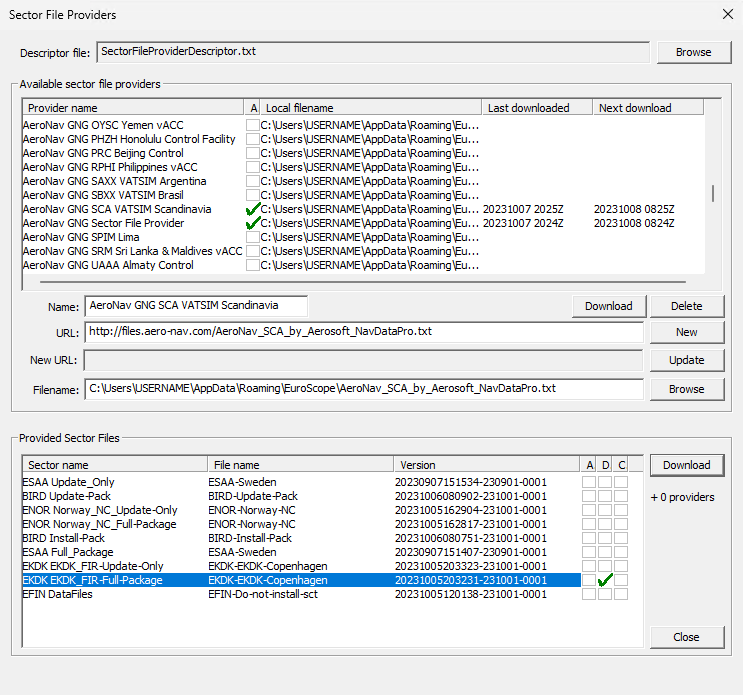
Onceand downloadedlog clickin using your VATSIM/Navigraph account, then download the ZIP file named “EKDK EKDKEKDK_FIR-Full-Package”.Once FIR-Update-Only”downloaded, download it, and clickopen the automaticZIP herefile. as this is what updates your sector files
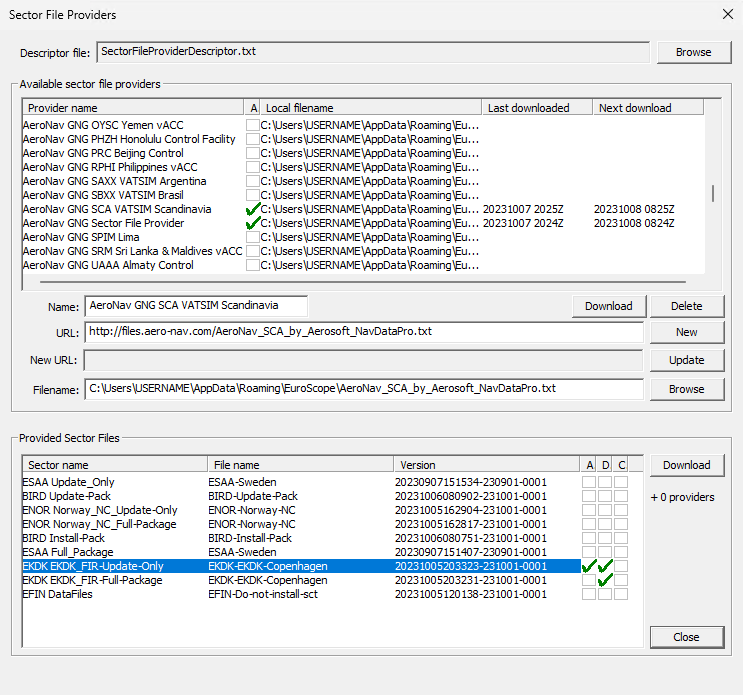
Now close EuroScope, cancel any popups and start EuroScope again.
NowInside, you should see thea DKset AIRof files and DKfolders, GNDincluding sectorfiles,the forEKDK <S2 select GND.folder.
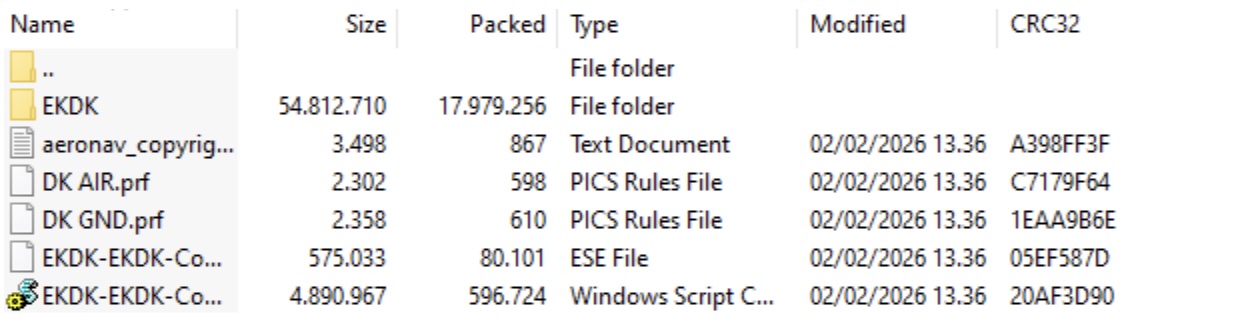
Installation
Copy (Video)all contents of the ZIP file into your EuroScope installation directory. After doing so, your EuroScope folder should resemble the structure shown below.
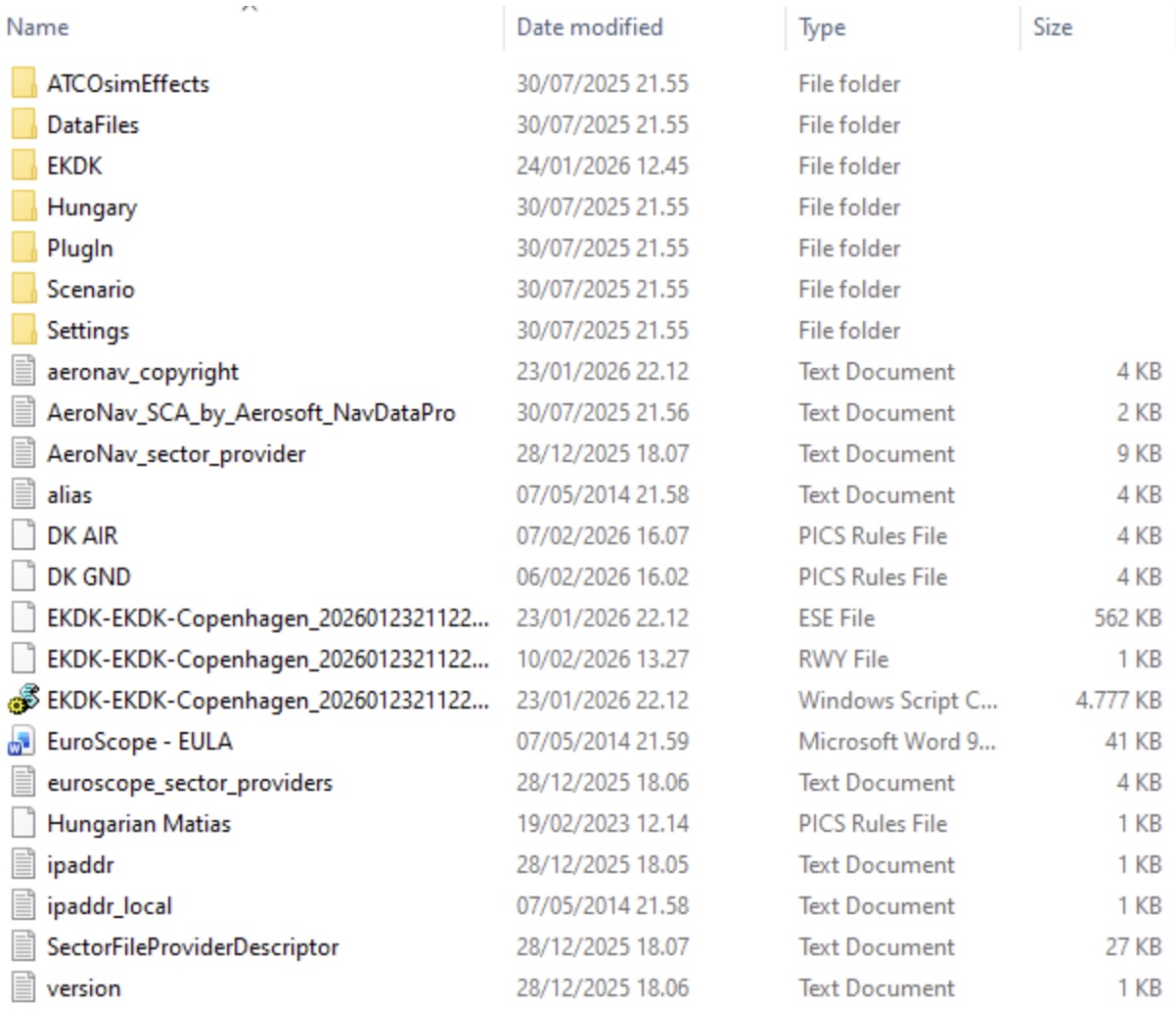
You can now open EuroScope for the first time. Once it has loaded, you’ll be greeted by the following window. If you’re just starting out as an observer for your S2 training, select the “DK_GND” file and click “Open”.