VACS
We are starting to use a new communication tool, for easier coordination. This will give a better way of getting in contact with the different controllers, needed for coordination.
1. Download Instructions
DOWNLOAD VACS
2. Installation and Configuration
Install it and setup your audio preferences by clicking on the SETTINGS 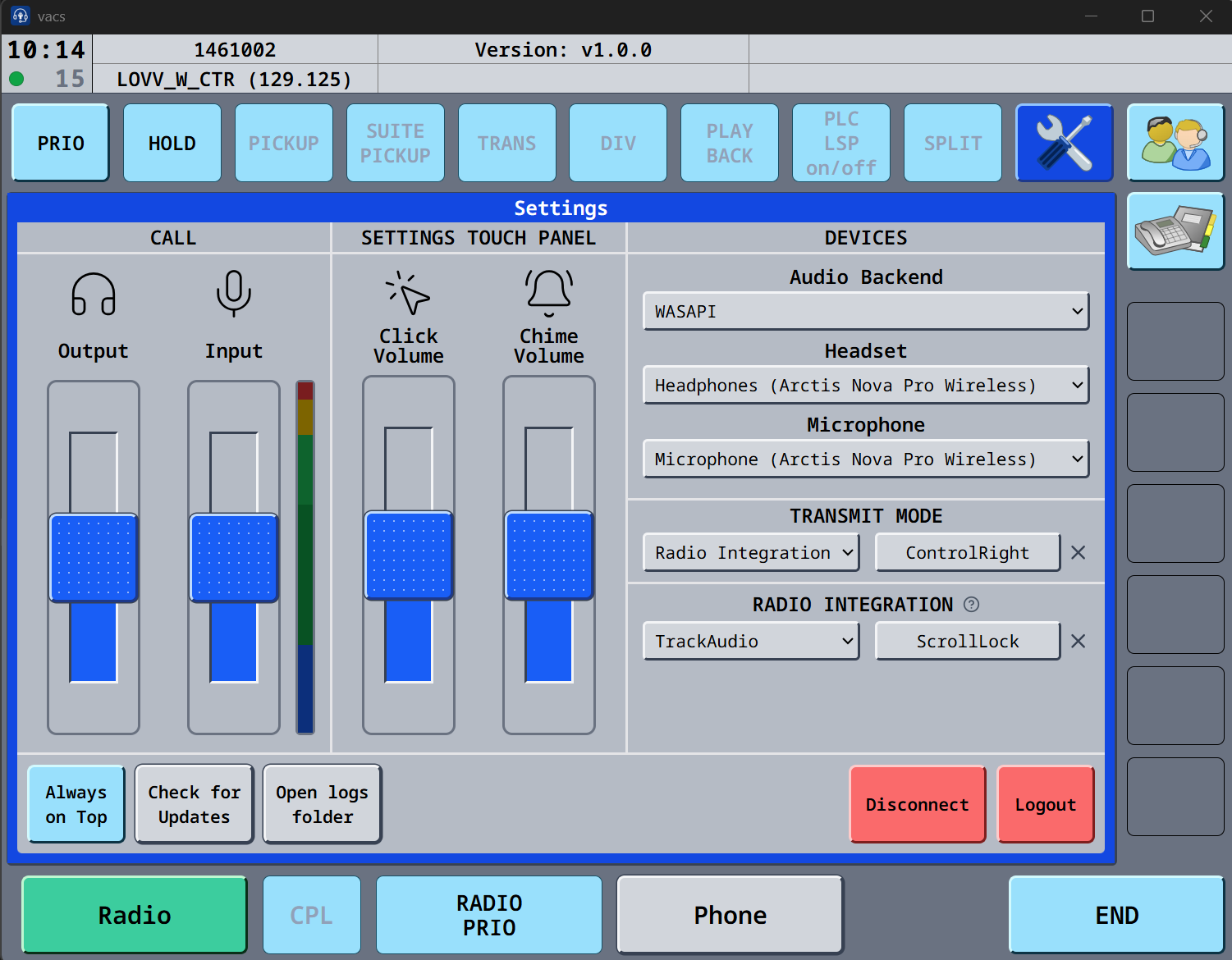
If you cannot see input impacts, click on the VU meter, and you can now see the input. Under transmit mode, you can choose Push to mute, and use the button, as you are using in trackaudio, this way the mic in VACS will be muted if in a call.
We have created a STATIONS file, which holds the controllers you need to coordinate with, depending on your position. Download the file here : CONFIG
3. Profiles
CLICKis"SETTINGS"now CLICKautomatically"OPENfetchedCONFIG" – a Windows explorer window will open, and just put downloaded configuration file into that path, and overwrite any excisting one.Drag that profile intofrom theVACS program to load it.
Profile
Clicking on the "double controller" ICON on the right side, opens the mission menu showing you the selectable profiles.
1_ACC: For EKDK_FMP + All EKDK units
2_APP: For all airborne EKCH units (including EKRK)
3_EKCH_GND: For all EKCH ground based controllers.
4_REGIONALS: For all TWR and APP positions of other airports in Copenhagen FIR.
You can restart the program if needed, and if you go to Mission window, it should look like below.

4. Usage
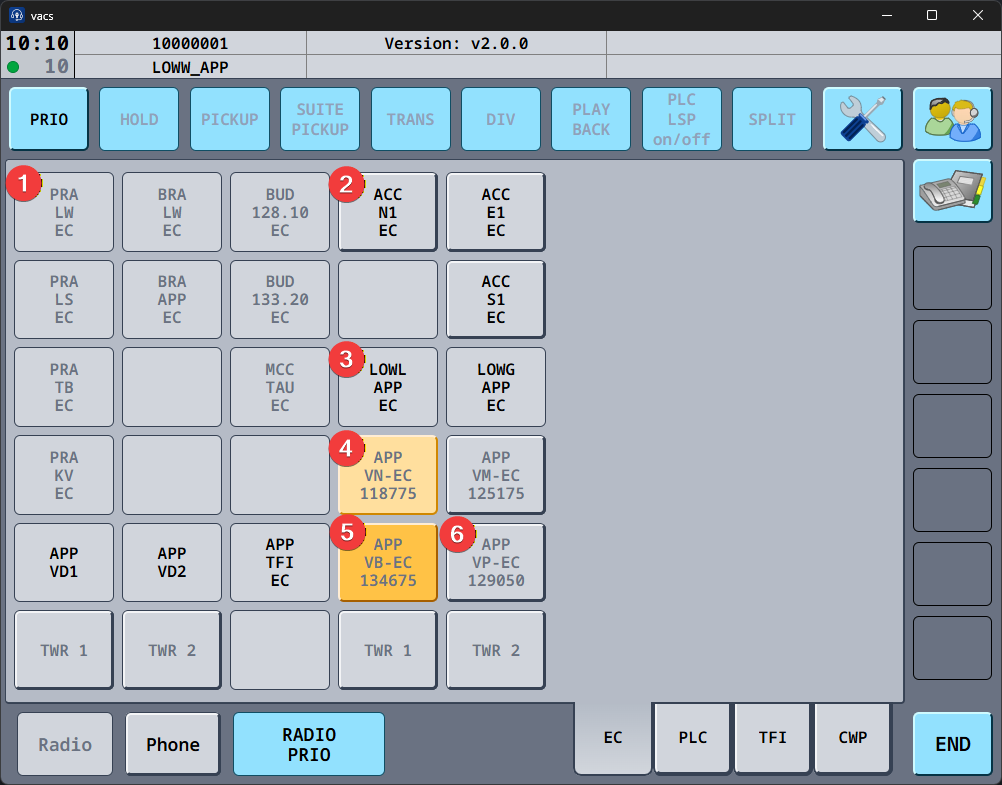
You now call a station instead. Simply select the ATC station you want to reach (e.g., "CH TWR", "DK B", "DK UA"), and vacs will automatically route your call to the controller currently in charge of that station. Top-down coverage and sector inheritance typical to VATSIM are handled automatically, ensuring your call always reaches the right person. If a station is covered by multiple controllers (e.g., during a coordinator/mentoring session), they will all receive the call and can choose to answer it.
This brings coordination much closer to its real-life equivalent - Ifyou dial a position rather than a specific person.
Additionally, you can now select the station you are online.calling -from. IfThis gives the recipient more context, indicating which region they should expect to coordinate with you on.
- Single click on a
qualifyingstationfollowyoucontrollercontrolissetsonline.it-asIfa temporary call source. Your next call will originate from this station, then reset automatically. - Double click (clicking the same key again) sets it as the default source, which persists across calls.
- Clicking again unsets it.
You can have both ofa youtemporary areand VACSa usersdefault Thesource positionselected will appear inat the window,same eligibletime. The temporary source takes priority for calls.the next call and then reverts to the default.
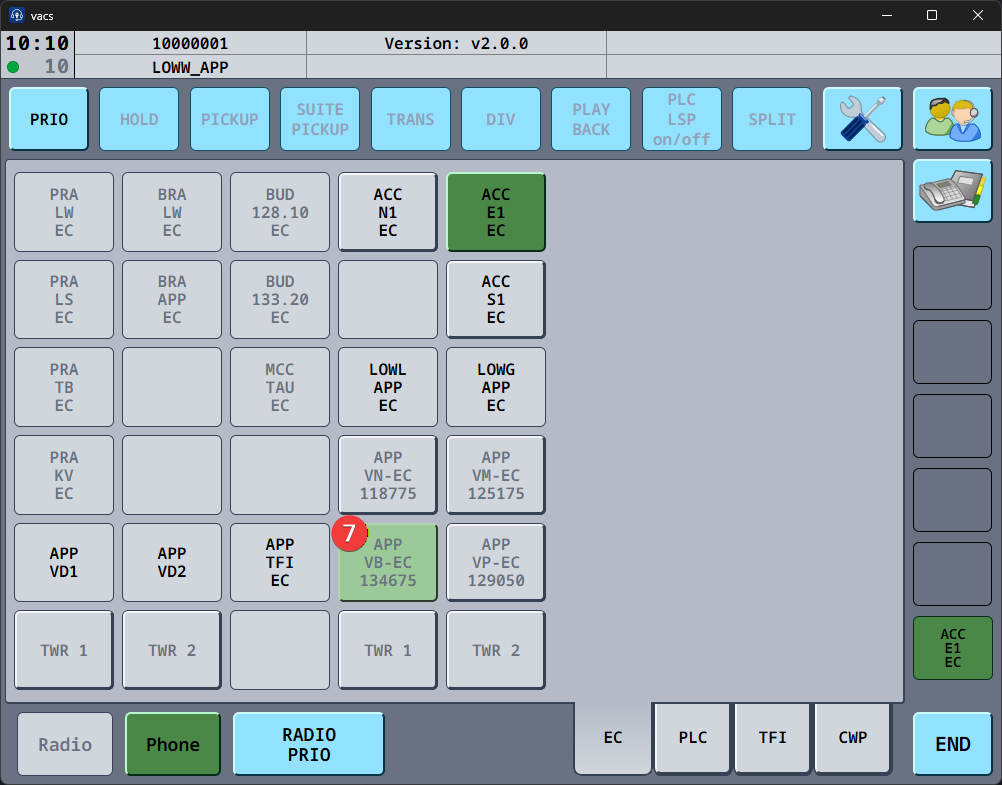
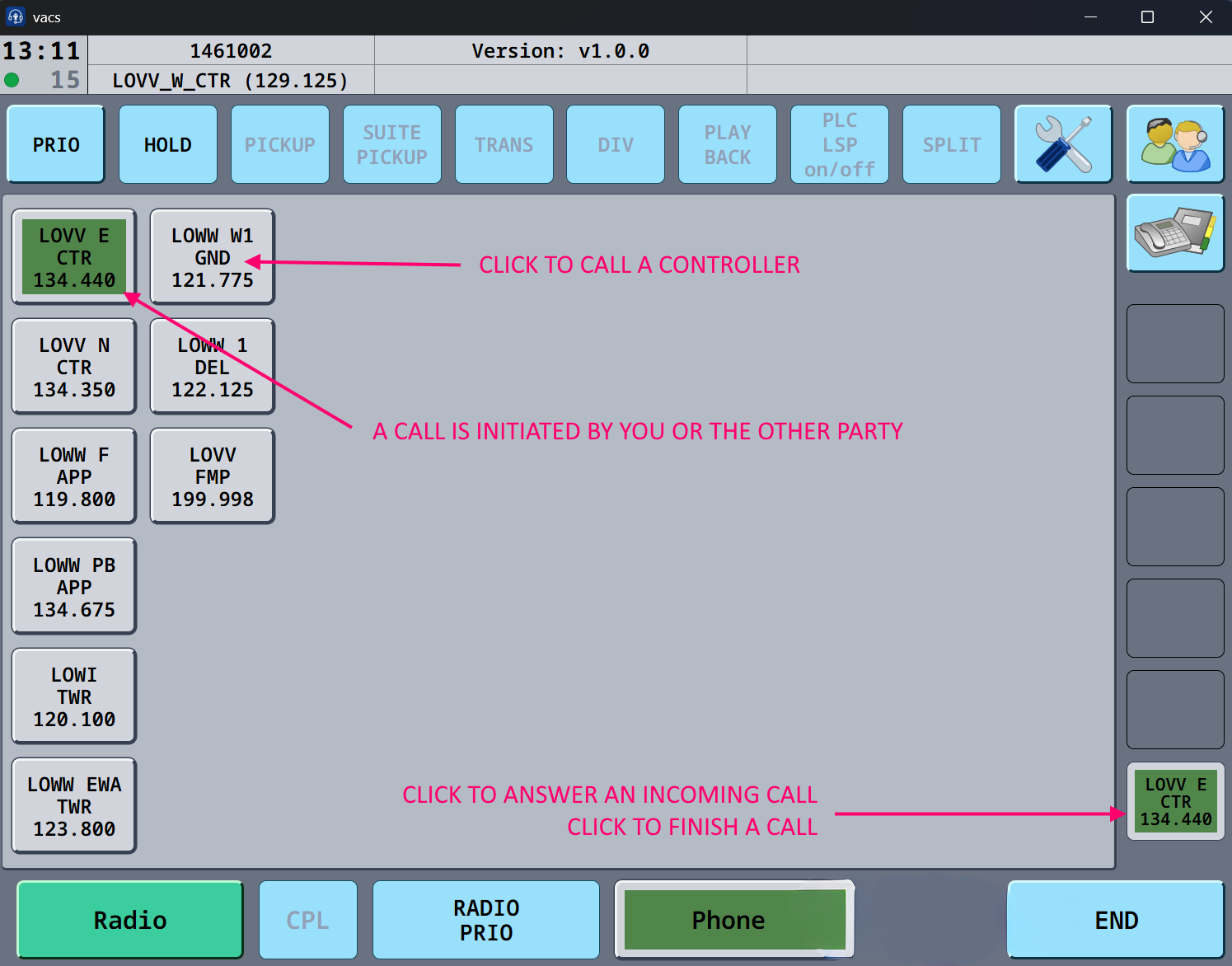
To Call a controller : Click on the icon of the controller you want to call. The open line appears in the bottom right corner in green, and a call tone appear until the VACS line is picked up.
To answer a call: The green icon in the bottom right, will appear signifying the controller trying to call you. Press that bottom right icon, to answer the call.
to finish a call: Click the green icon in the bottom right corner. The icon will disappear, and all icons turn gray, signifying no active call is ongoing.