
Moodle
Moodle is well known open source e-learning platform used by multiple organisations to create thorough training programs.
It is used by a lot of vACCs on VATSIM to conduct theoretical training both for ATC and pilots.
It allows to create interactive lessions, use voice and video and create quizzes to test and assess the students before conducting practical training.
In Polaris FIR we are working on having one Moodle course per available training in CC. Each course has an entry exam that the student must pass in order to continue the training with a mentor. Students that don't manage to pass these entry exams will have their training closed, as their demonstrated competency isn't good enough to undergo further training.
Moodle courses are also used to check competency on refresh and visiting requests.
The platform can be access from moodle.vatsim-scandinavia.org. These is also a link to it in the left hand navigation in CC.
Reviewing student results
You as a mentor have access to see how students perform on the moodle courses.
Accessing courses
As you learned we have multiple courses in Moodle for different types of trainings. You will have access to courses that are relevant for your mentoring.
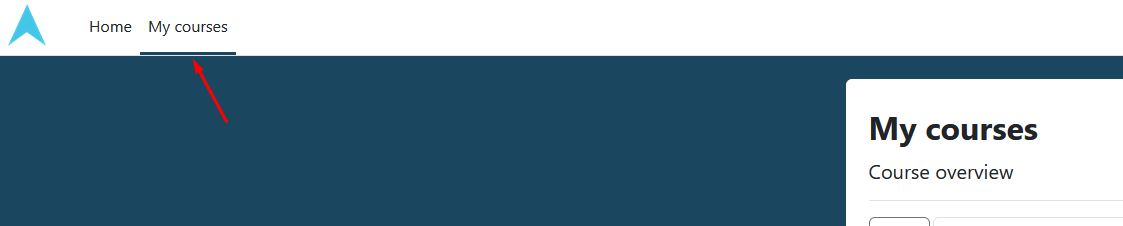
The My courses page will show all Moodle courses you are enrolled to.
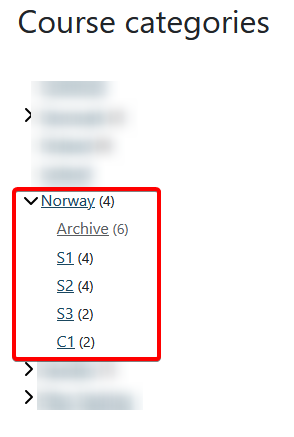
If you are looking for a specific course that are not under My courses, go to Home and scoll down until you find "Course categories". From here, click "Norway".
Show students and grades
Open the course you would like to work with.
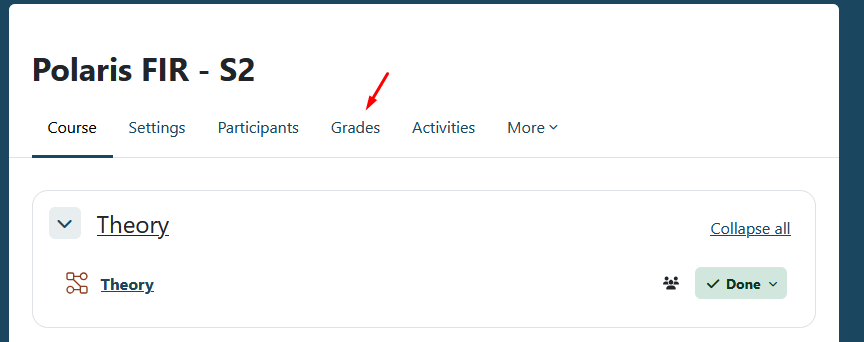
In the course you would like to review results, click Grades.
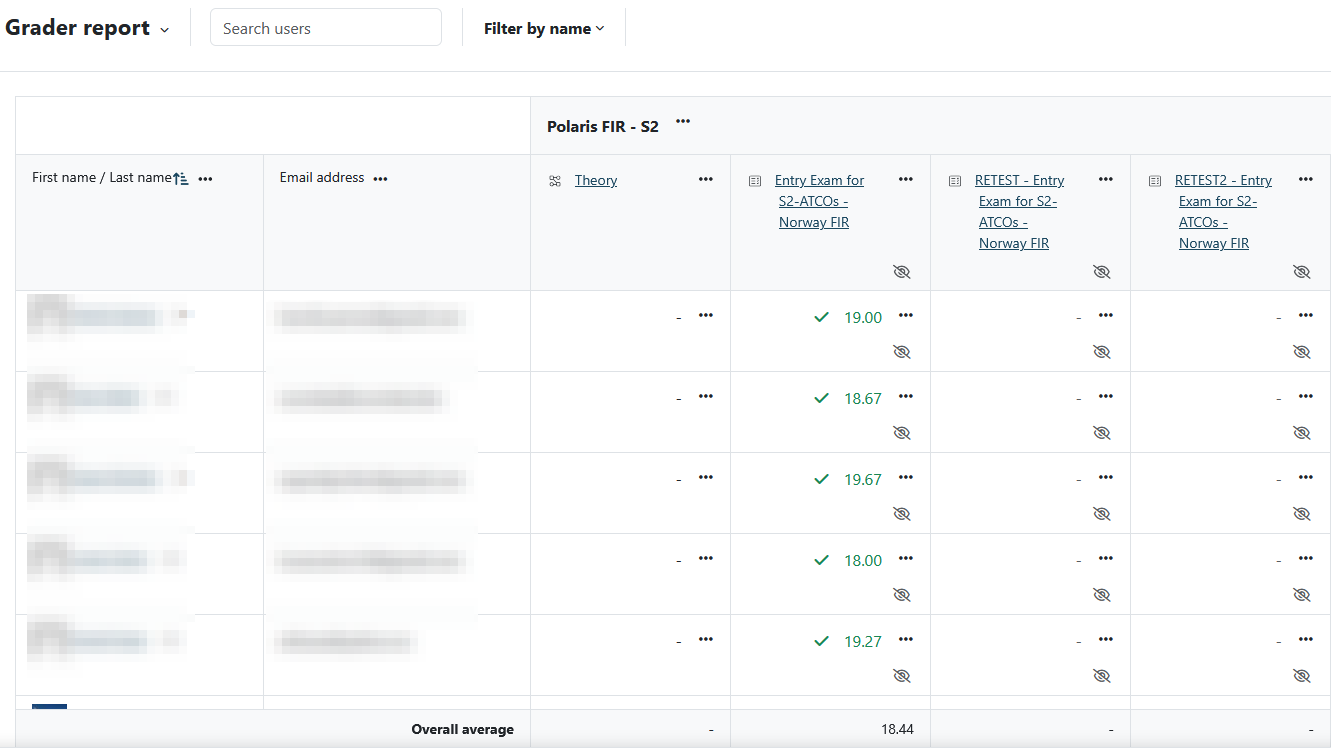
This will open the Grader report with an overview of all enrolled students and the overall result per module with grading.
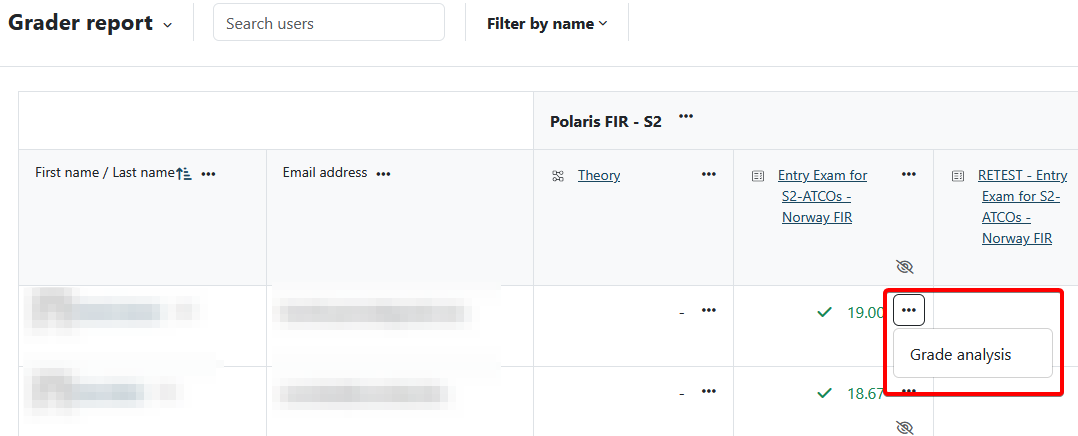
Clicking the three dots next to a result will allow you to see more details through a Grade analysis that will be covered in more detail in the next page.
It is highly recommended to look through the results in Moodle before starting practical training, as it will give you as a mentor insight on what to focus on.
Grade analysis
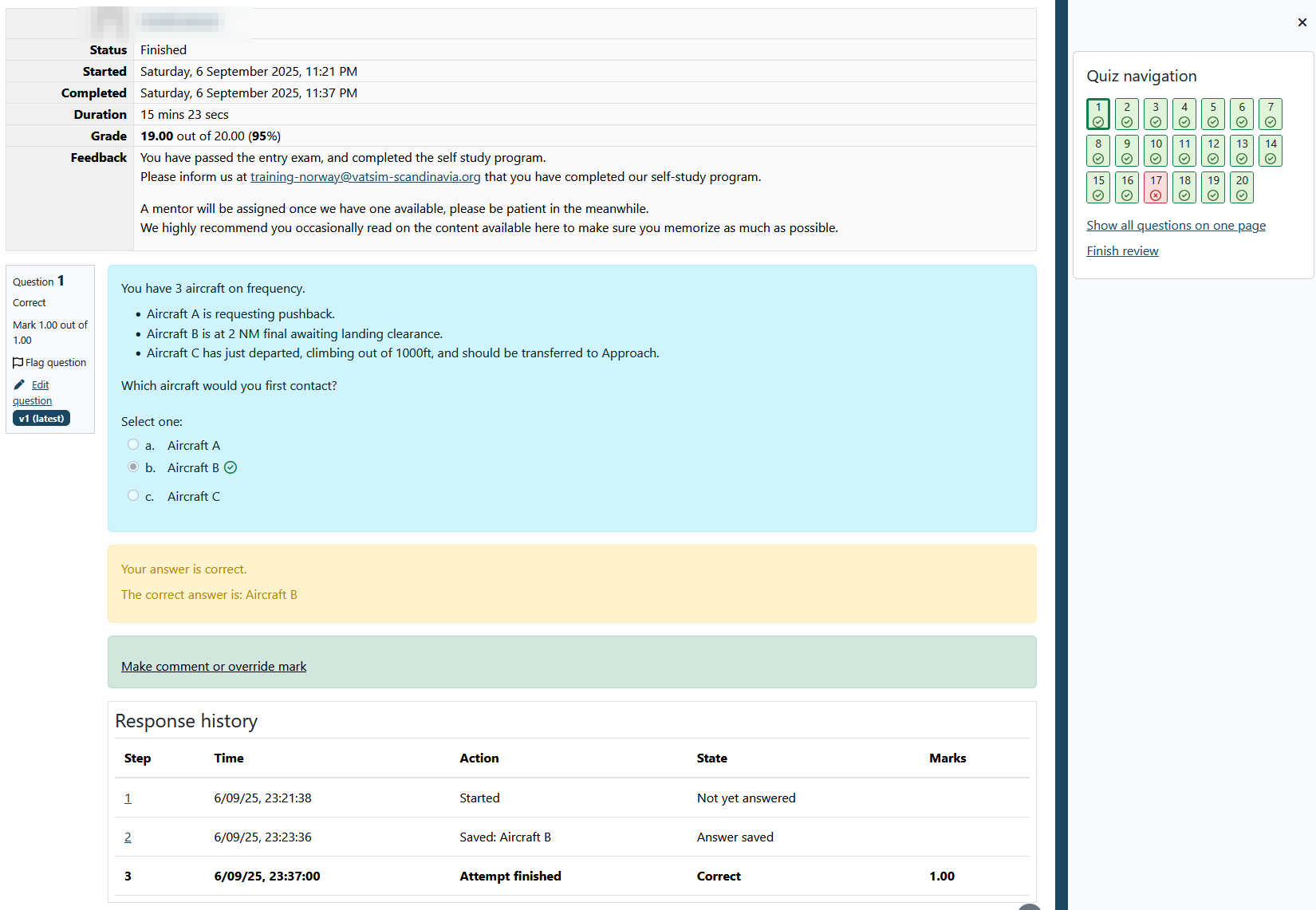
The grade analysis allows you to see details about the attempt, like when it was started and competed, duration, the grade, exactly what the student answered on each question and whether it was correct or wrong.
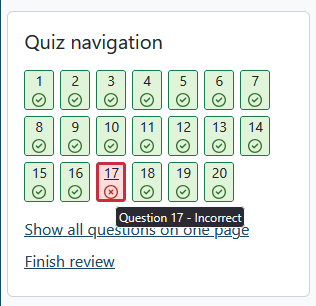
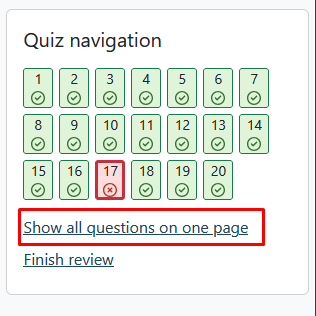
By default questions are shown one by one. Clicking "Show all questions on one page" will allow you to scroll through the entire quiz.