
Chapter 2 - Strip Design
Description, Features and designDesign of the various Strips in FlightStrips

TABLE OF CONTENT
Flight Strips - General FeaturesFlight Strips - Design and DescriptionTactical StripsMESSAGES Strips

1. Flight Strips - General Features
Flight Strips comesare the strips that are concerned with the flights at your airport. They come in two colors.colors
- Teal:
BlueDepartures - Yellow:
stripArrivals
Colors outboundare flights,matched andto athe Yellowcolors Stripfrom forthe inbounds.Ground Radar Plugin used in EKCH
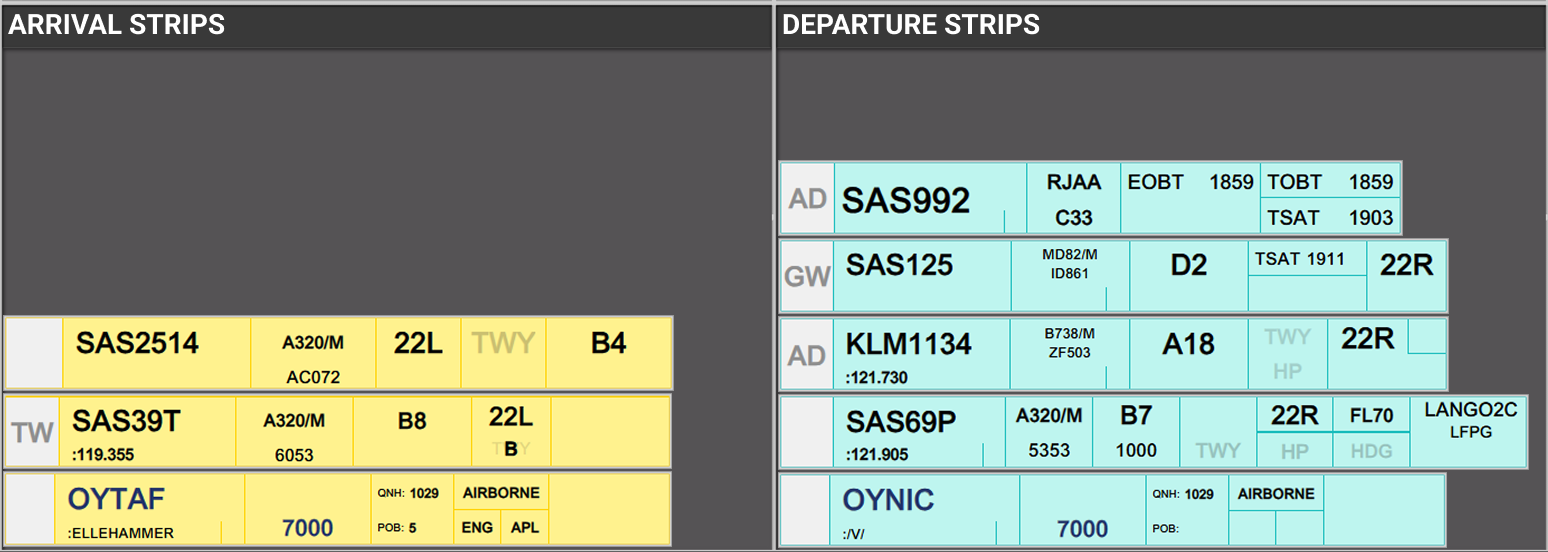
While the many different looks of strips may seem confusing at first, they are all based on the same fundamentals.
SI Field
- A rectangular field, in three possible color combinations, with out without a two letter identifier.
- Description: The transfer/assume mechanism, indicating the owner of the strip.
- Operation: Click to
Transfer/AssumeTransfer / Accept
- Operation: Click to
- A large field, containing the callsign of the aircraft the strip concerns.
- Description (1):The field of clicking to drag the strip around under ownership.
- Description (2):The field of clicking to open Callsign Menu when not under ownership.
- Operation (1): Click
and holdto select thestrip,strip and hold to drag it to anotherbay,bay. - Operation
or- (2)
highlightopentoCallsignstrip and click on a bay to moveMenu.
- Operation (1): Click
- Everything else in the strip.
- Description: Various fields of action items and information items, depicted in six (6) possible formats.
- Operation: Each combination of action fields, depends on what is relevant for the stage of flight.
Purple:Purple: when it is concerned, meaning you will receive ownership of this at some point, but not yet.Purple/White:Purple/White: In transfer towards YOU from previous controllerWhite:White: Assumed and controlled by YOUWhite/Orange:White/Orange: In transfer towards next controller from YOUOrange:Orange: Transferred and accepted by next controller- Holding the click down will allow you to drag the strip around.
- Clicking on Strip and subsequently clicking on another bay will move the strip.
- All bays of the CLR DEL Scope.
- STARTUP bay of the SEQ PLN Scope.
- All PUSHBACK and STARTUP bays on the scope with exception of:
- STARTUP bay in SEQ PLN
- TWY DEP bay for following scopes:
- AA+AD, APRON DEP, APRON ARR
- TWY ARR bay for following scopes:
- AA+AD, APRON DEP, APRON ARR
- TWY DEP, RWY DEP and AIRBORNE bay for following scopes:
- GE+GE, TW+TE, TWR+GND
- TWY ARR and RWY ARR and FINAL bay for following scopes:
- GE+GE, TW+TE, TWR+GND
- Distinctively different colors from the strips.
- Half the size of Flight Strips
- Can not be transfered
- General MEMAID
windowawhichcontrollerisselectsimilarlyforstructuredtheir own reminder - Callsign Specific MEMAID, used to
MESSAGES.facilitatecoordination
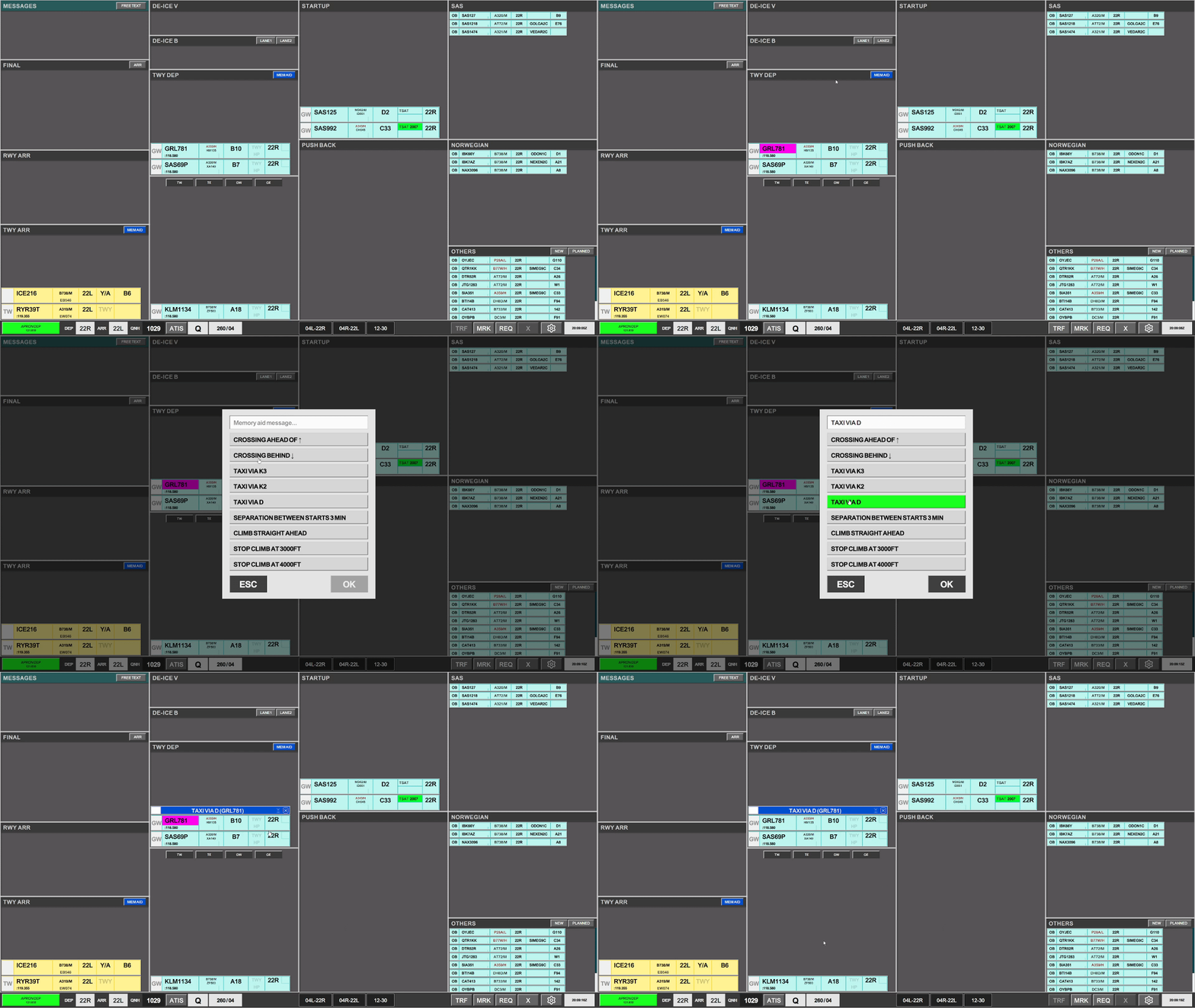
- To make a flight specific memory aid, select the flight before clicking memory aid, and you will see the airplane in parenthsis in the MEM AID strip.
- Click anywhere to allow to FORCE ASSUME (only if not author of the MEMAID)
- Click on the "x" to remove the MEM AID (only if author of the MEMAID)
- click on "hourglass" to acknowledge MEM AID (only if not author of the MEMAID)
- Cargo aircrafts on GW crossing 04R/22L which is owned by TE
- TE and TW coordinating inbounds and outbounds at the "Seven Star" (A/F/D/12/30 intersection)
- GE and GW coordinating aircraft crossing B on RWY 30
- To create a crossing strip, click on the “X” in the yellow box above a qualifying bay. The strip is produced instantly.
- Once produced, you can move it around, to the correct position to reflect where traffic will cross.
- Any controller can force ownership of the “CROSSING” strip by clicking on the strip and selecting “FORCE ASSUME”.
- A “CROSSING” strip should be deleted once the condition is no longer present.
Examples of use are:GW_TWR needs to cross 22L on the way to Apron East. Crossing strip activated by A_TWR to signify gap where GW can crossA_TWR needs to taxi via C and RWY30 to K3. Crossing strip activated by D_TWR to signify gap between departures A_TWR can cross. - in RWY ARR bay (Active Arrival Runway)
- in RWY DEP bay (Active Departure Runway)
- Tower scopes TWY DEP bay (12/30 activity)
- System messages from FlightStrips
- Internal Messages between Controllers
- Broadcasted messages
Callsign Field
Action Fields
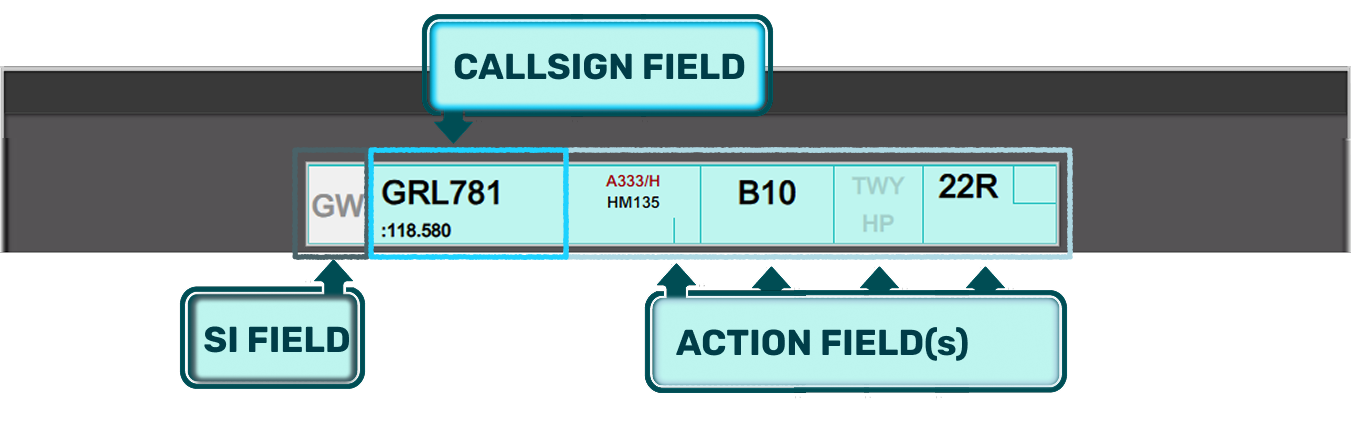
1. SI Field
The SI field has different colors depending on the state of ownership of the strip.
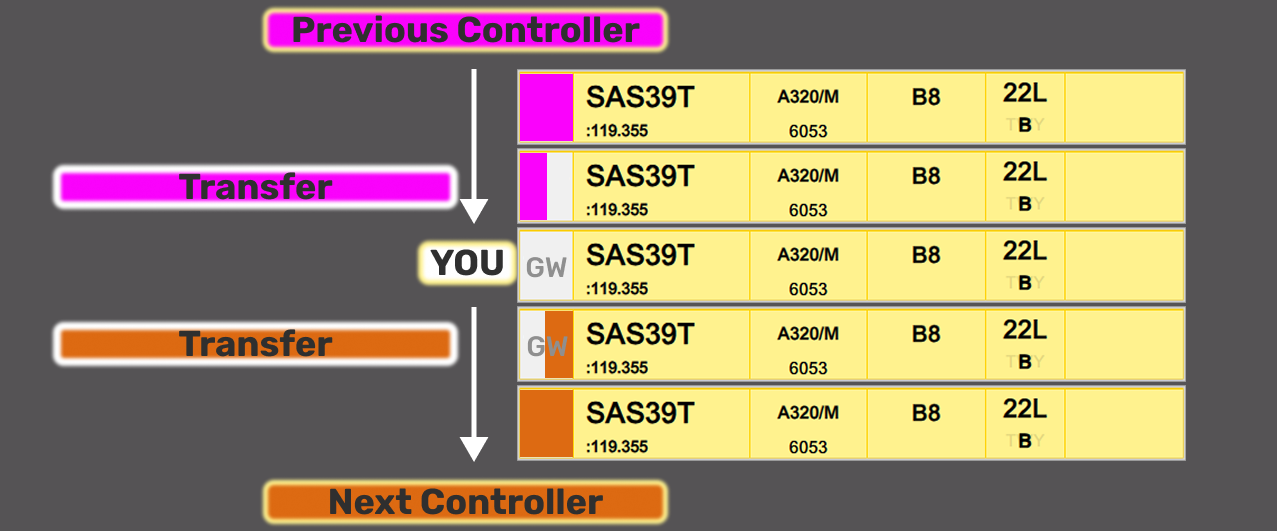
The logic is identical to transfer/assume in COOPANS, only difference is Concerned in COOPANS is green instead of purple.

2. Callsign Field
The callsign field is one which you can click on. Clicking the callsign does two different things depending on whether or not you have assumed the strip (white color SI field).
NOT OWNED
Not assumed
Clicking on callsign field will open the “Callsign Menu” where you can select various submenus
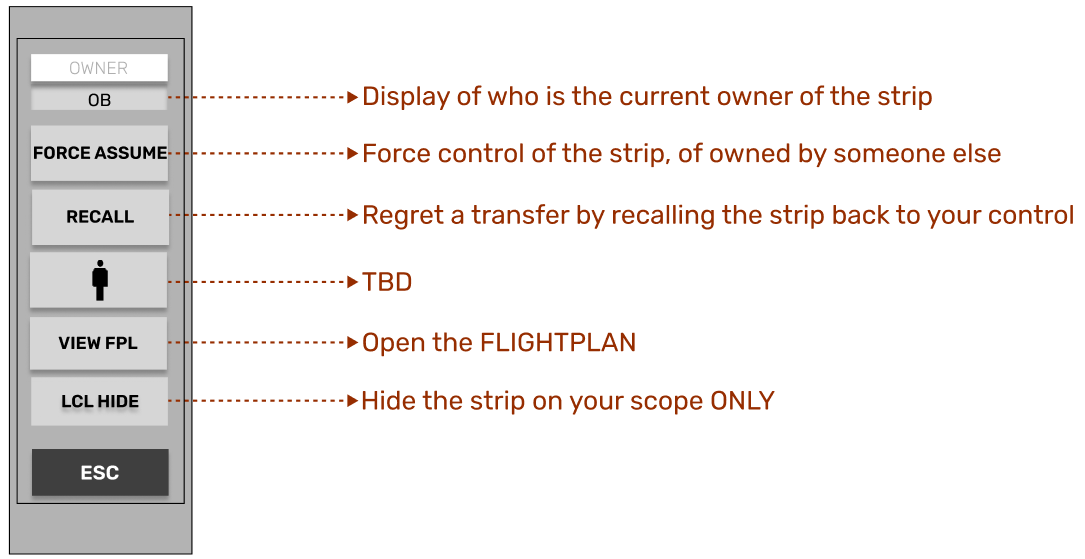
OWNED
Assumed
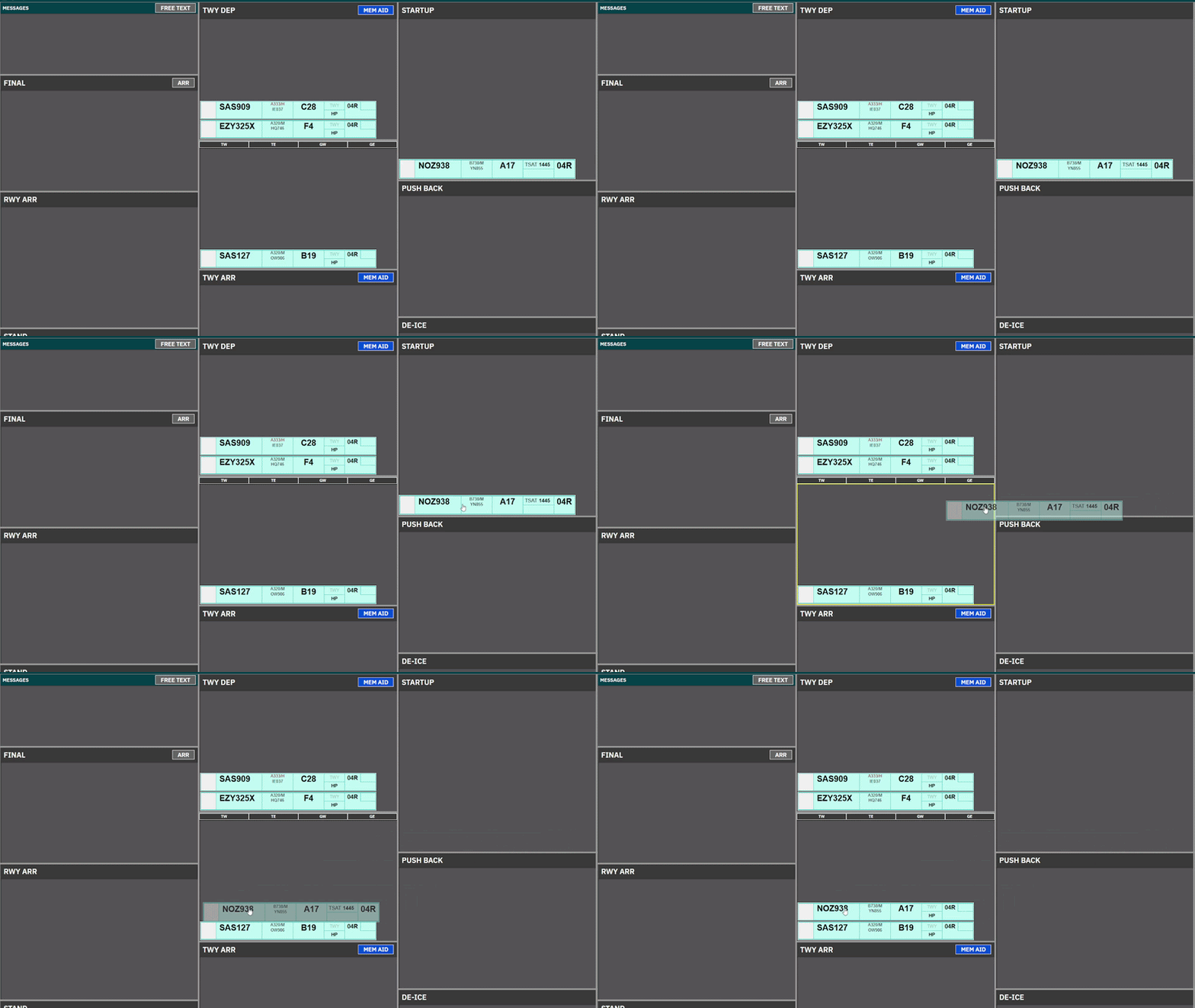
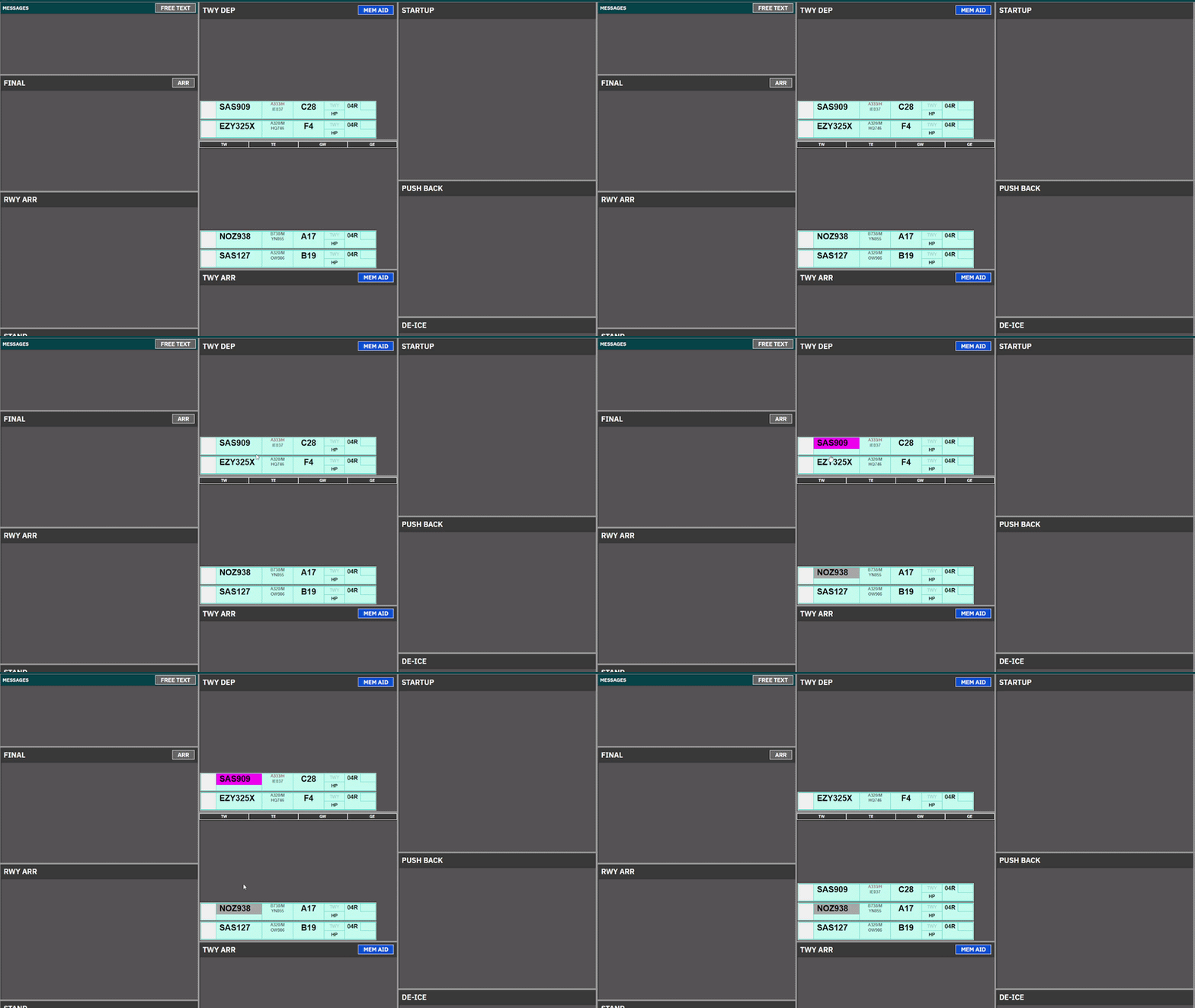
Clicking on the CALLSIGN field, will select the strip, made apparent by the purple fill color of the field.
It is common procedure to click and drag the strip to establish the correct sequence within the bay
3. Action Fields
Various click spots, some to open menus, some are not clickable. There are six different version of Strips, each with action fields which are relevant to the phase of flight for the strip.
Over the different scopes, several different visual configurations are possible, and generally depending on the combination of Scope and Bay.
REF. | STRIP NAME | USED BY |
1.1 | DEL/SEQ Strip | CLR DEL & SEQPLN to provide ATC Clearance and CDM management. |
1.2 | START/PUSH Strip | ALL Controllers in STARTUP & PUSHBACK Bays to facilitate such. |
1.3 | TAXI-OUT STRIP | For Taxi-Out instructions, used by APRON for relevant holding points |
1.4 | TAXI-IN STRIP | For Taxi-In instructions, used by APRON for relevant stand info. |
1.5 | Expanded TAXI-OUT STRIP | For Taxi-Out instructions, used by TOWER for including departure info. |
1.6 | Expanded TAXI-IN STRIP | For Taxi-in, Used by TOWER for information on LDG RWY, timings and STAR. |
In the following sections we will go through the buildup of each strip, for you to reference. The actual usage of strip is described in each “operation” chapter.
END OF SECTION

1.2. StripFlight Strips - Design and Description

1.1 DEL/SEQ Strip
DEL/SEQ Strip is a strip, containing only CDM information, and the needed clickspots to assign an ATC Clearance and Startup. This strip is used in
DEL / SEQ Strip | |||
| |||
ID | Name | Description | Clickspot |
1 | SI Field | Click to Initiate Transfer | Yes |
2 | Callsign | Click to mark or open callsign menu. | Yes |
3 | Dest/Stand | Click on either to open ATC Clearance Dialogue | Yes |
4 | EOBT | Information on FPL filed EOBT | No |
5 | CTOT | CTOT assigned. Color coding/ops as per Chapter 8 - CDM Operation | No |
6 | TOBT | Information on latest TOBT. Color coding/ops as per Chapter 8 - CDM Operation | Yes* |
7 | DEP RWY | Information on latest TOBT Color coding/ops as per Chapter 8 - CDM Operation | No |


*Only in SEQ PLN Scope

1.2 START/PUSH Strip
PUSH/START Strip is a strip containing simplified CDM info as well as the features needed to provide pushback and engine starts. It is used in:
PUSH / START Strip | |||
| |||
ID | Name | Description | Clickspot |
1 | SI Field | Click to Accept Transfer Click to Initiate Transfer | Yes |
2 | Callsign | Click to Mark or open Callsign Menu | Yes |
3 | Reg / Type | Open FlightPlan | Yes |
4 | Stand | Open Airport Map for selection of clearance limit | Yes |
5 | DE-ICE | Showing platform for De-Ice if requested. Accompanied by snow icon below Ref/Type | No |
6 | TSAT | Information on latest TSAT. Color coding/ops as per Chapter 8 - CDM Operation | Yes |
7 | CTOT | Information on latest CTOT Color coding/ops as per Chapter 8 - CDM Operation | No |
7 | DEP RWY | Click to manually change Departure Runway | Yes |



1.3 TAXI-OUT Strip
TAXI-OUT Strip is used on TWY DEP for specifically Kastrup Apron controllers. This means it is visible only at:
TAXIOUT Strip | |||
| |||
ID | Name | Description | Clickspot |
1 | SI Field | Click to Accept Transfer Click to Initiate Transfer | Yes |
2 | Callsign | Click to Mark or open Callsign Menu | Yes |
3 | Reg / Type | Open FlightPlan | Yes |
4 | Stand | Informational only (in case of return to stand) | No |
5 | DE-ICE | Showing platform for De-Ice if requested. Accompanied by snow icon below Ref/Type | No |
6 | TWY HS | Taxi clearance limit. Click to assign hold short | Yes |
7 | HP | Holding point. Click to assign Holding Point. | Yes |
7 | DEP RWY | Click to manually change Departure Runway | Yes |


1.4 TAXI-IN Strip
PUSH/START Strip is used on TWY ARR for specifically Kastrup Apron controllers. This means it is visible only at:
TAXI-IN Strip | |||
| |||
ID | Name | Description | Clickspot |
1 | SI Field | Click to Accept Transfer | Yes |
2 | Callsign | Click to Mark or open Callsign Menu | Yes |
3 | Type / Reg | Click to open Flightplan | Yes |
5 | ARR RWY | Informational only | No |
6 | LDG Time | Informational only | No |
7 | TWY HS | Click to select taxi clearance limit Standard feeder route on default | Yes |
9 | Stand | Click to open Stand Assignment Tool | Yes |
10 | Marshaller | Detects if pilot has GSX through FlightStrips. Appears only if that is the case. Number denotes stop line | TBA |


1.5 Expanded TAXI-OUT Strip
Expanded TAXI-OUT Strip is used on TWY DEP for specifically Kastrup Tower controllers. The purpose of this strip is to accomendate more departure relevant information such as initial climb and assigned headings.
It is used for
Expanded TAXI-OUT Strip | |||
| |||
ID | Name | Description | Bay |
1 | SI Field | Click to Accept Transfer Click to Initiate Transfer |
|
2 | Callsign | Click to Mark or open Callsign Menu |
|
3 | Type | Informational only |
|
4 | Squawk | Informational only |
|
5 | Stand | Informational only |
|
6 | EOBT | Informational only |
|
7 | DE-ICE | Showing platform for De-Ice if requested. |
|
8 | TWY HS | Taxi clearance limit. Click to assign hold short |
|
9 | DEP RWY | Click to change Departure Runway |
|
10 | HP | Click to assign Holding Point. |
|
11 | CFL | Cleared Flight Level. Click to change. SID level default |
|
12 | HP | Assigned Heading. Click to change. Blank by default |
|
13 | SID/Destination | Click to open FlightPlan |
|
14 | CTOT | Information only Color coding/ops as per Chapter 8 - CDM Operation |
|


1.6 Expanded TAXI-IN Strip
Expanded TAXI-IN Strip is used on TWY ARR for specifically Kastrup Tower controllers.
It is used for
Expanded TAXI-IN Strip | |||
| |||
ID | Name | Description | Bay |
1 | SI Field | Click to Accept Transfer Click to Initiate Transfer |
|
2 | Callsign | Click to Mark or open Callsign Menu |
|
3 | Type / WTC | Informational only |
|
4 | Squawk | Informational only |
|
5 | Stand | Click to open Stand Assignment Tool |
|
6 | LDG Time | Informational only |
|
7 | ARR RWY | Informational only |
|
8 | TWY HS | Click to select taxi clearance limit Standard feeder route on default |
|
9 | STAR/Dest | Click to open FlightPlan |
|
10 | Marshaller | Detects if pilot has GSX through FlightStrips. Appears only if that is the case. Number denotes stop line |
|

END OF SECTION
3. Tactical Strips
FlightStrips contains several types of strips, which are tactical and not associated with a flight. They are identified byby:

2.1 MESSAGES
All scopes contain a bay for internal messages, to communicate and coordinate with other flight strips users.
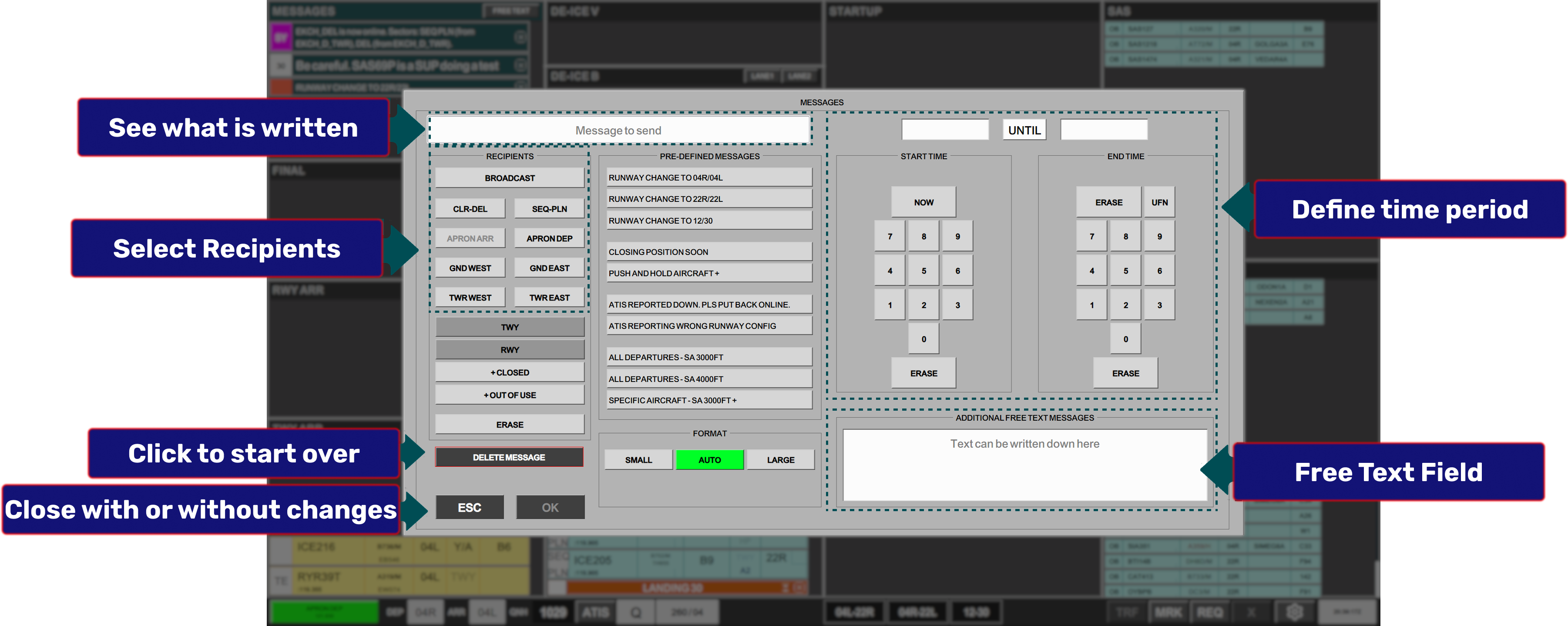
To use press one of the buttons in the Messages header. Write your own, or select the most commonly used standard messages.
Select the specific position you want to write your message to, or select BROADCAST to send the message to everybody using FlightStrips. Once a message is sent, it can be individually deleted by each controller by clicking on the “X”.
All messages are subject to VATSIM-Scandinavia rules and VATSIM Code of Conduct limitations.

2.2 MEMORY AIDs
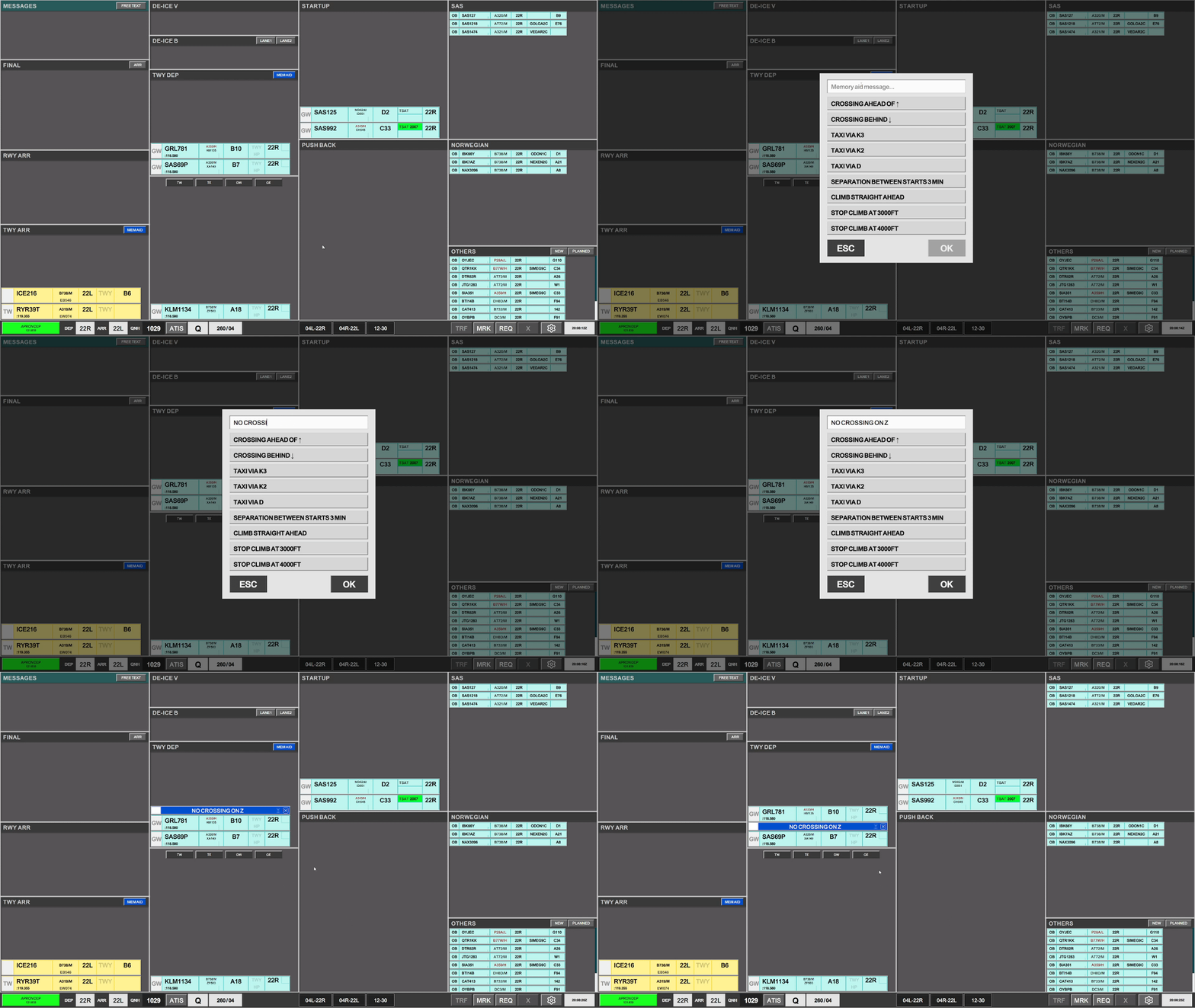
MemoryMEMORY aidsAIDs are types of strips a controller can activate to put a condition or reminder to an aircraft.
Clicking
MEM AIDs are available on TWY DEP and TWY ARR bays on all scopes which has the MEMAIDpossibility buttonto manipulate those two bays.

MEM AIDs has two different functions, that are widely used in theFlightStrips.
MEM AID - General
MEM AID - Callsign Specific
A MEM AID, once introduced to a bay has three possible actions:

2.3CROSSING CROSSINGStrips
CROSSING strip takesis an "X" on a bright yellow color background and is a tactical reminder when an aircraft in one bay, as to cross the path of an aircraft in another bay.
Crossing Strips are available in all Tower related movement bays (TWY DEP, TWY ARR, RWY DEP, RWY ARR).

The purpose of these strips is to coordinate in traffic crossing in bays the controller does not own. Main examples of its use are:
The CROSSING Strip must be located in the bay where the "flow is disturbed".
2.4LAND LAND// START Strip
LAND and START strips takes bright orange colors.colors This stripand is to mark an aircraft landing or taking off on a runway, where the strip may not actually be present.
A LAND or a START strip is located in any bay where a landing or departing aircraft may encroach. This means:

Because a controller may not have control of one of the three bays described above, a tactical reminder MUST be present to signify that a Runway is blocked by a starting or landing aircraft, to alert the controller using that bay.
Therefore as an alternative, this strip can be laid down, while the actual strip may be in another bay.
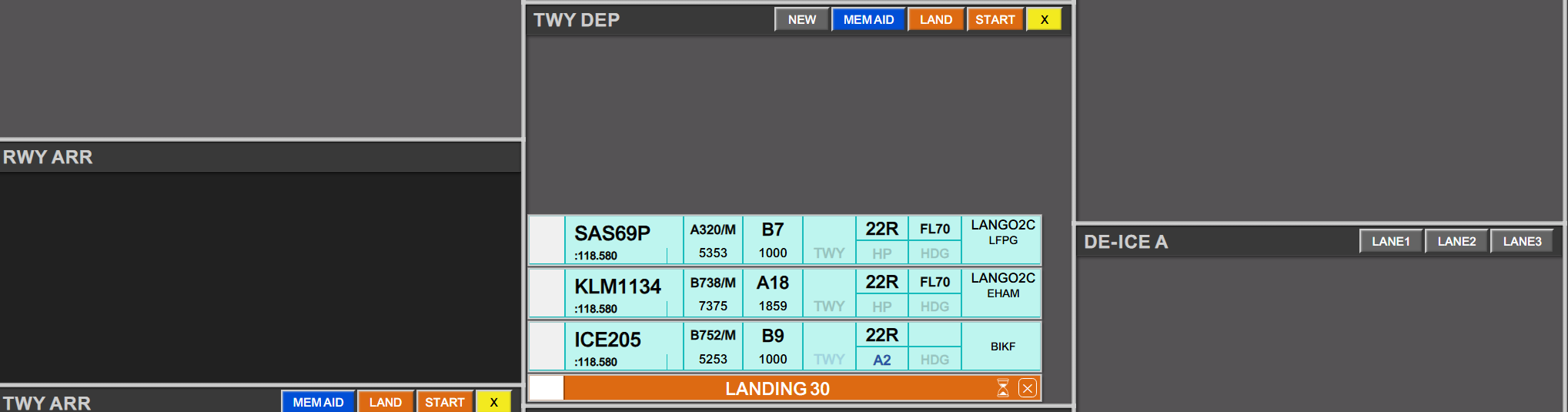
Uniquely to LAND/START strips an hourglass is present, which can be clicked to start a time. This can be useful for Wake Turbulence separation.
Examples of use are:
A_TWR needs a landing on 22R. Strip can be activated to signify landing on 22R.
A_TWR needs a low pass on RWY30. Strip can be activated on TWY DEP to ensure no flights are crossing 12/30 while aircraft performs low pass.
3. MESSAGES
All scopes contains a bay reserved for Messages. This is an inter-program communication system, for short messages, and status alerts of various character.
Messages are divided into:
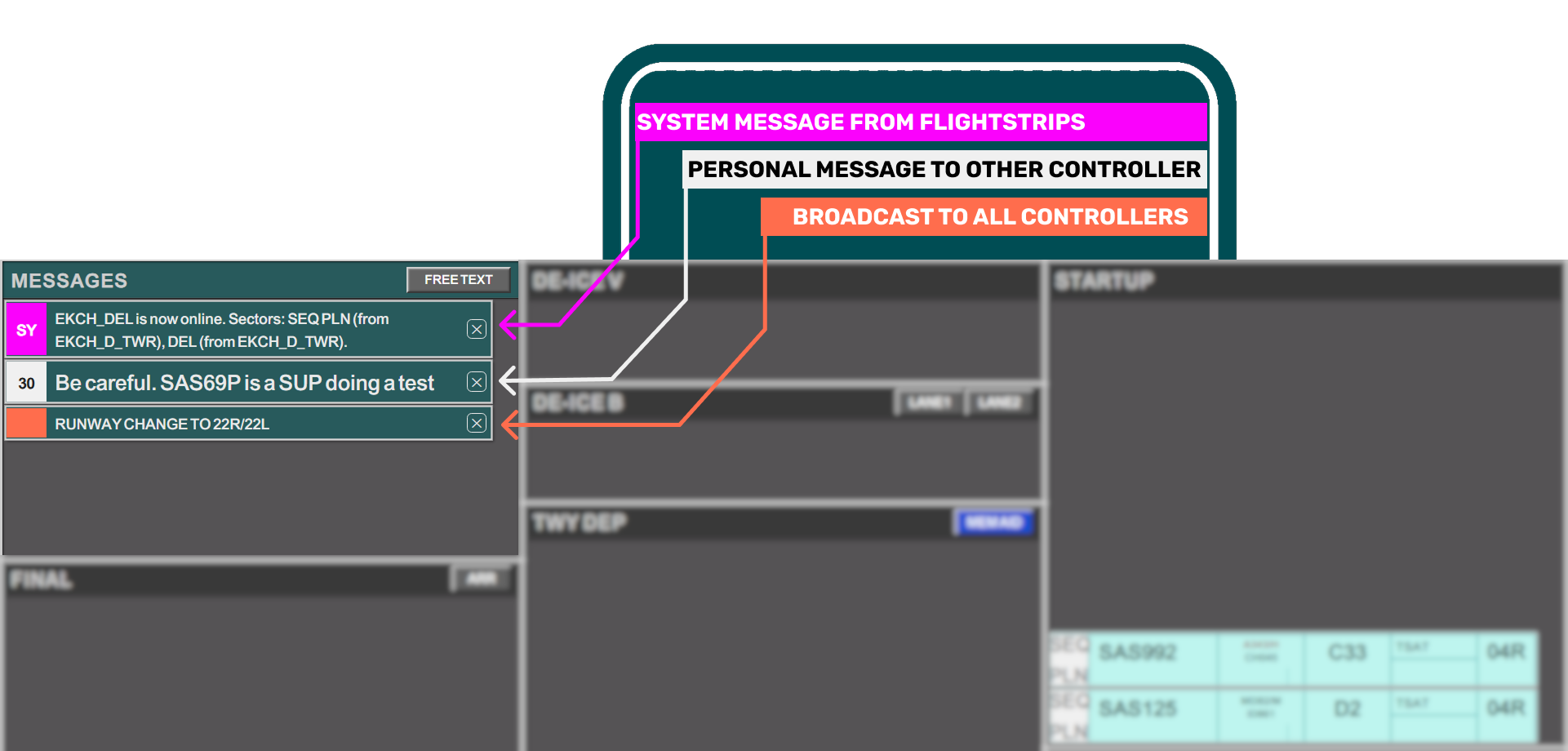
All controllers, can create their own MESSAGE by click on any field in the MESSAGES bay header. It will open the MESSAGES Dialogue
When a message is received you can close it at any time. Closing the message on your scope does not close it in any other controllers scope.
Log of MESSAGES are being kept by FlightStrips, and VATSIM COC is valid for internal messages as well!!!!
END OF SECTION