
Chapter 4 - CLR DEL Operation
Containing Description, Operational Procedures and Submenus of the scope called CLR DEL...
!!!IMPORTANT!!! This scope is ONLY displayed for EKCH_DEL when a seperate entity is handling CDM. It is NOT possible to mange CDM from this scope. If EKCH_DEL is managing CDM, the SEQ PLN Scope is the correct one to use.
1. General Overview
Used by: EKCH_DEL
General Design
Column 1 (ARR) | Column 2 (DEP) | Column 3 (SU+PUSH) | Column 4 (PLANNED DEP) | |
OTHERS1 | SAS1 | CLEARED | PUSHBACK2 (Passive) | |
TWY DEP2 (Passive) | ||||
NORWGIAN1 | MESSAGES | |||
TASK BAR | ||||
1: OTHER, SAS and NORWEGIAN are collectively known as PLANNED DEPARTURES. Departures without ATC clearance.
2: Passive bays, for informational purposes only.
LIVE SCOPE EXAMPLE
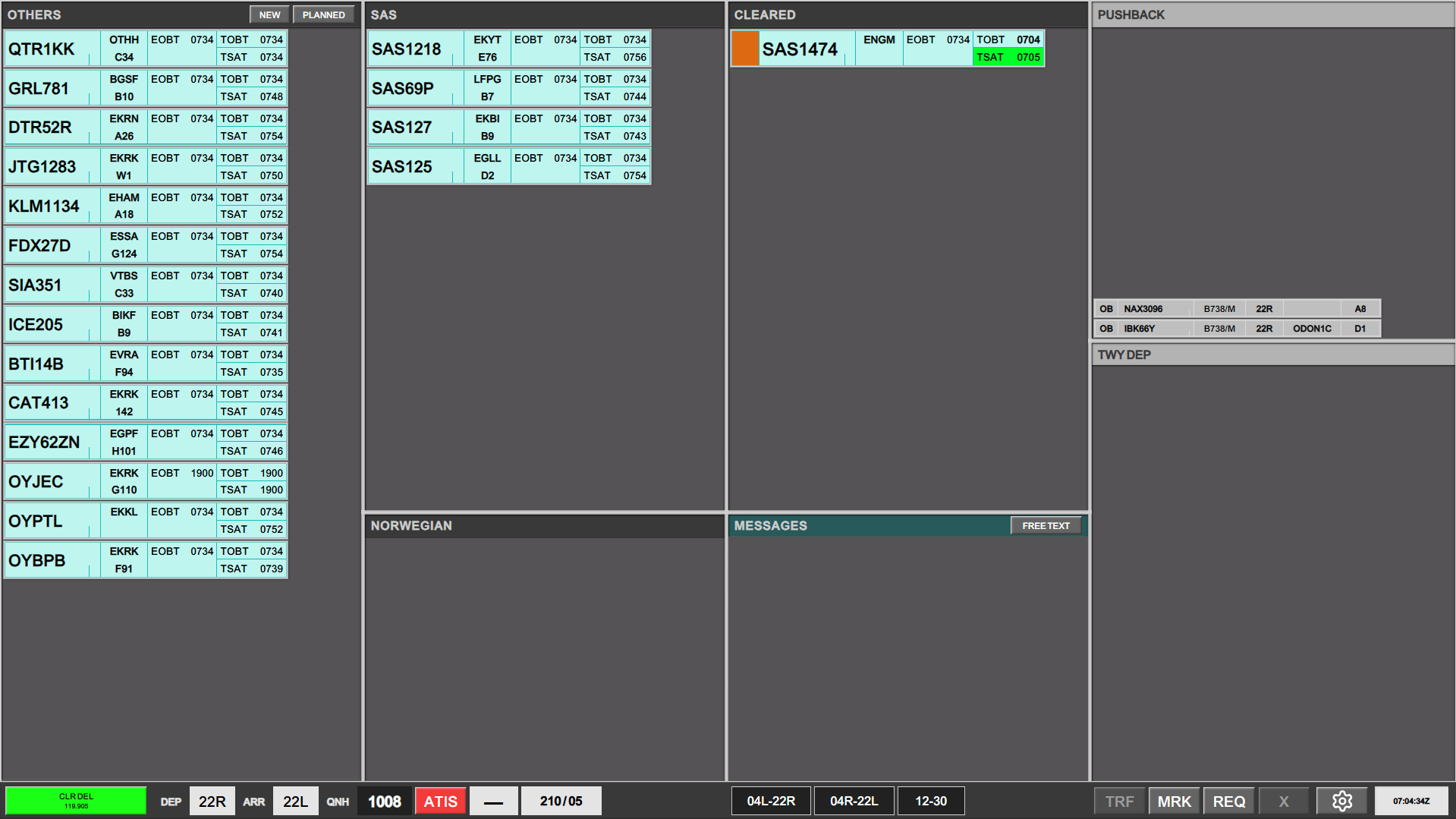
The CLR DEL scope has two major differences to all the other scopes.
- It sorts from top to bottom unlike any other scope
- It does not contain any ownership, made apparent by the lack of SI field in the strips.
This is because flightplans are only activated by startup, and hence does not contain any ownership before that.
Planned Departures
Planned Departures is a term that covers all aircraft which are online in the airport, but has not yet received an ATC clearance. Some scopes have them bundled together but other scopes, such as CLR DEL has them divided into three separate bays:
- SAS
- NORWEGIAN
- OTHERS
They are all PLANNED DEPARTURES.
If an aircraft cannot be located, it can be found by clicking on PLANNED in the bay header, and selected from the list.

If a new flight plan desires to be made, clicking on NEW will open a empty flight plan. Filling in the callsign will automatically try to find an already filed flight plan.
FlightStrips CANNOT make a flight plan on a callsign that does not exist on VATSIM. Only callsigns logged on can have a flight plan created for them!

ATC Clearance
The primary function with CLR DEL scope is to assign an ATC clearance. This is being done by clicking on the STAND/DEST field on the strip. This is one single click spot which opens the ATC Clearance Dialogue.
NOTE! This action is identical to all scopes who assigns an ATC Clearance. No matter which position you sit, refer to this chapter for information on providing ATC Clearances!
ATC Clearance Dialogue
The ATC Clearance dialogue is a large window, containing identical information as the FPL window.
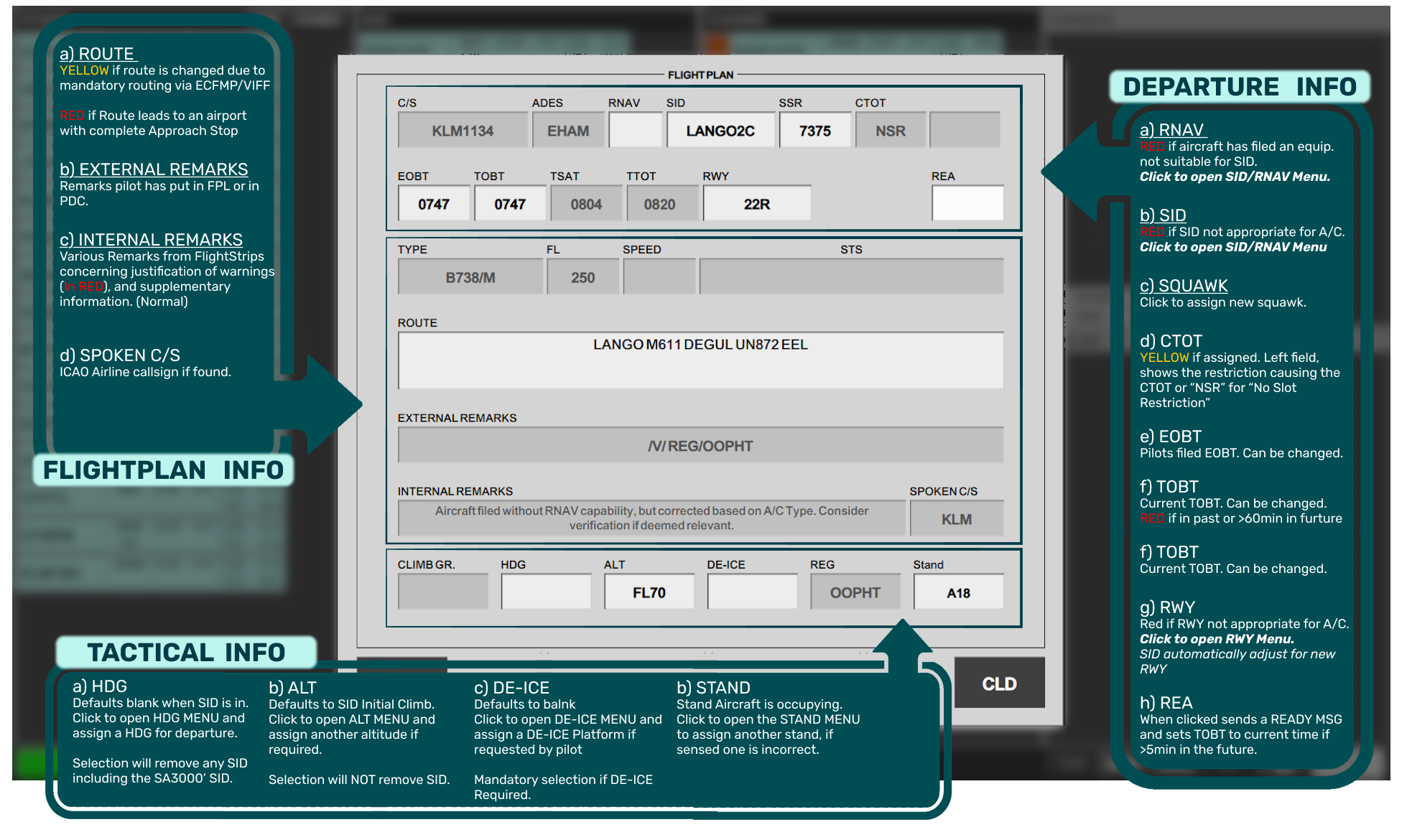
All Red-marked areas must be corrected before issuing ATC Clearance.
- All Yellow-Marked areas must be inspected and evaluated before issuing ATC Clearance.
Submenus
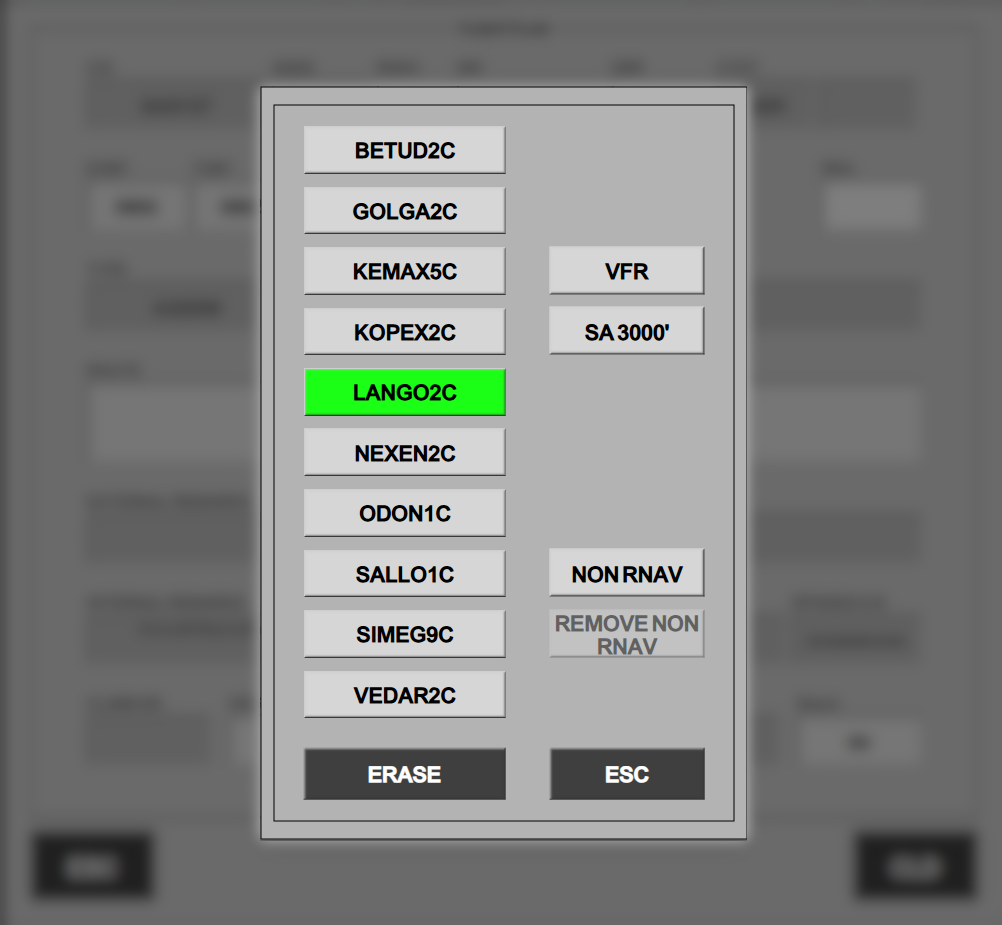
SID/RNAV MENU
- Active Selection in GREEN
- click ESC after selection is made
- Click ERASE to leave dialogue without any changes.
- SA3000' will automatically clear aircraft on "Straight Ahead, Climb to 3000ft."
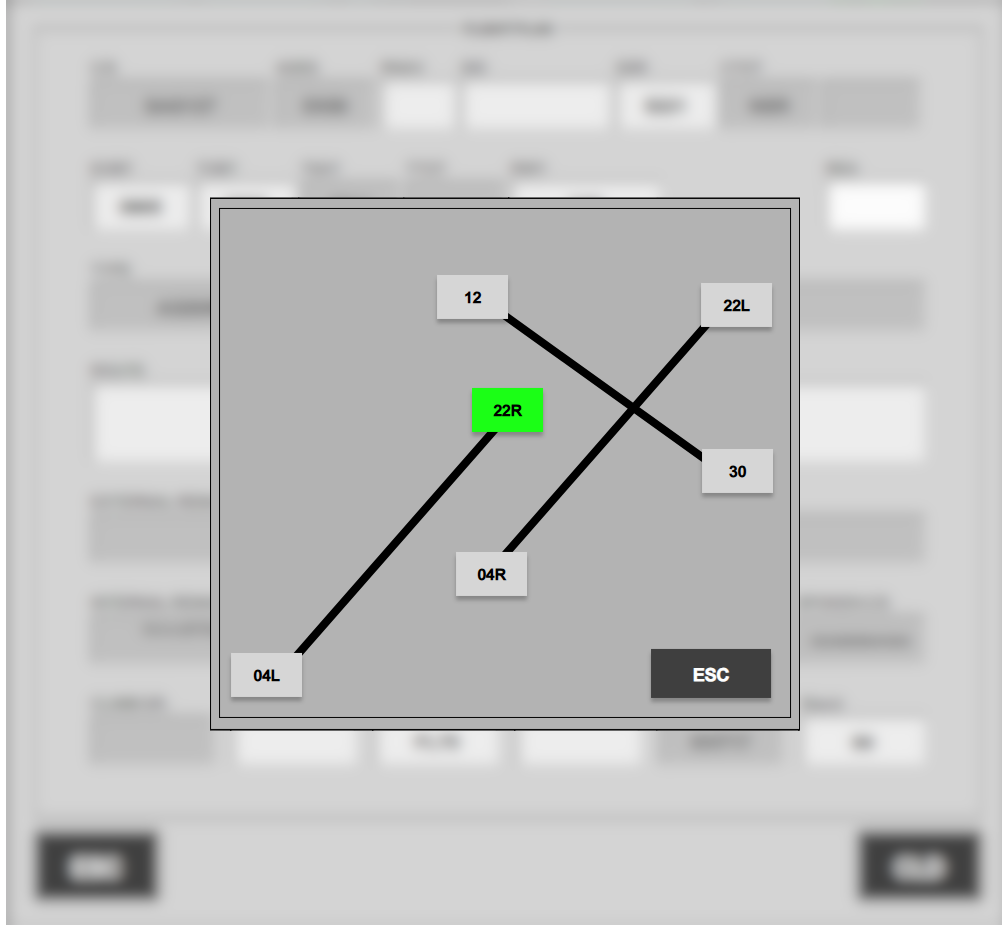
RWY MENU
- Click to select the desired Runway for Departure.
- Click ESC after selection is made
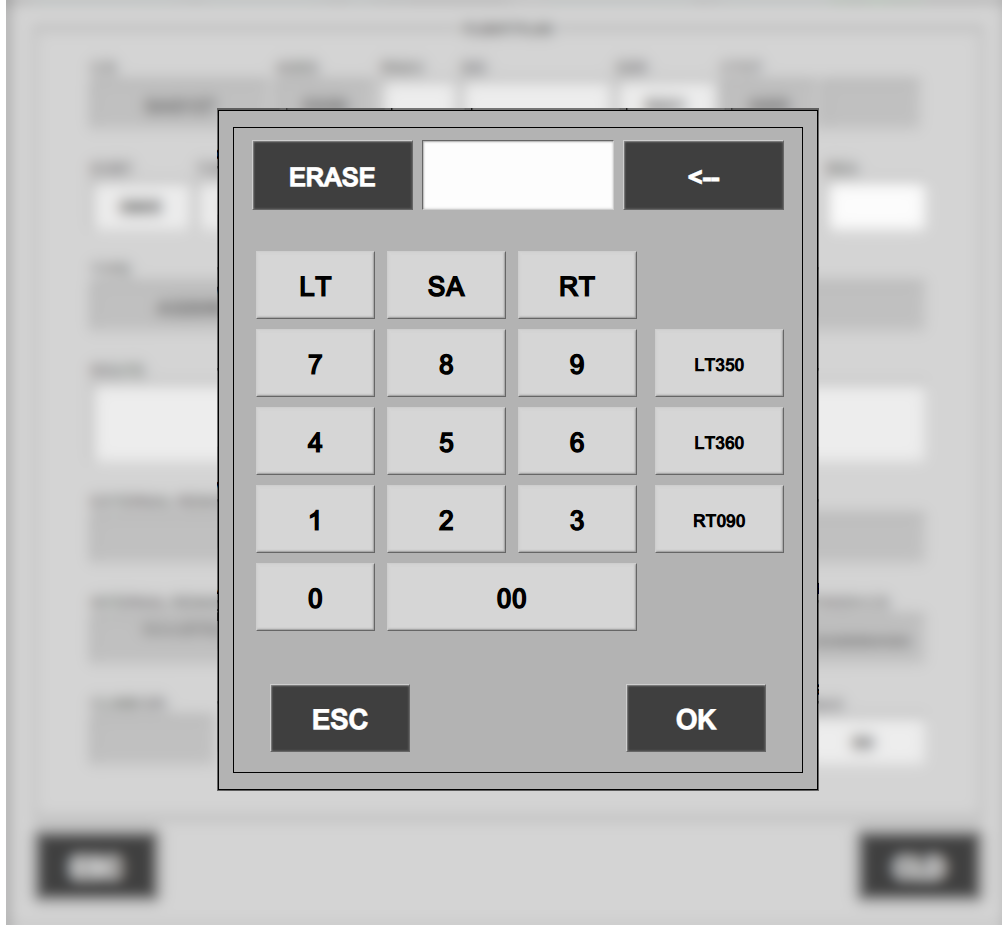
HDG MENU
- LT, RT, SA = "Left Turn", "Right Turn", "Straight Ahead"
- Preconfigured standard turns in right side for RWY04R ONLY! (LT350, LT360, RT090).
- Click in the number. Press ERASE to remove entire selection, click arrow back to remove last number.
- Click ESC to close the menu without changes
- Click OK to close the menu with the changes
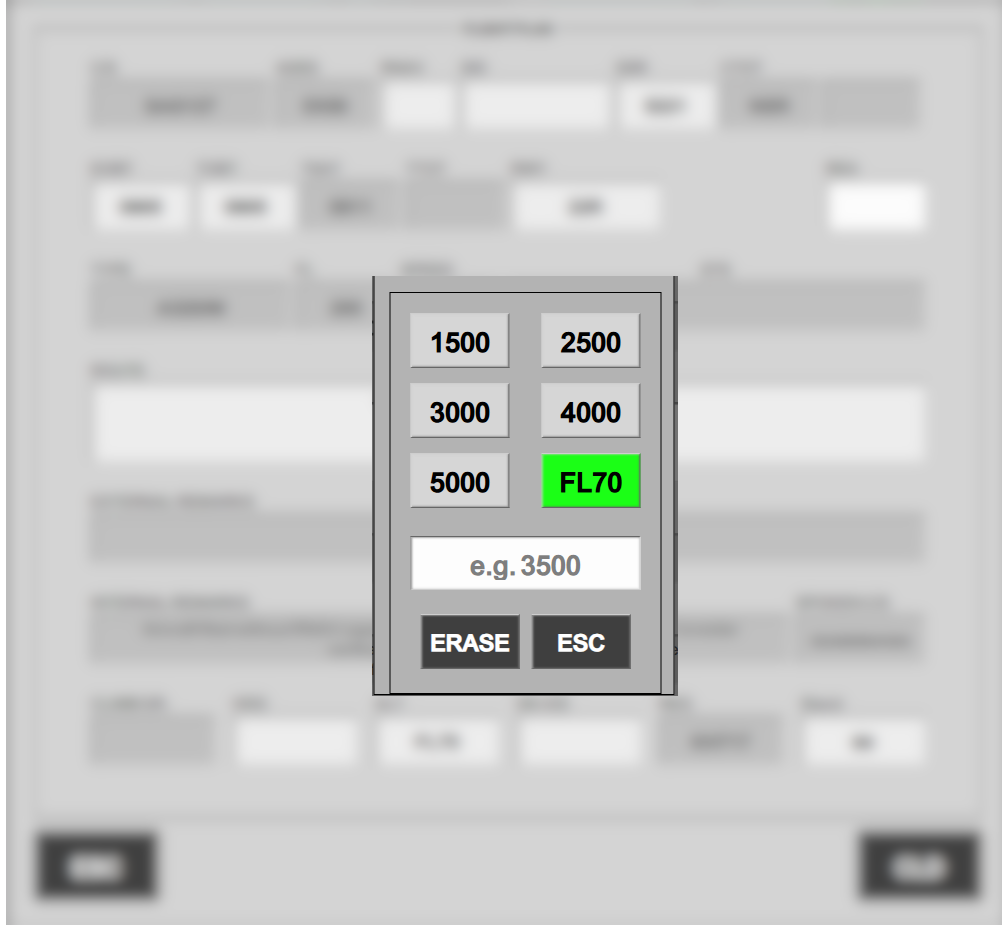
ALT MENU
- Select altitude or type in another altitude.
- Click ERASE to close menu without changes
- Click ESC to close menu with changes.
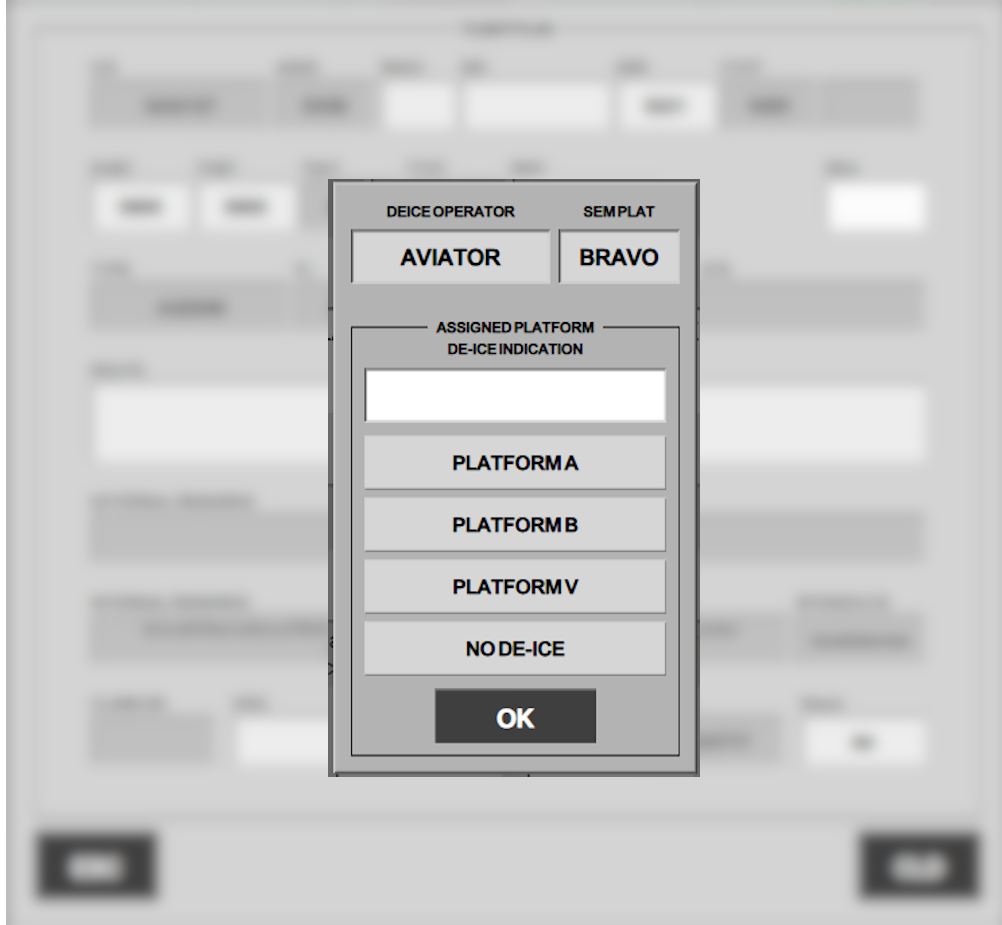
DE-ICE MENU
- DEICE OPERATOR and SEMPLAT shows you the handler, and which platform is preferred.
- Click on the options to select platform.
- Select NO DE-ICE only to remove a platform inserted. It is NOT needed to select this on every flight not requesting de-ice
- Click OK to close dialogue
A “Standard ATC Clearance” can be issued by reading the Departure information line, from left to right.
If a NON-SID departure is needed, this can be issued by either:
- Select HDG and ALT in the misc. fields at the bottom.
- Open SID menu and select SA3000’. (Straight Ahead, 3000ft).
Completion of ATC Clearance.
Only when the pilot has successfully read back his clearance, can you press the “CLD” button, to activate the flight plan.
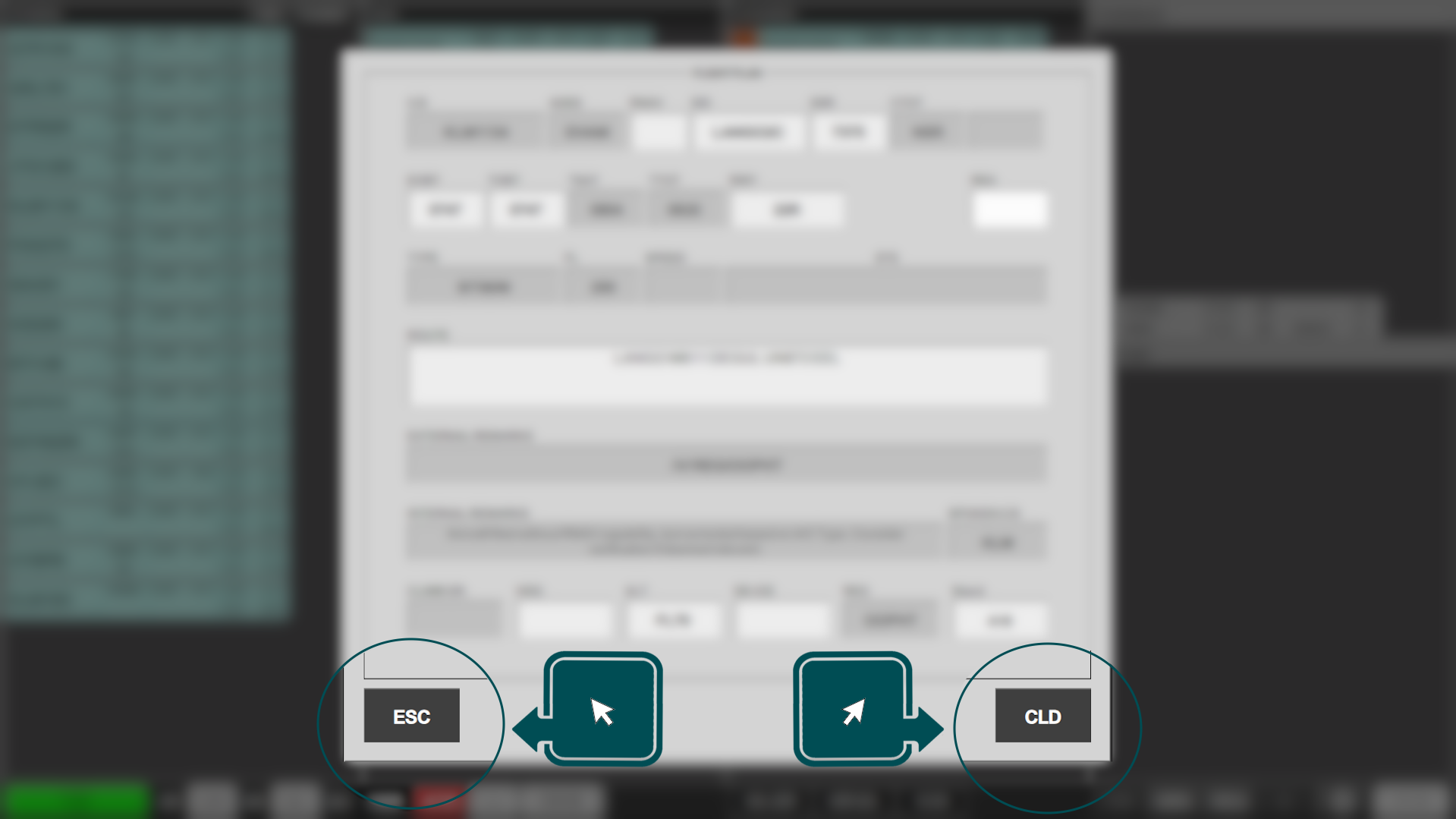
Once an aircraft is cleared, the aircraft moves into the CLEARED bay, and is automatically transferred to controller in charge of STARTUP and CDM management.
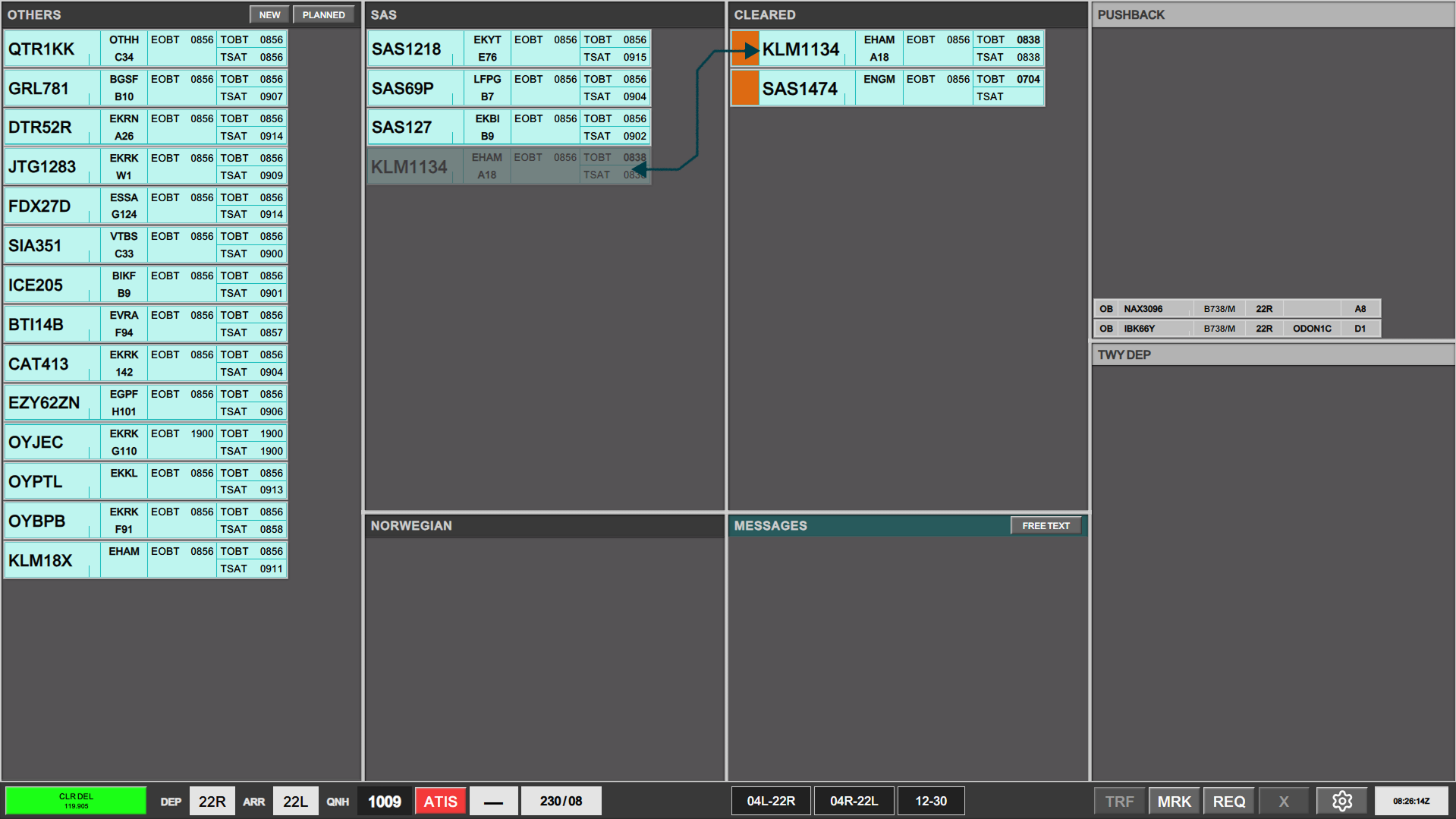
The SI field will light up in ORANGE indicating the transfer is completed, and you must send the aircraft to next frequency, as described in the strip.

Pre-Departure Clearance (PDC)
PDCs are available and "semi-autonomously" handled by Flightstrips.
A PDC is automatically processed provided that:
- PDC Request has no errors
- PDC Request is planned on an SID
- PDC Request does not contain custom remarks from pilot
If either of the above conditions are not met, a PDC must be manually processed.
Automatic PDC Process
For automatic PDCs:
- The controller will be prompted by the strip flashing in Purple color
- This indicates indicating that a PDC has been received from pilot.
- PDC will subsequently automatically move to the CLEARED by, in full Purple fill color.
- This indicates that a PDC has been send back to pilot
- Strip will after a delay remove the purple color if:
- Pilot has acknowledged the PDC
- Strip will after a delay move back to Planned Departures if
- Pilot did not acknowledge the PDC.
Manual PDC Process:
- Controller will be prompted with a Validation Status indicating a PDC requiring attention
- Opening ATC Clearance menu will reveal an extra button called “Revert to Voice Procedures”
- Clicking CLD will send the PDC to the pilot
- Strip moves to CLEARED bay in full purple color
- Strip will after a delay remove the purple color if:
- Pilot has acknowledged the PDC
- Strip will after a delay move back to Planned Departures if
- Pilot did not acknowledge the PDC.
- Clicking REVERT TO VOICE will cancel the PDC
- Strip remains in PLANNED DEPARTURE bay in full yellow color