Chapter 1 - Philosophies and Basic Features
Basic Features, Installation and Initialization guide to FlightStrips

TABLE OF CONTENT
Basic PhilosophyBasic Features

1 Basic Philosophy
FlightStrips is a program design to aid controllers in Copenhagen. It is not a gimmick it is as:
- Traffic Organization tool
- Coordination platform
- Flow mangement program
It is a vital program to run, to ensure a smooth session, especially with several controllers online.
FlightStrips is a mandatory requirement when sitting on a ground position in EKCH
1.1 Traffic Organization Tool
Flightstrips build itself on its real life counterpart, and is build around the old paper strip system, digitalized and optimized for use at Copenhagen Airport.
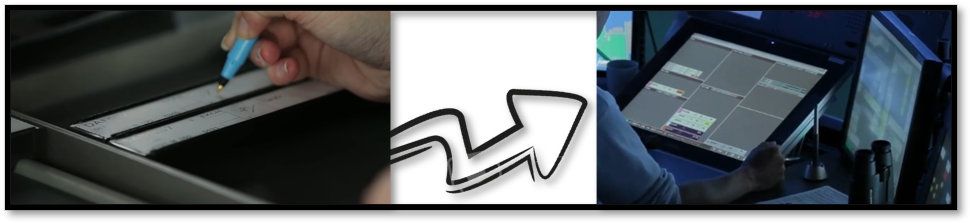
FlightStrips consist of a selection of "Scopes" specifically designed for each station, and its responsibilities, based either on Geopgraphical location of the position (TWR), or the Area of Responsibility (GND+DEL).
within each of these "Scopes" are a number of "bays" present each designed to mark the phase of flight the aircraft is currently is. These phases can be:
- Planned Departures
- Pushbacks
- Taxi-outs
- Takeoffs
- Airborne flights
- Flights on final
- Taxi-ins
The list in not exhaustive and is carefully tuned for any and all scenarios we can encounter on VATSIM.
As a controller you must manipulate these flights in and out of their respective bays, and onwards to other controllers, when you contact with them terminates.
FlightStrips is configured to work in tandem with Euroscope, managing STATES and OWNERSHIP of flight!!
1.2 Coordination Platform
Flightstrips fills the gap in lieu of the absense of COOPANS, the usual tool for airborne controllers to coordinate.
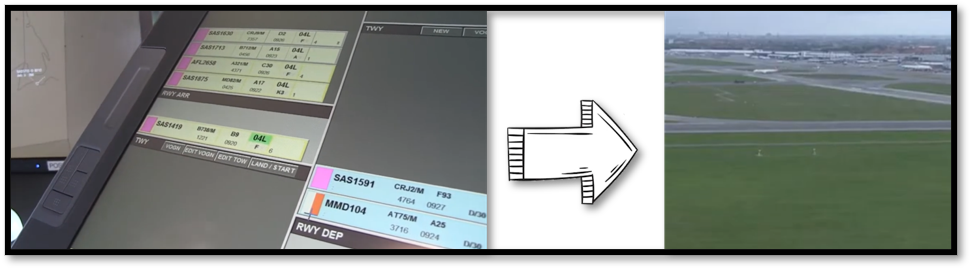
FlightStrips consist of various coordination tools, to ensure each flight is appropriately tracked by controllers. Coordination is at the very heart of FlightStrips, to work in an environment where we are not sitting next to eachother.
Coordination features includes
- Transfer, Assume and Ownership status of the flights through ownership of strips
- Tactical instruction and non-standard taxi coordination
- Direct messages, and memory aids to other controllers
- Tactical requests through helper strips for crossing, landing and departing traffic on non-standard runways.
- Automatic Go-Around coordination intergrated with COOPANS.
The list in not exhaustive and is carefully tuned for any and all scenarios we can encounter on VATSIM.
1.3 Flow Management Program
Flightstrips allows through its user interface to sequence traffic, manage startup times and direct intergration with CTOTs.
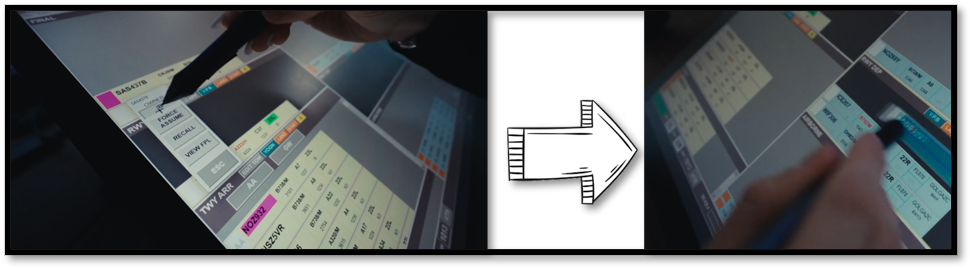
Automatic intergration with most of the plugins of Euroscope, Flightstrips allows you to take advantage of managing all phases of flight within the scope.
This includes features such as:
- CDM and vIFF intergration
- ECFMP mandatory routing intergration
- VACS intergration
- StopBars intergration (in progress)
- GSX stand/pushback intergration (in progress)
The list in not exhaustive and is carefully tuned for any and all scenarios we can encounter on VATSIM.
2. Basic Features
This section is to highlight the very basic features when you open FlightStrips for the first time. These are features not related to the different "scopes", "Bays" and "positions", but are general for FlightStrips.
FligthStrip will always consist of:
- Four collumns spanning across the scopes
- Variety of bays within those columns containing "Headers" and space for strips.
- A Task bar at the bottom
2.1 Columns
All standard scopes have 4 columns.
Columns may have different features and needs, but will "in general"
- Have Arrivals on left columns
- Have Planned Departures (Uncleared) on the right side.
some scopes will have slightly wider columns certain places to accomendate strips that contains more information.
2.2 Bays
Bays are making up the columns and contains a header and space for strips
Within the four columns described above are various "bays" located.
Each bay corresponds to the active phase of flight the aircraft is in.
They are logically build up, and have the general feature that:
- Departures "mainly" moves from RIGHT to LEFT
- Arrivals "mainly" moves from LEFT to RIGHT.
You move a strip from bay to bay, until it is transfered to next controller.
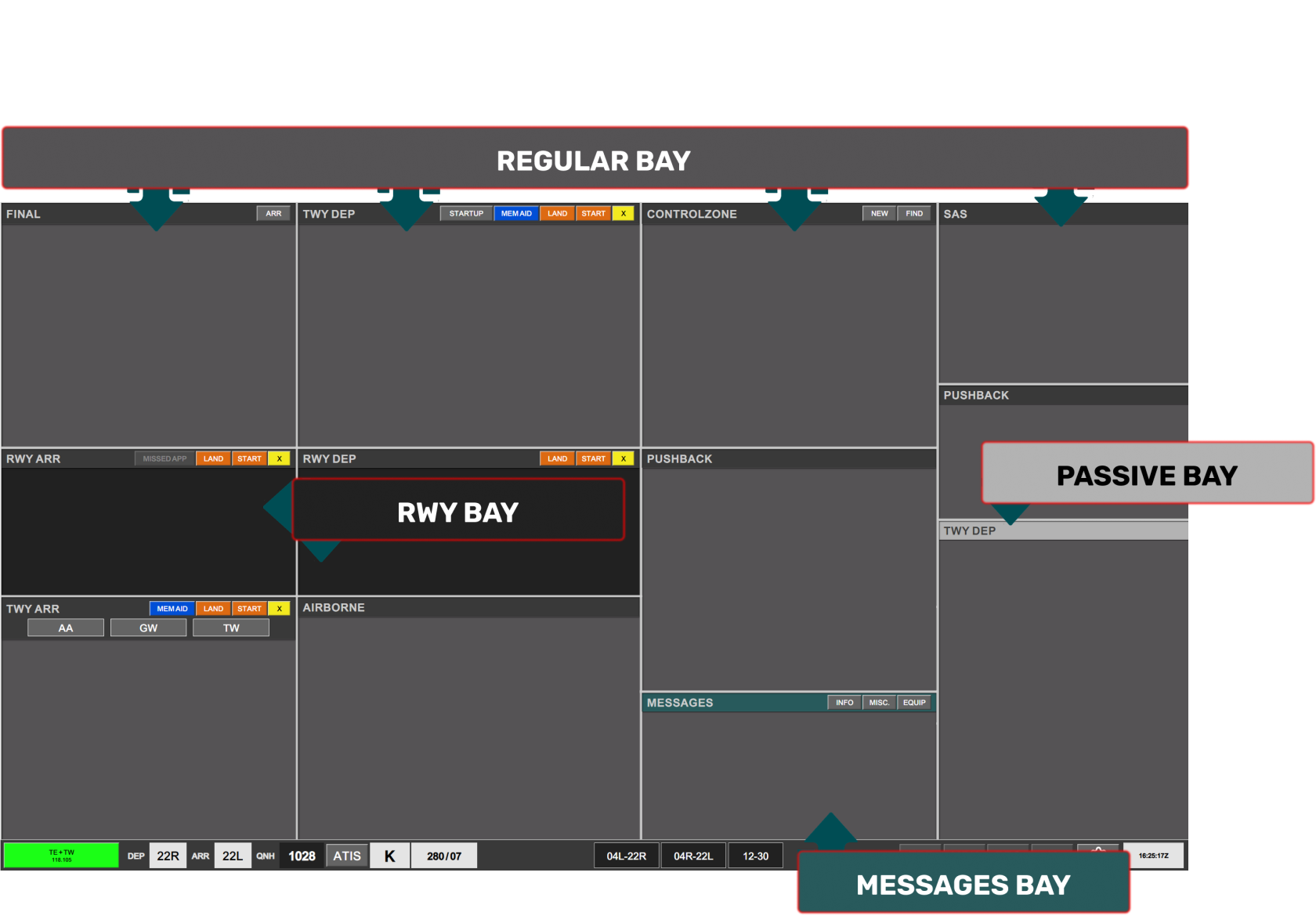
The bays you have on your scope have four different variations to easily distinguish certain capabilities
- Regulular Bay
- Gray background, with darker gray header. The normal bays you use.
- RWY bay
- Black Background. These are to signify that they correspond to an Active Runway.
- Passive bay
- Light Gray header. Bays there for your information but that you cannot manipulate in any way
- MESSAGES bay
- A special green colored header, reserved for messages in between controllers, not usable for Strips.
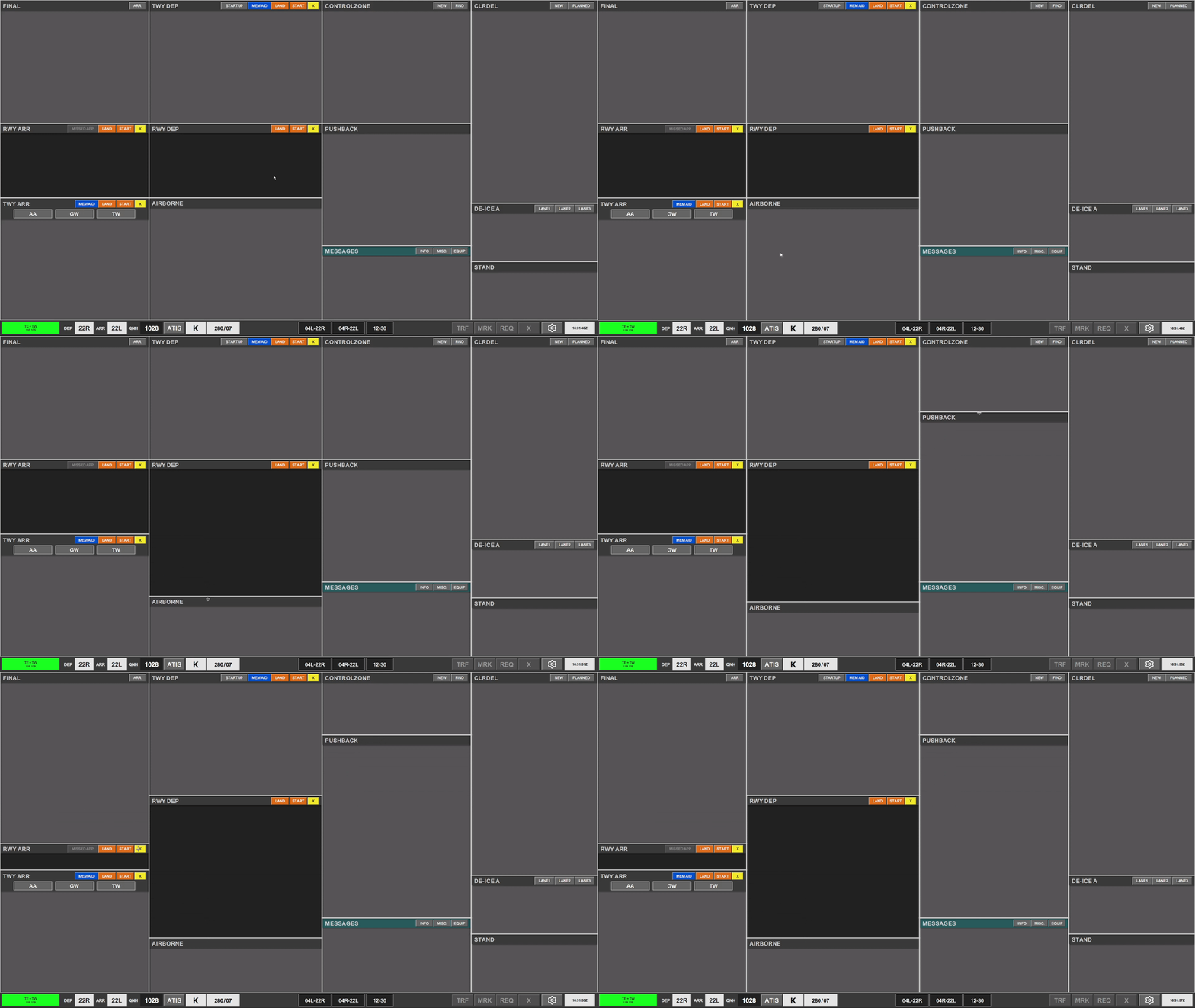
Each bay can be resized to be made larger or smaller depending on the amount of strips that are needed.
1.3 Task Bar
Common to all scopes is the Task bar, which enables various features relating to the operation of the airport.
It contains from left to right:
- Scope View
- Weather Information
- Runway Status
- Strip Action Icons

SCOPE VIEW
The scope view is accessed by pressing on the bottom left icon, opening up a row of scope selections.

FligthStrips will always select the appropriate scope when you log on, but there can be reasons for selecting another scope, for certain non standard situations.
An expanded view of other, more secondary scopes are available by pressing the arros on the left side. This is mainly non-airport based views, views in new windows, and views for split positions.

Additionally there is:
- RESET, to return to the default scope.
- FULLSCREEN icon to put the program into fullscreen mode.
WEATHER INFORMAITON ICONS
Displays the Weather and Runway in use information for the airport. Connects to VATIS and Euroscope Runway setup to sense correct selection
- DEP RWY / ARR RWY can be selected manually (Shows RED if different from other controllers setup)
- QNH Read from vATIS
- ATIS can be clicked to view full ATIS (Shows RED if ATIS is not set up for Airport)
- Current Information from vATIS
- Current Wind
RWY STATUS ICONS
Three icons displaying each of the three runway pairs. They are black by default.
- Can be selected as OPEN (Black, Default)
- Can be selected as LOW-VIS (Orange displayed)
- Can be selected as CLOSED (Red displayed)
STRIP ACTION ICONS
To the right of the runway status icons is the 4 strip action icon.
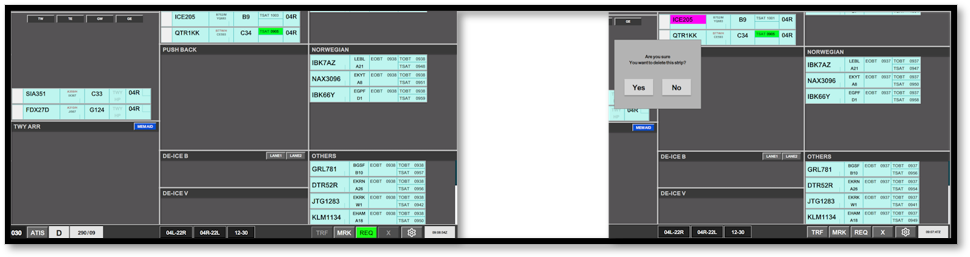
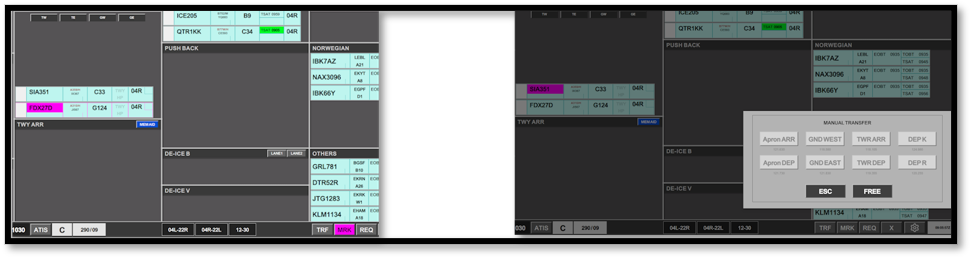
- TRF: After selecting a strip (click on callsign), clicking on TRF will open a menu to manually select any online controller to transfer a strip to.
- MRK: After selecting a strip (click on callsign), clicking on MRK will mark the strip by a purple outline for tactical purposes
- REQ: After clicking on REQ, click on any strip on your scope to request a transfer to you, to receive the strip.
- X: After selecting a strip (click on callsign), clicking on X will delete the strip.
MRK TRF
REQ X