
Welcome to Flightstrips - Getting Started
Welcome to FligthStrips
Please read this brief introduction of installation and setup before reading rest of manual, to understand installation and setup.
1 Download & Installation
FlightStrips is included with the Danish sector file package.
- There is no installation or download process as the program is web-based.
- There is no action required in Euroscope to activate the plugin.
1.1 Activation
When opening Euroscope the FlightStrips dialogue opens, prompting you to login if not already.
You need to be logged in to your VATSIM account to access FlightStrips. Do this by
- Press "Login"
- Login to your VATSIM Account
- Observe your user is shown in the login menu (highlighted in red below)
- Connect to Euroscope AND select appropriate primary frequency.
- Observe you are connected (There may be a "syncronization period as well")
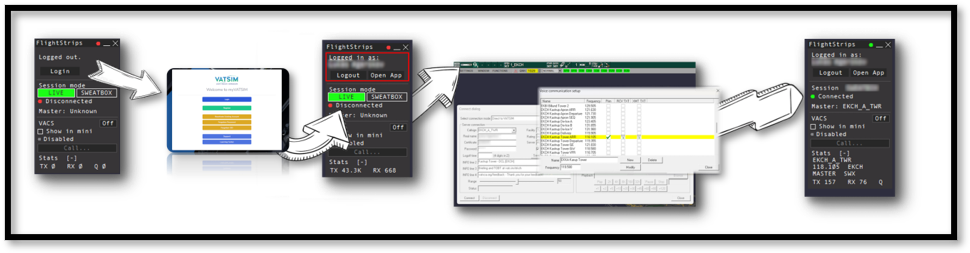
The login is saved for ~30 days, and will only need to be revalidated if not utilized within that time.
1.2 Opening FlightStrips
Once login is complete, you need to press "Open App" in the Flightstrips window.
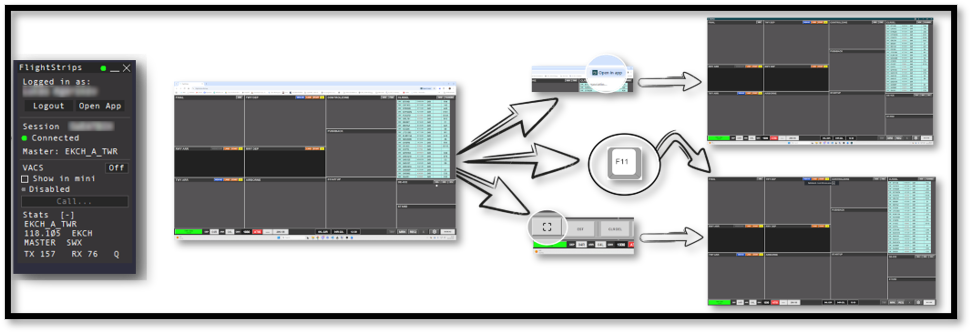
The App will open in your default browser window.
To optimize usage of Flightstrips, we recommend a dedicated screen and window for the program. do this by:
- Press "Open in App" in the top right of your browser.
- Enter fullscreen mode by clicking on the icon in the left borrom corner of FligthStrips.
- Press F11 or other appropriate fullscreen shortcut (depending on your browser).
You can at all times access FligthStrips via the website www.flightstrips.dk/app
FlightStrips is optimized for 16:9 displays, and will work to its fullest potential in a fullscreen mode on that ratio.